Adding a Contractor Manually
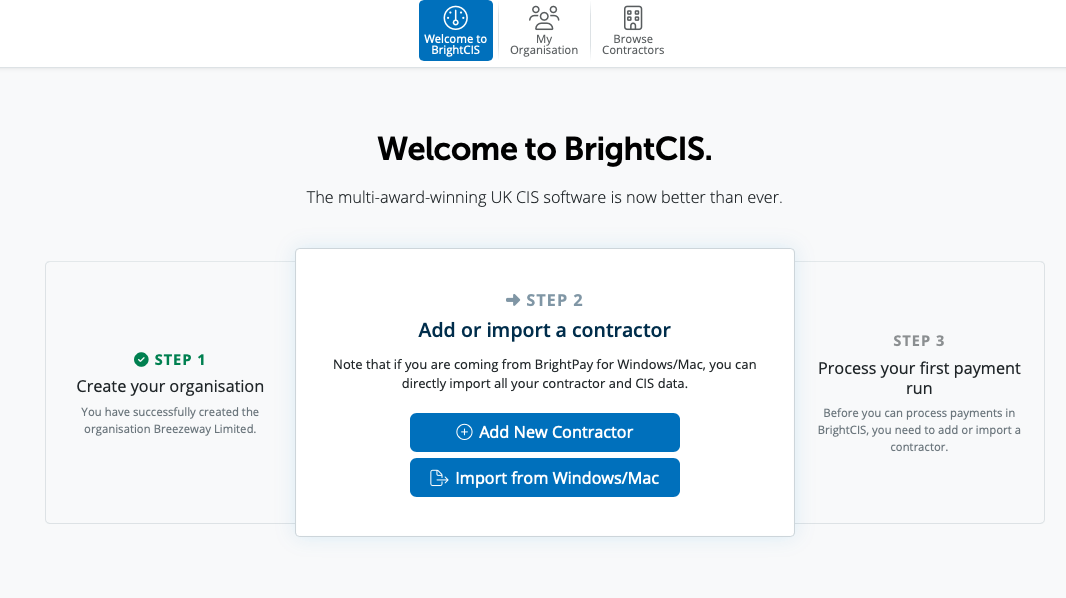
Step 2 is to Add or Import your Contractor into BrightCIS.
To manually create an Contractor in BrightCIS select Add New Contractor
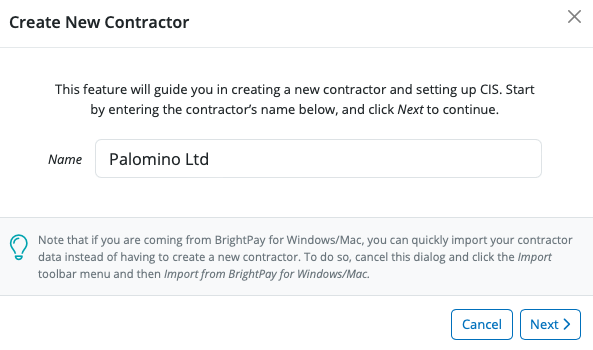
You can manually enter the name of your contractor. This is the name you have registered with HMRC and will appear on the payment and deduction statements for your subcontractors. Select 'Next'.
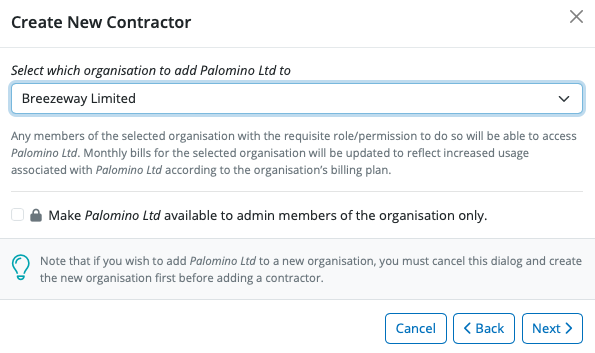
A new contractor has to be assigned to an organisation. Select the organisation you wish to add your contractor to.
If you wish you can mark a contractor as available to admin members of the organisation only. This means that only the owner and administrator members of the Organisation will be able to see this contractor when they access BrightCIS.
Select 'Next'
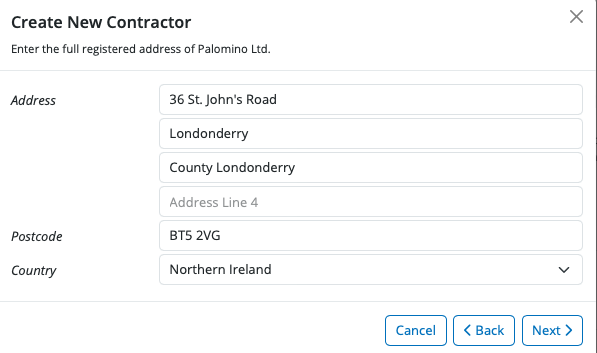
Enter in your contractor address – click 'Next'
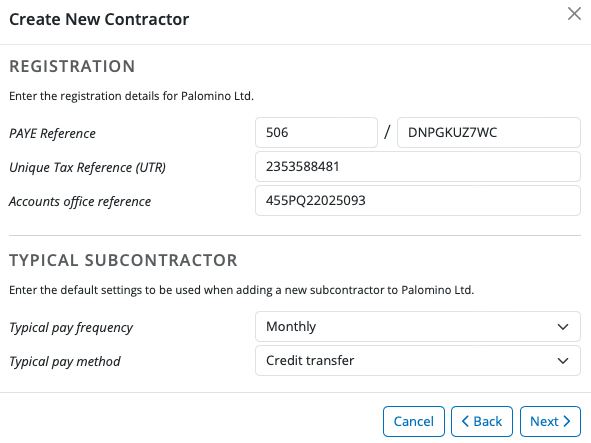
The contractor PAYE reference, Unique Tax Reference and Accounts Office Reference can be entered.
The typical subcontractor section allows the user to create settings that will be used as the default when adding a new subcontractor record.
These settings are for the typical pay frequency and pay method. Select the settings you require and select 'Next'
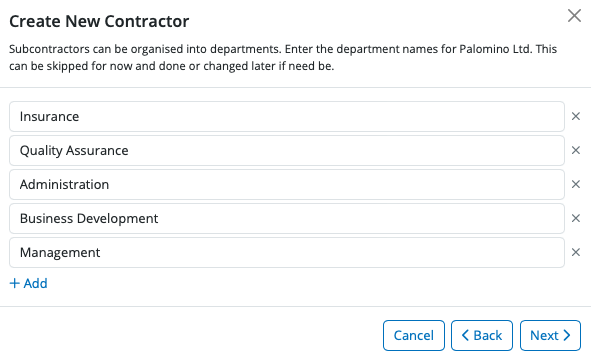
Contractors can be organised into departments, which can be used in payment processing and analysis. Enter the names of each department you require in the fields provided.
Additional departments can be added by selecting Add. More departments can be added in the future, if required. Click 'Next'
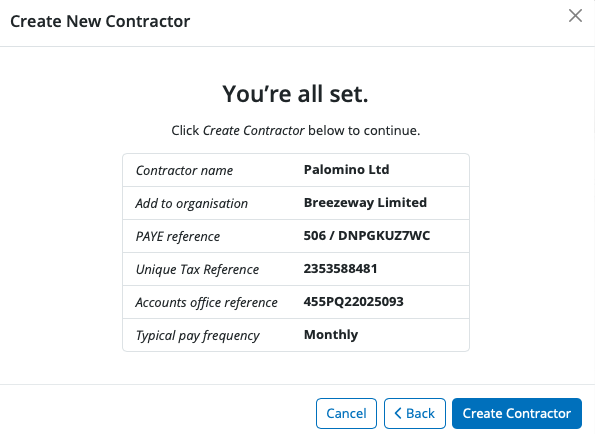
Select Create Contractor in order to create the contractor
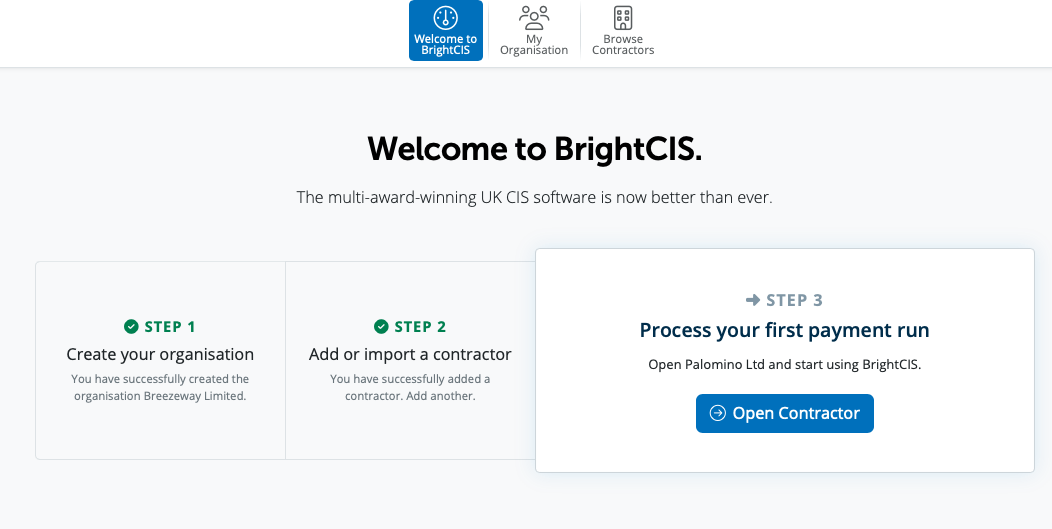
The contractor was successfully created and will now be listed on the contractor homescreen.

You will be then prompted for Step 3 to open your contractor to start processing your first payment.
Need help? Support is available at 0345 9390019 or [email protected].







