Importing a Contractor from BrightPay desktop
Step 2 is to Create or Import your Contractor into BrightCIS.
To import your Contractor and subcontractor data in your employer data file from BrightPay desktop into BrightCIS select Import from Windows or Mac.
Please note: Only employer data files from BrightPay desktop 2025-26 can be imported into BrightCIS.
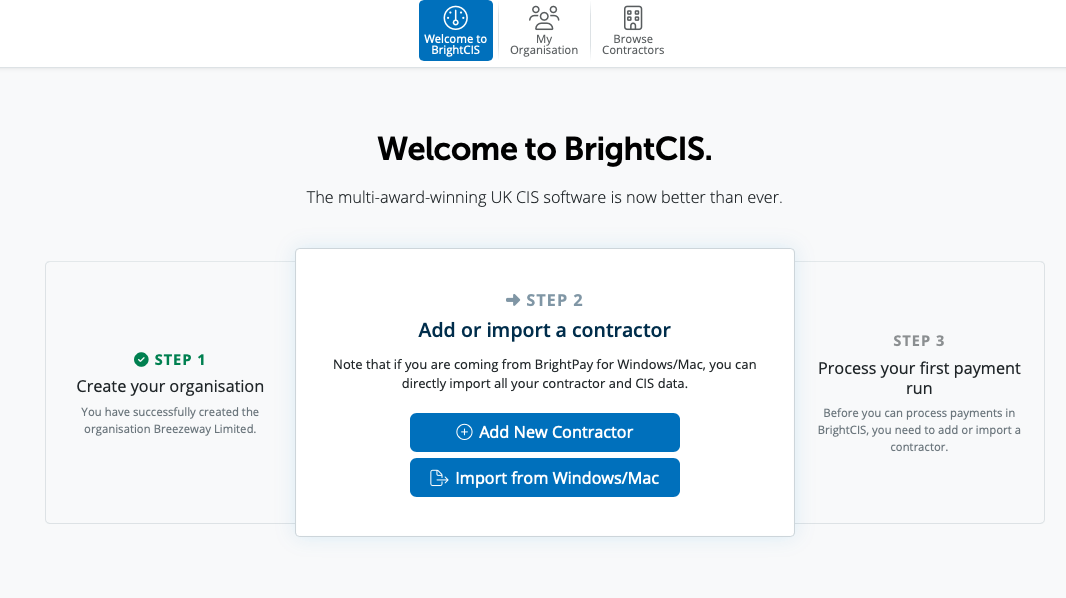
Or to start importing your Contractor and subcontractor data in your BrightPay employer data file into BrightCIS please select the Browse Contractors option.
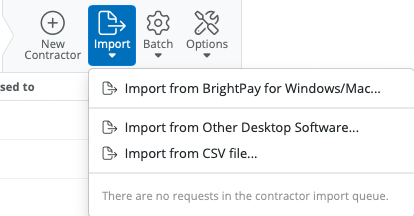
In order to import into BrightCIS from BrightPay for Windows or Mac please select the option of Import > Import from BrightPay for Windows/Mac
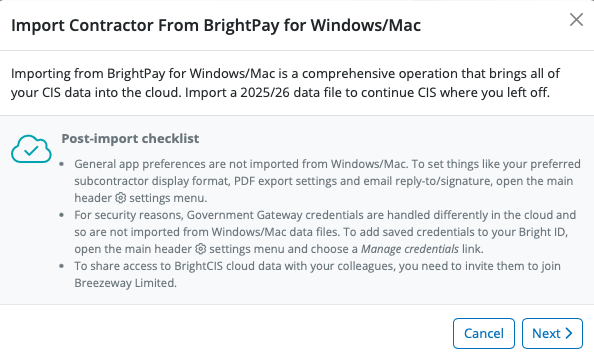
Every contractor imported or created in your account must be added to an organisation. Select the organisation you wish to import your BrightPay employer file into.
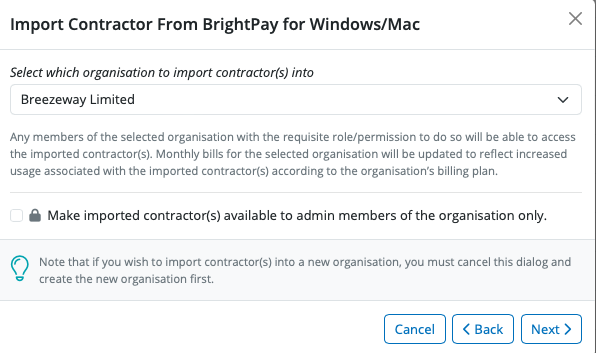
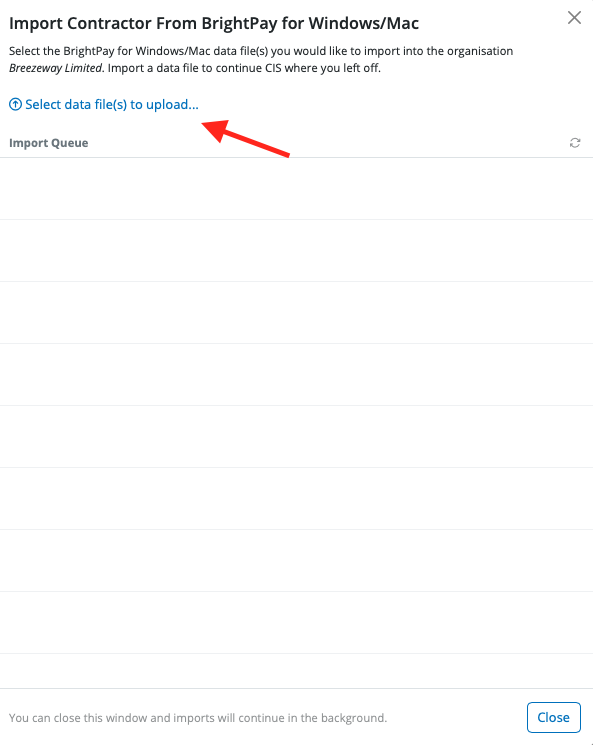
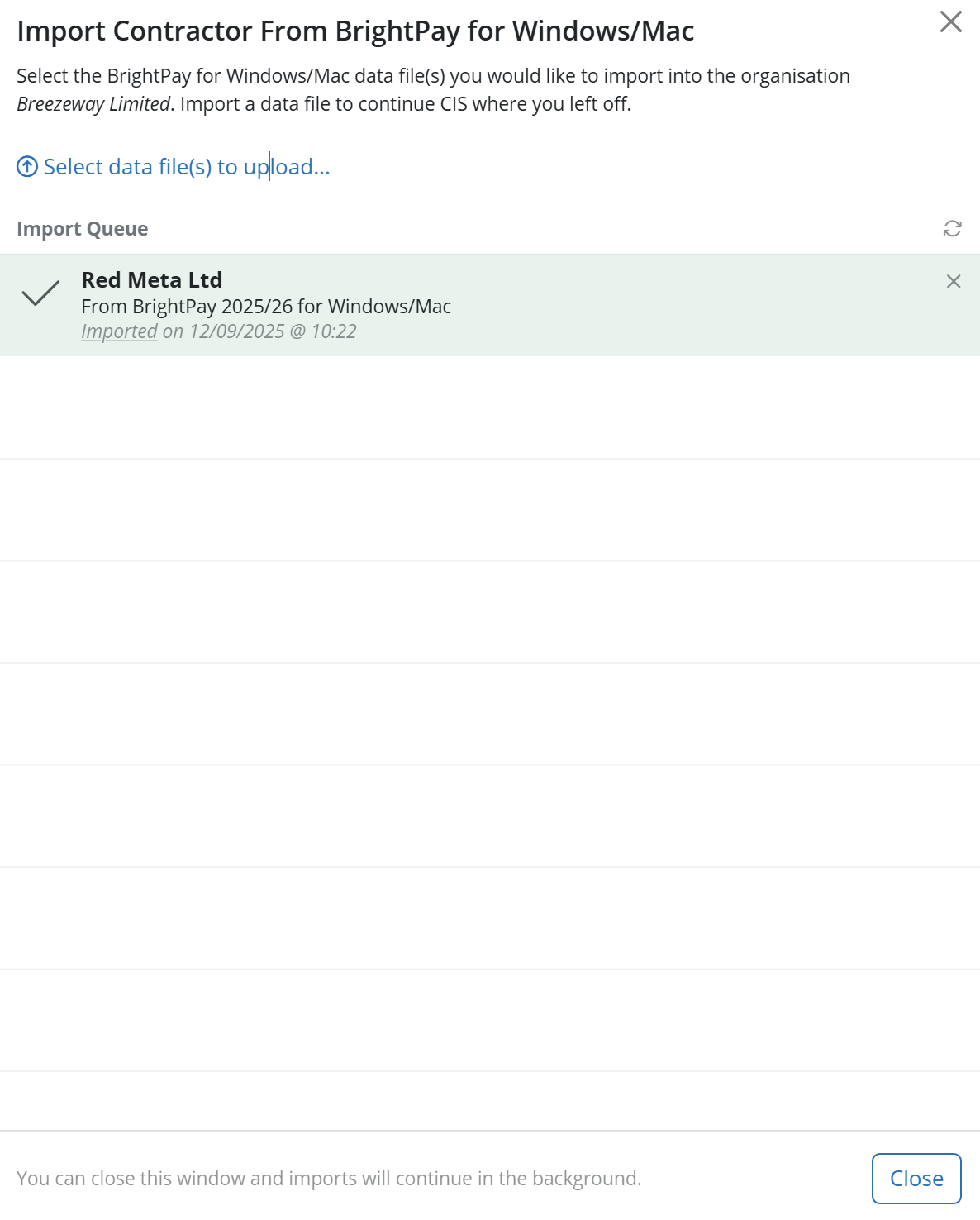
In order to import the contractor please click Select data file to upload....
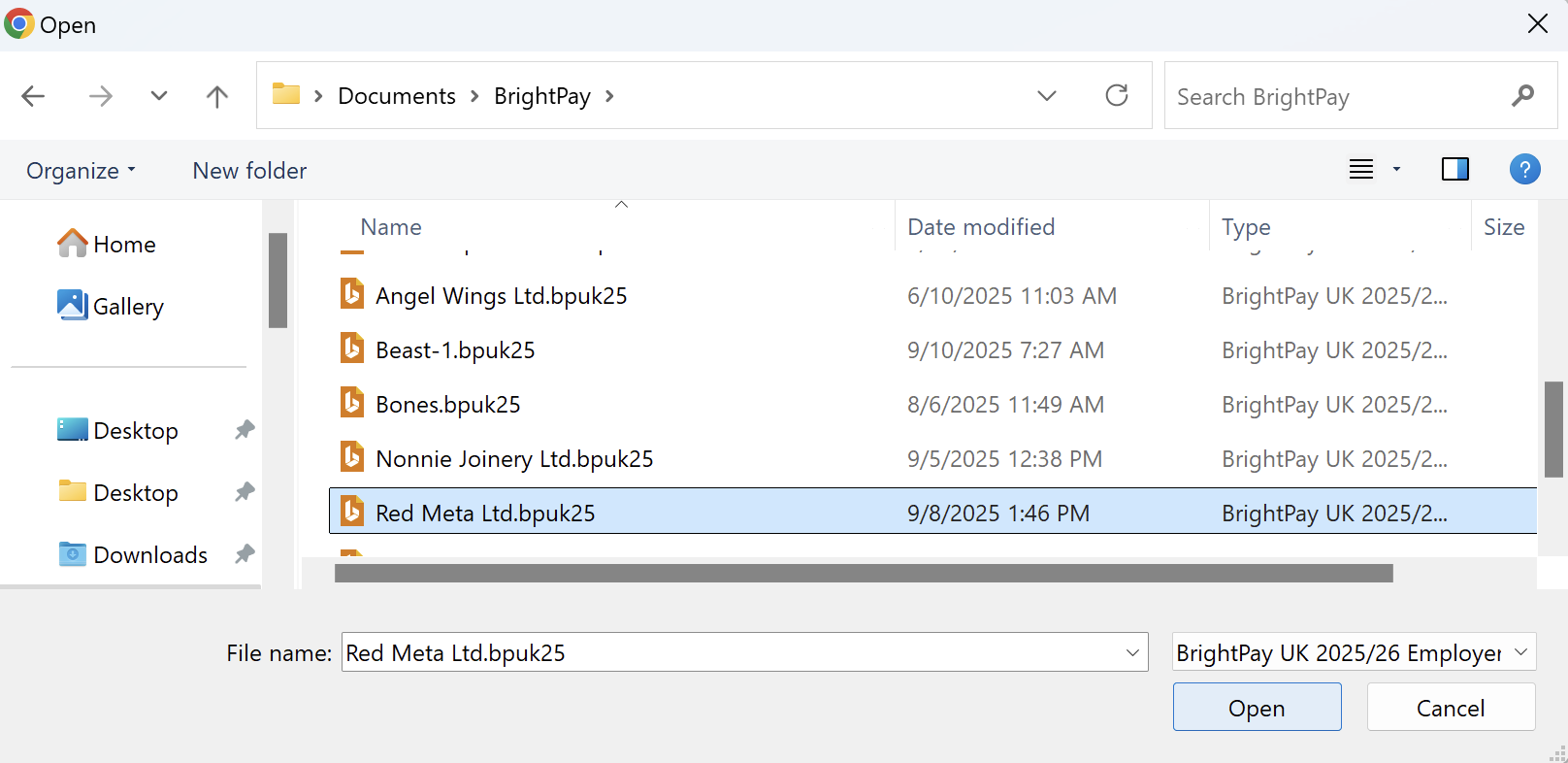
Then browse to where your BrightPay employer data files are saved. Please select the BrightPay employer data file you wish to import and click Open.
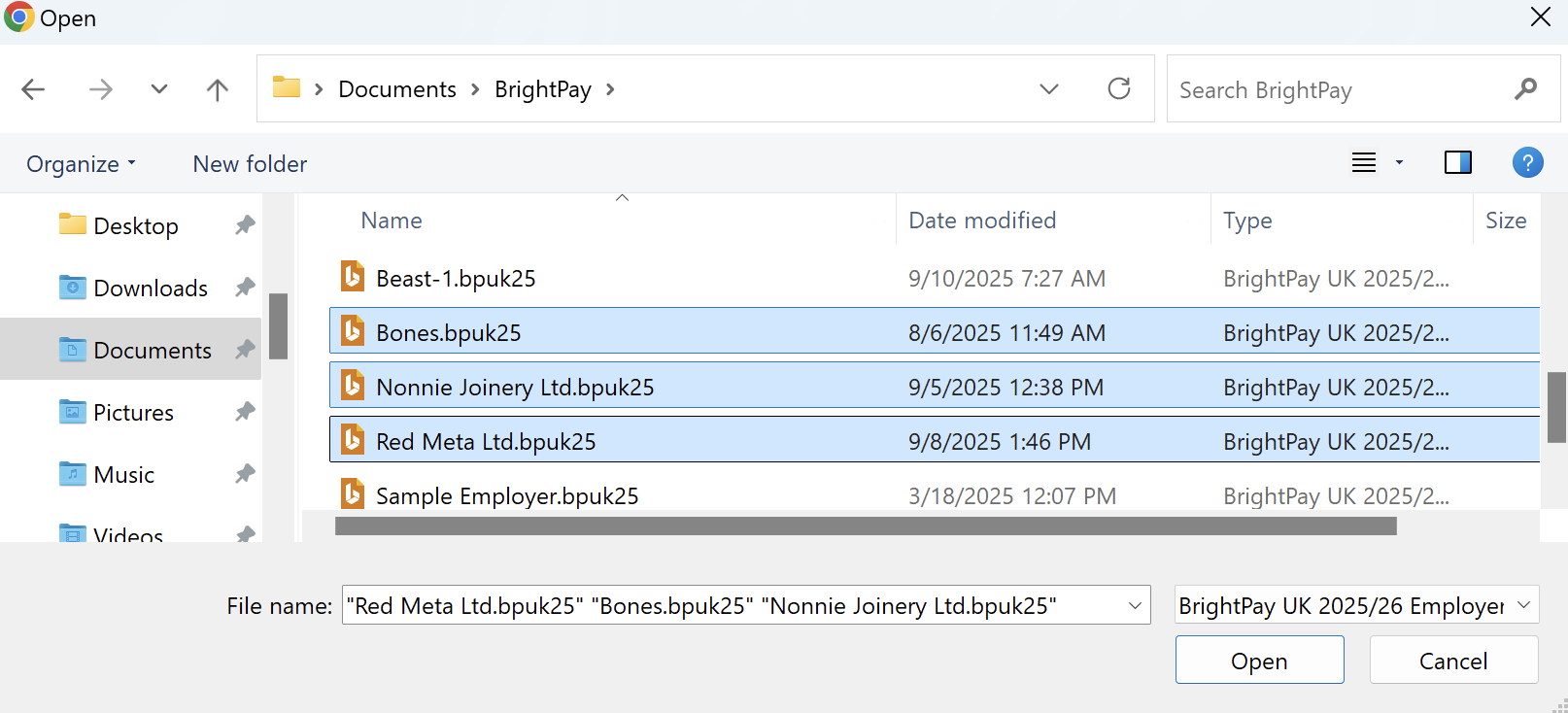
If you have multiple BrightPay employer data files you wish to import at the same time, select shift and highlight the multiple BrightPay employer data files you wish to import and then select Open.
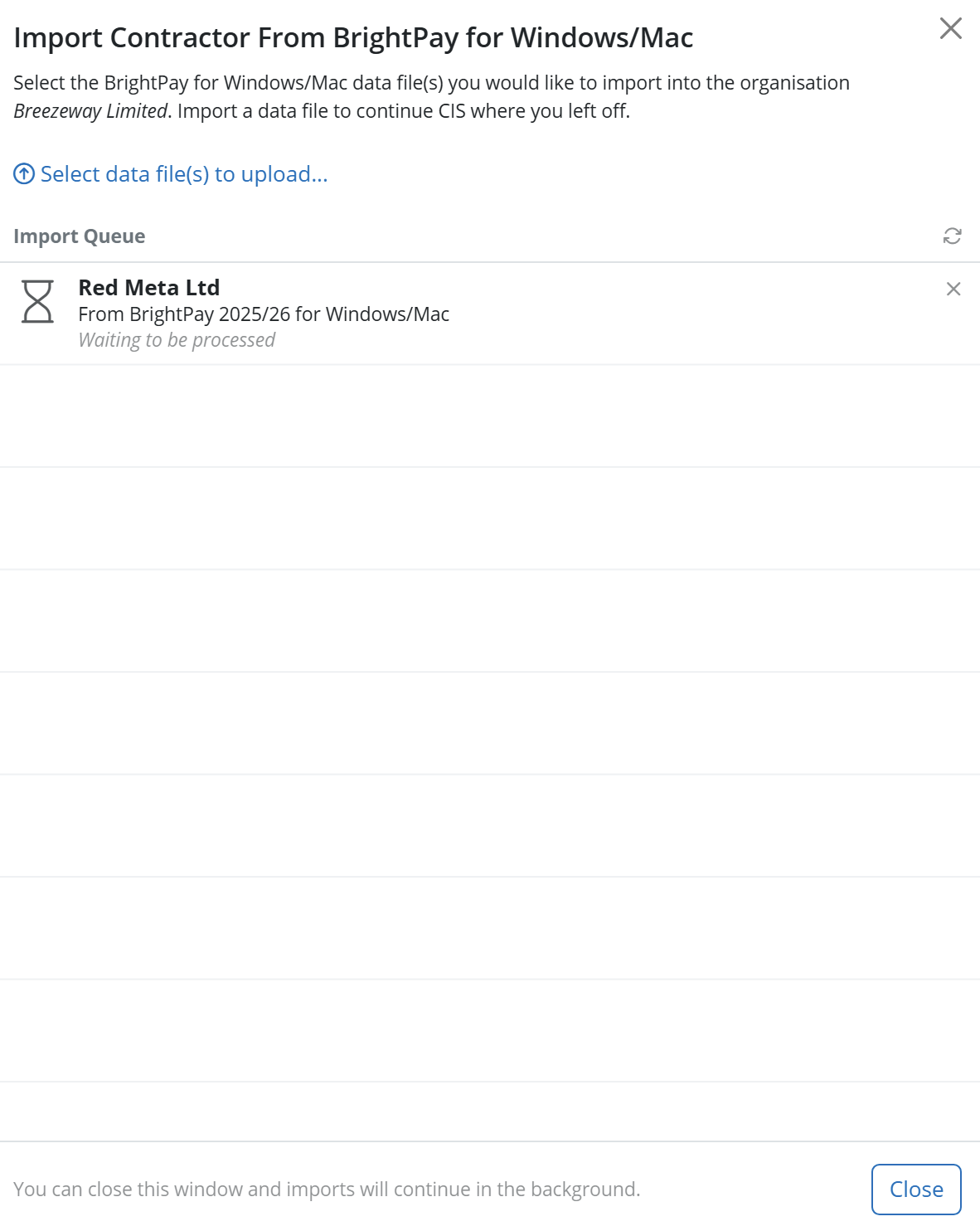
The BrightPay employer data files will start to import into BrightCIS. This typically takes about 30 seconds. The BrightPay employer data files will be highlighted in green once they are imported successfully
The Contractor details will be displayed on the Contractor homescreen.

Need help? Support is available at 0345 9390019 or [email protected].







