Paying Subcontractors by Credit Transfer & Creating a Bank File
In order to assist the user in paying subcontractors by credit transfer, a dedicated Credit Transfer Payments Report is available in BrightCIS.
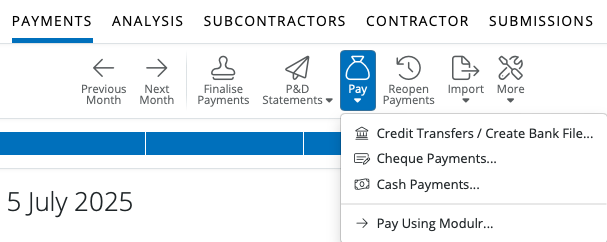
1) After finalising your subcontractor payments in Payroll, simply select 'Pay > Credit Transfers / Create Bank File...' on the menu toolbar.
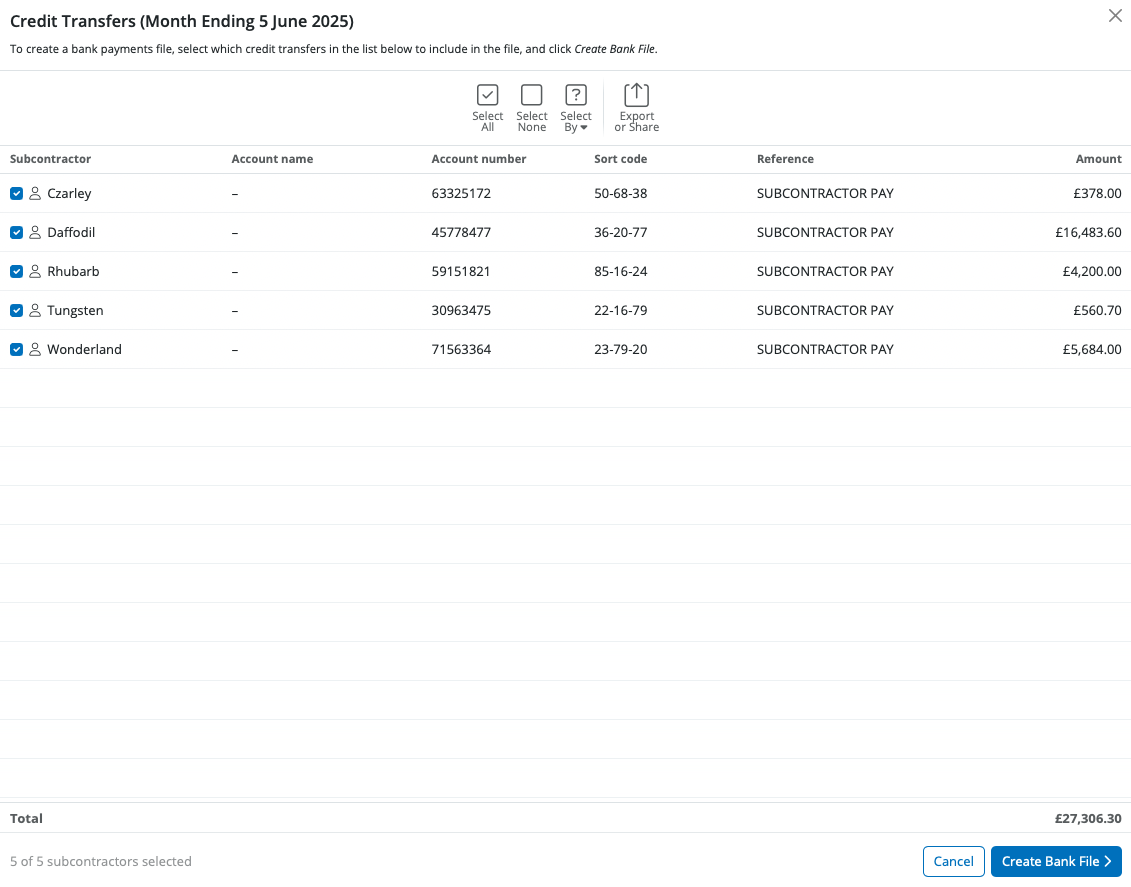
All subcontractors whose payment method is set to 'credit transfer' will be displayed on the screen and the report will show the breakdown of the credit transfer payments to these subcontractors.
2) To subsequently print/email/export the Credit Transfer Payments Report, simply click the Export or Share option on the menu toolbar.
Paying Subcontractors using a Bank Payment File
For subcontractors paid by credit transfer, a Bank Payment File can be created to upload through your banking software:
Please note: to be able to use this option, contractor bank details must first be entered within the Contractor utility and you must have approval from your bank to submit bank payment files to them.
1) Select the Credit Transfers/Create Bank File option.
2) Select the subcontractors you wish to include in the bank payment file on the left hand side.
3) To create the Bank Payments File, click Create Bank File on the menu toolbar.
4) Select the Bank Account you wish to pay from and select the appropriate bank File Format.
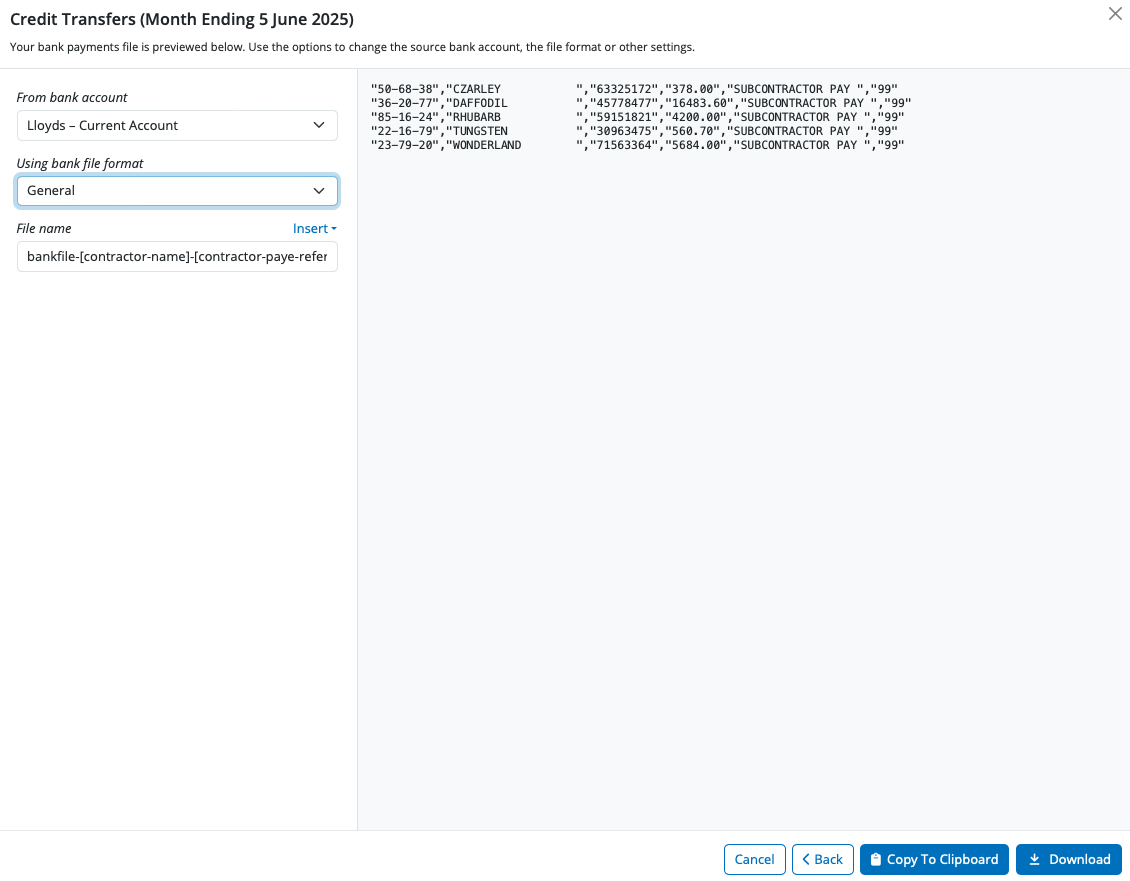
5) Click Download to save the bank file to your downloads folder. The bank payment file is now created and can be uploaded through your bank facility when ready.
Need help? Support is available at 0345 9390019 or [email protected].







