Finalising Subcontractor Payments
Once the subcontractor pay details have been entered for the period, click on ‘Finalise Payments’ at the top of the screen.
1) The ‘Finalise Payments’ screen will indicate the period being finalised and the pay date. Should you wish to amend the pay date, enter in the desired date or choose from the calendar.
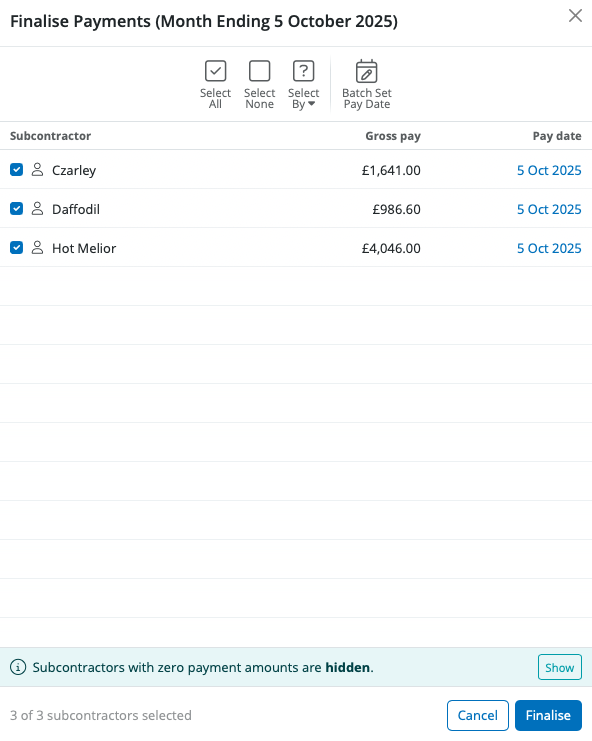
2) By default, all subcontractors with payment amounts included in the pay period will be marked for updating.
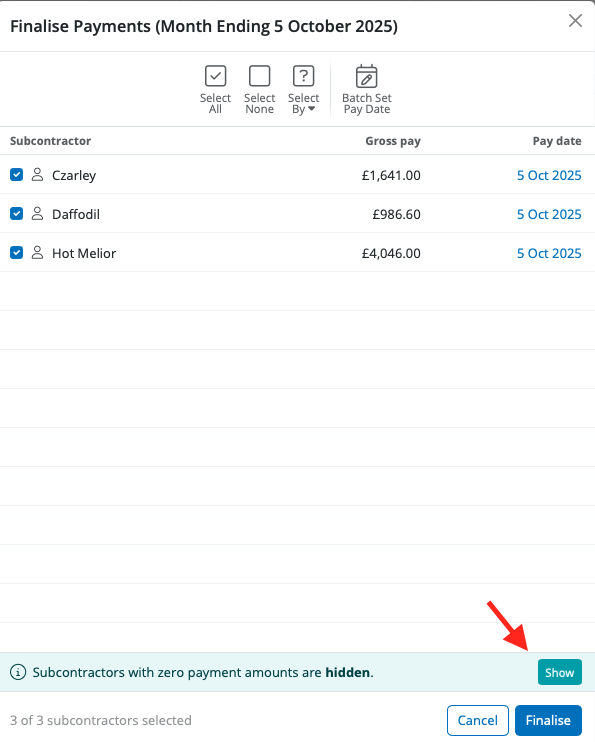
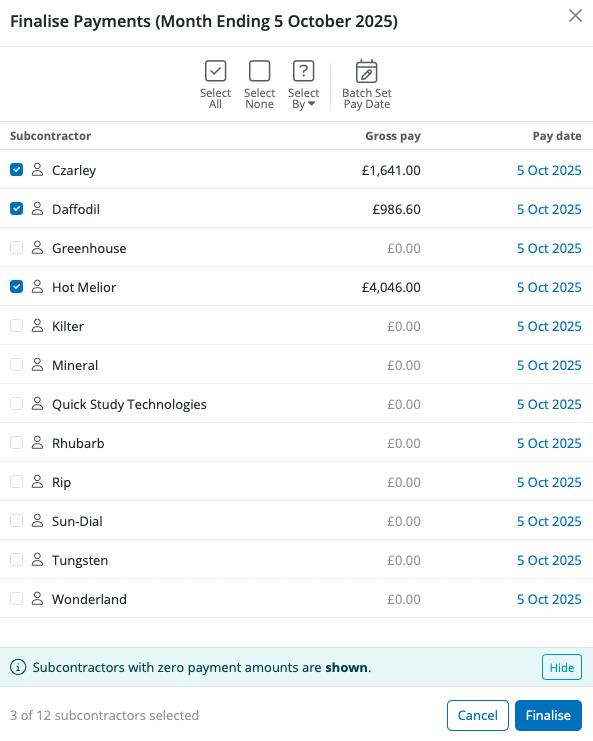
If you wish to update all subcontractors including the subcontractors with zero payment at the same time, simply click on ‘Show’. This will show all subcontractors with zero payments for the period on the Finalise Payments window. You can select if you wish to finalise these or not. Alternatively, if you only wish to finalise payments for some of the subcontractors, untick any subcontractors who you do not wish to include in the update and click ‘Finalise’. These subcontractors can be updated at a later time.
If you do not wish to see subcontractors with zero pay displayed on the Finalise Payments window simply select Hide.
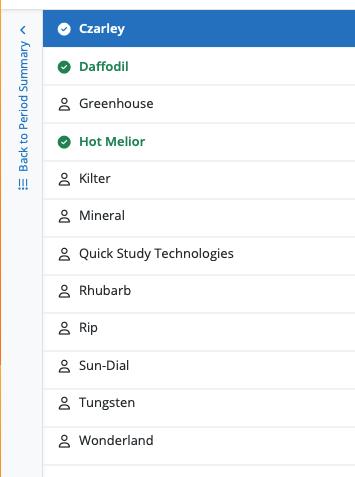
3) After clicking ‘Finalise’, the payment period will be displayed again. A green tick will be displayed next to a subcontractor's name and the subcontractor's name will be highlighted in green to indicate that their payment for this period has been finalised.
4) When all payments for the tax month have been finalised, BrightCIS will offer to create a CIS300 monthly return for submitting to HMRC.
The CIS300 informs HMRC of the payments made to subcontractors in the tax month.
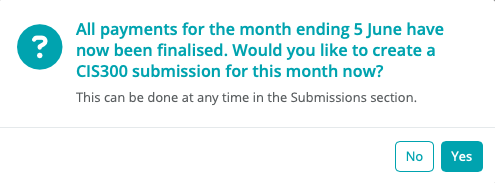
5) If you select "Yes", you will be brought to the Submissions utility to complete and send the return to HMRC.
Alternatively, the CIS300 can be manually created at any time by accessing the 'Submissions' utility > 'New' > 'CIS 300 Monthly Return'.
Need help? Support is available at 0345 9390019 or [email protected].







