Subcontractor Payment Details
To add a new subcontractor to BrightCIS, open the contractor and select > Subcontractors > New.
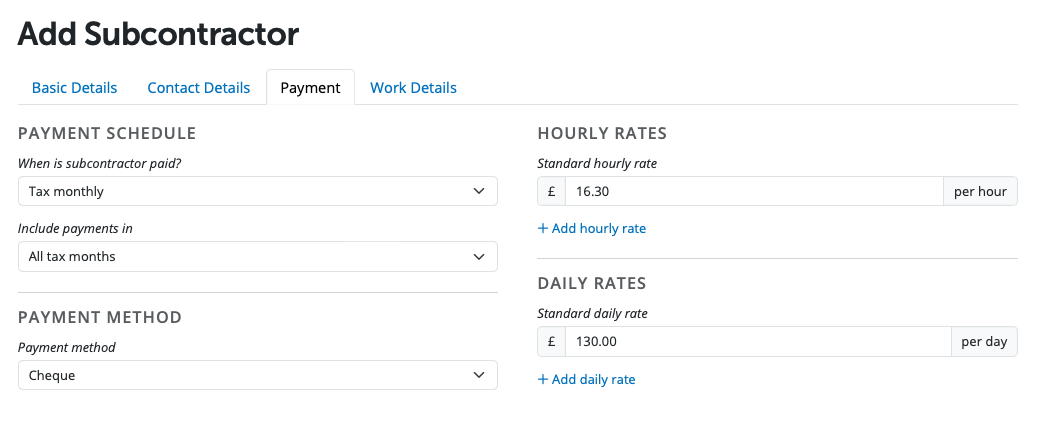
Complete the Payment Details for a subcontractor as follows:
When is the Subcontractor Paid?
Select the subcontractor's pay frequency. BrightCIS caters for the following subcontractor pay frequencies:
• Tax Monthly
• Tax Weekly
Include Payments In
You can choose to include payments for all tax periods or alternatively, you can indicate a range of tax periods to include payments for by selecting a period from and to.
Hourly rate(s)
If applicable, enter the subcontractor's standard hourly rate in the field provided. If more than one hourly rate applies to the subcontractor, click "Add Hourly Rate" to set up another. Enter a description of your choice for the additional hourly rate and indicate whether this hourly rate is to be classified as an overtime rate.
Daily rate(s)
If relevant, enter the subcontractor’s standard daily rate in the field provided. If more than one daily rate applies to the subcontractor, click "Add Daily Rate" to set up another. Enter a description of your choice for the additional daily rate and indicate whether this daily rate is to be classified as an overtime rate.
Please note, weekly and monthly pay can be added in the payment section.
Payment Method
Select the subcontractor’s payment method from the drop-down menu – cash, cheque or credit transfer. If paying by credit transfer, the subcontractor’s bank details must be entered in order to pay the subcontractor using the bank payment facility in the software.
YOUR SUBCONTRACTOR RECORD IS NOW COMPLETE. CLICK 'SAVE' TO SAVE THE SUBCONTRACTOR RECORD.
Need help? Support is available at 0345 9390019 or [email protected].







