Subcontractor Verification Request
When a Contractor engages the services of a subcontractor, the Contractor must verify the Subcontractor details with HMRC BEFORE the contract starts in order to determine the tax treatment of payments to that Subcontractor.
Please note: since April 2017 HMRC will no longer accept requests for Subcontractor verifications by telephone – all such requests must be submitted online. HMRC will only allow 100 subcontractors on the Subcontractor Verification Request.
To send a verification request using BrightCIS, simply select "Submissions" on the menu toolbar.
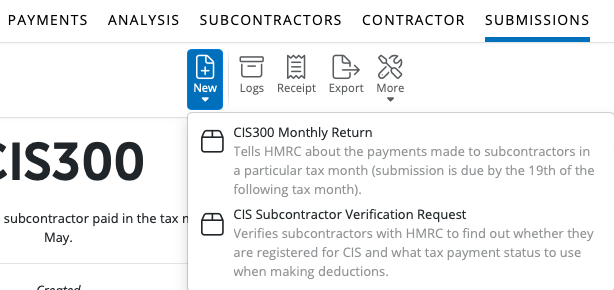
1) Click "New" on the menu toolbar and select CIS Subcontractor Verification Request
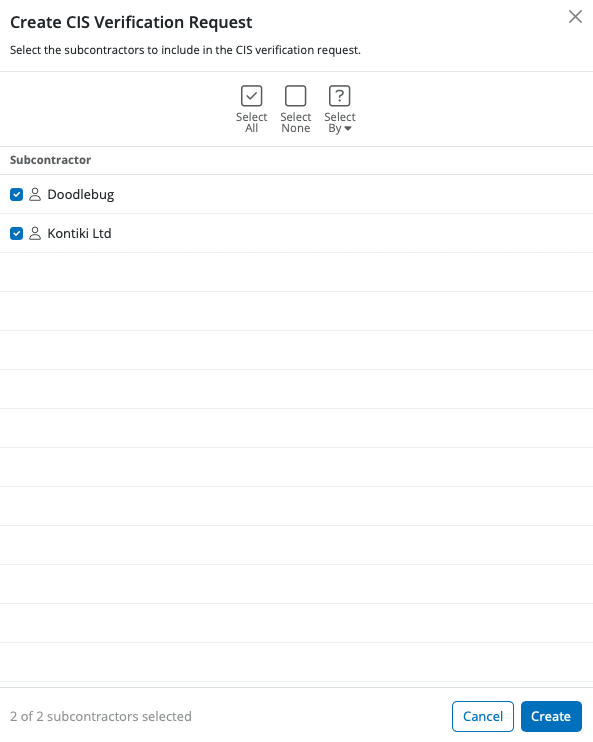
2) Select the subcontractors you wish to include in the verification request and click "Create".
The contents of the verification request will be displayed on-screen. The verification request can be printed, emailed or exported at any time before or after its submission to HMRC.
3) When ready to submit to HMRC, click "Send Now".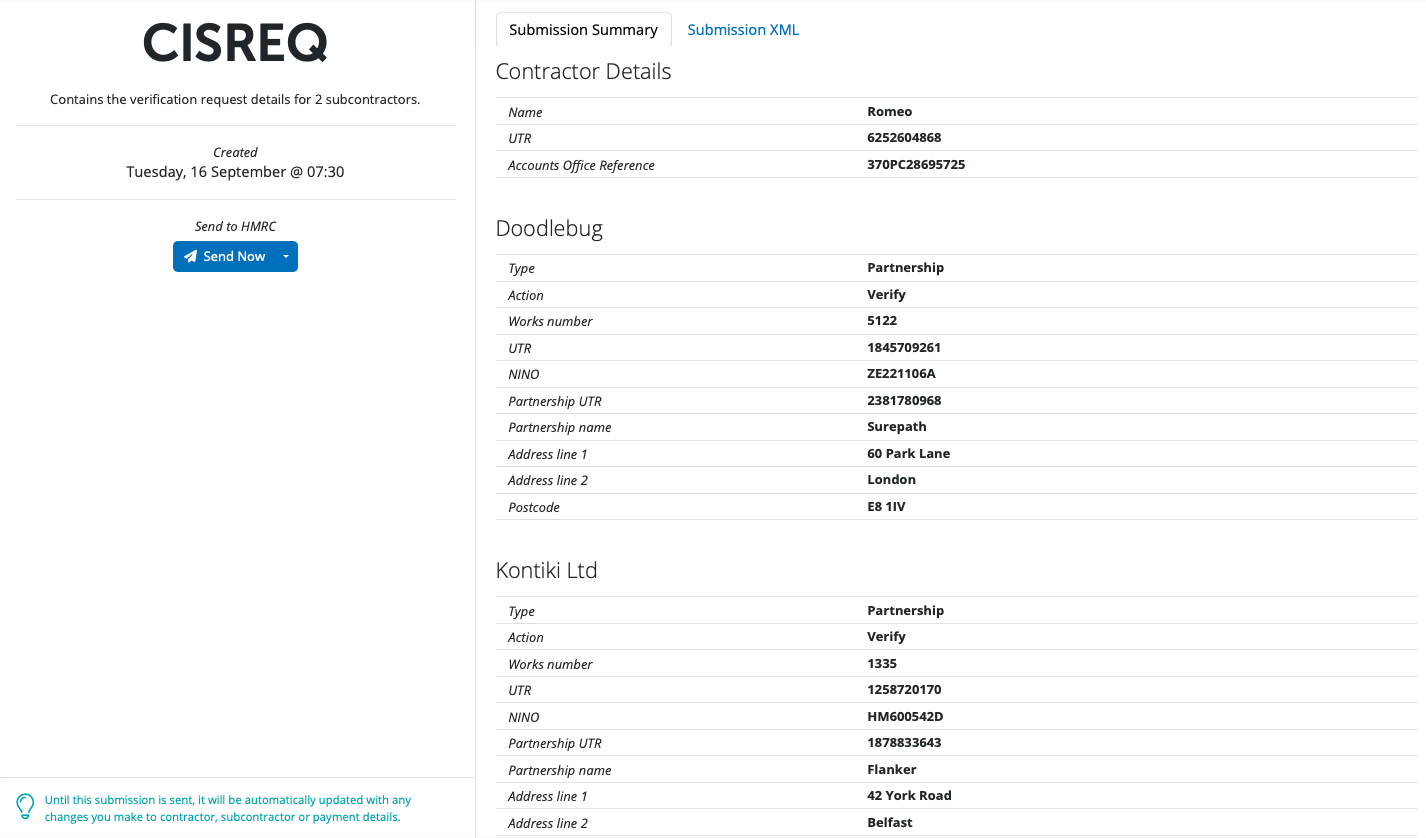
4) Confirmation details will subsequently appear on-screen to indicate that your submission has been answered by HMRC.
5) Should your submission fail, simply click on the 'Details' button for more information on why your submission has been rejected by HMRC and correct your subcontractor information where required.
Once the verification request has been submitted, the subcontractor details can be updated. To update the subcontractor records with the tax payment status and the verification number in the response from HMRC, click "Update Subcontractors".
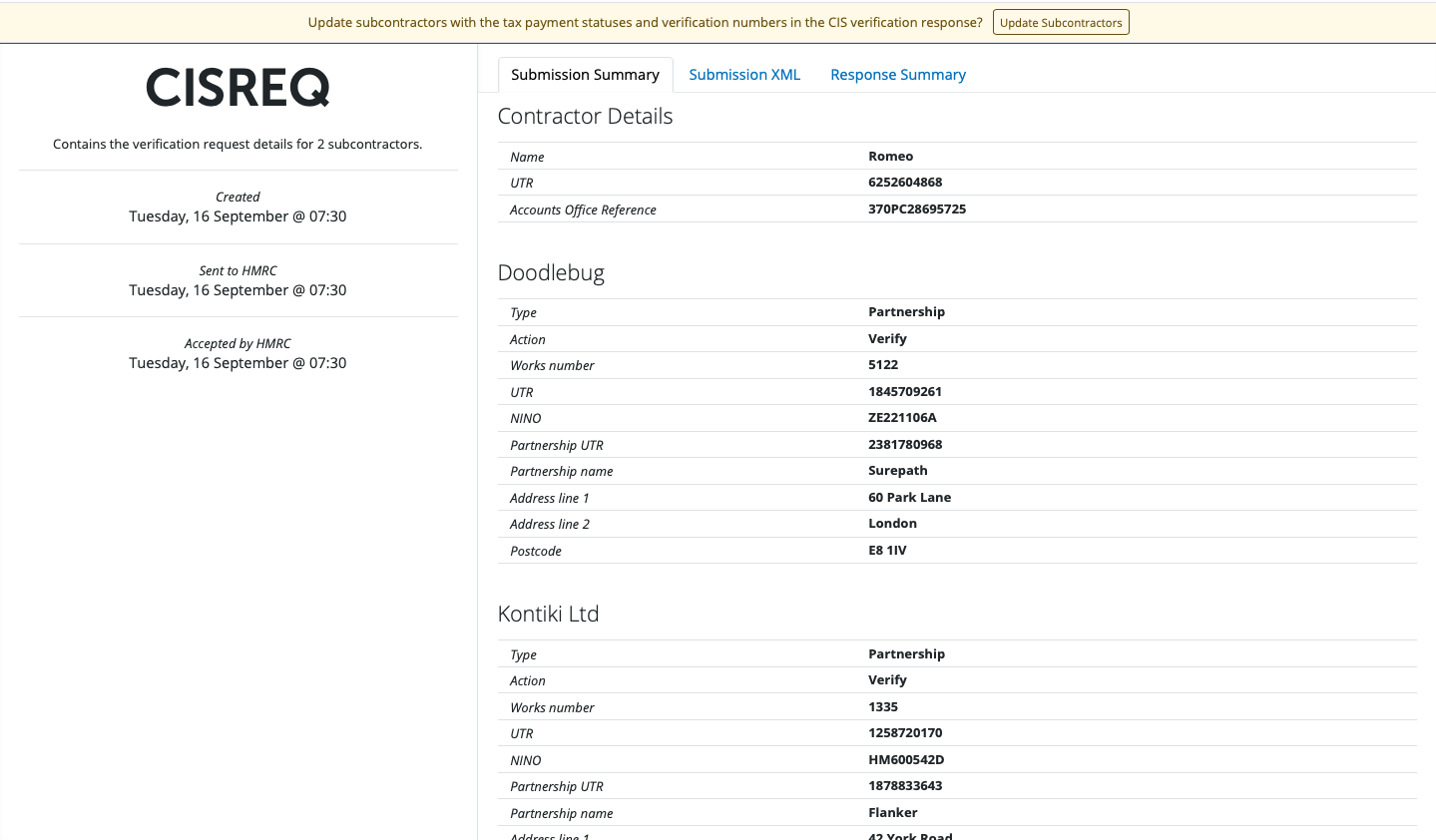
Once the subcontractor records are updated, this will be indicated by a green Verified box under the Verification heading in the Subcontractor's profile and the submission will show that it has been accepted by HMRC.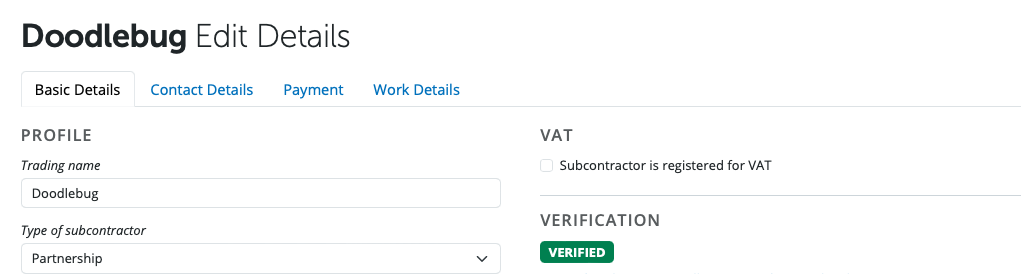
Please note: verification requests can also be created by accessing the "Subcontractors" menu and selecting "Verify Subcontractors".

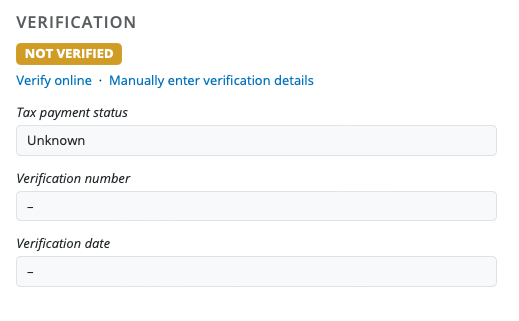
Alternatively by selecting a subcontractor in the Subcontractors section > Basic Details > Verify Online.
Need help? Support is available at 0345 9390019 or [email protected].







