Downloading/Printing/Emailing Multiple Reports
After you have created or ran your reports, to download/print/email multiple reports in BrightPay:
1) Click 'Export or Share' on the menu toolbar and select 'Export/Share PDF Document (s) for Multiple Reports'....
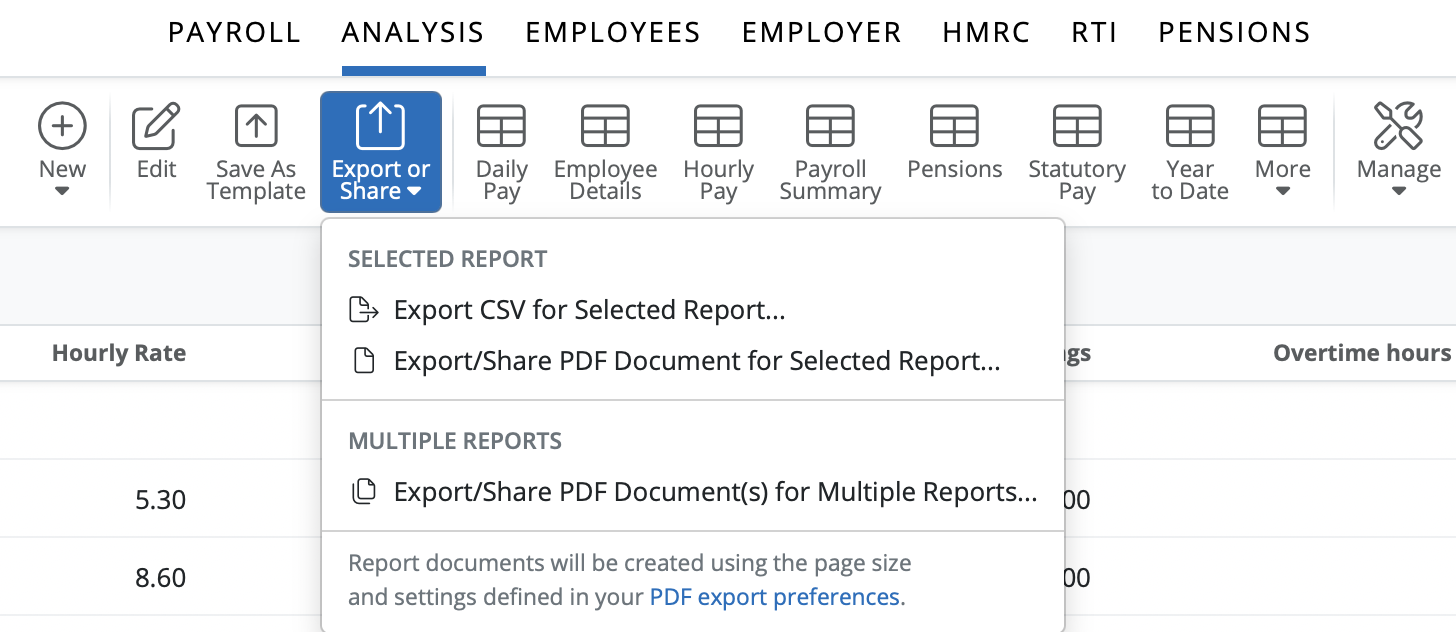
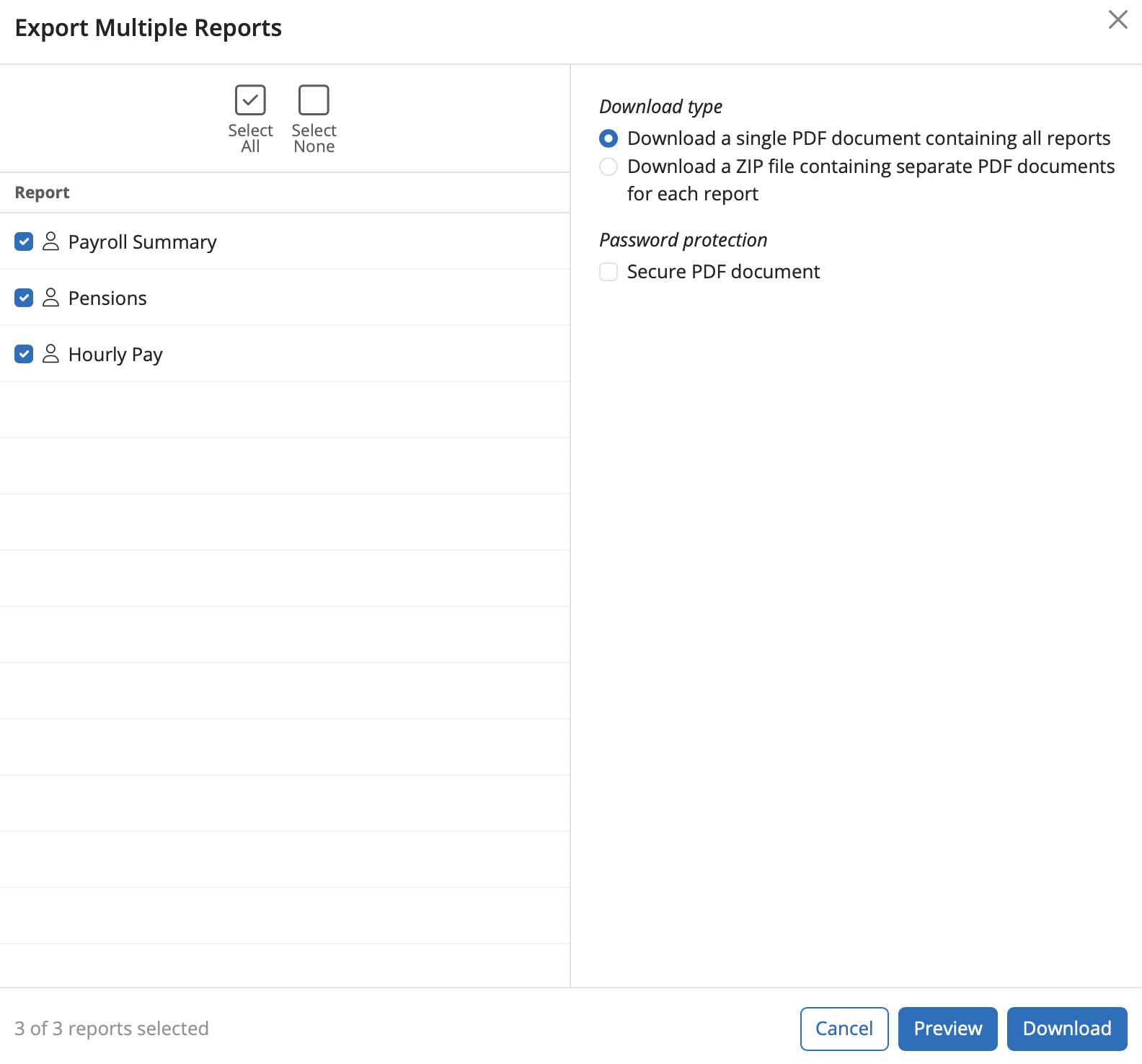
2) Simply select the report(s) that you wish to include in the export or PDF document and click 'Download' to download the selected reports to one PDF document.
a) When downloading the multiple reports to a PDF document you can password protect the document if required. Tick 'Secure PDF Document' and select the password option required.
There are two options that can be used for the password type:
'Other password' allows the user to enter in a unique password for this document.
'Client password' will be available once a client password has been entered under > Employer > Edit Employer Details > Client Details > Default password for 'Documents and Sharing'.
b) Select the desired password protection option or leave 'Secure PDF document' with' unticked if no password is required and select 'Download' to continue.
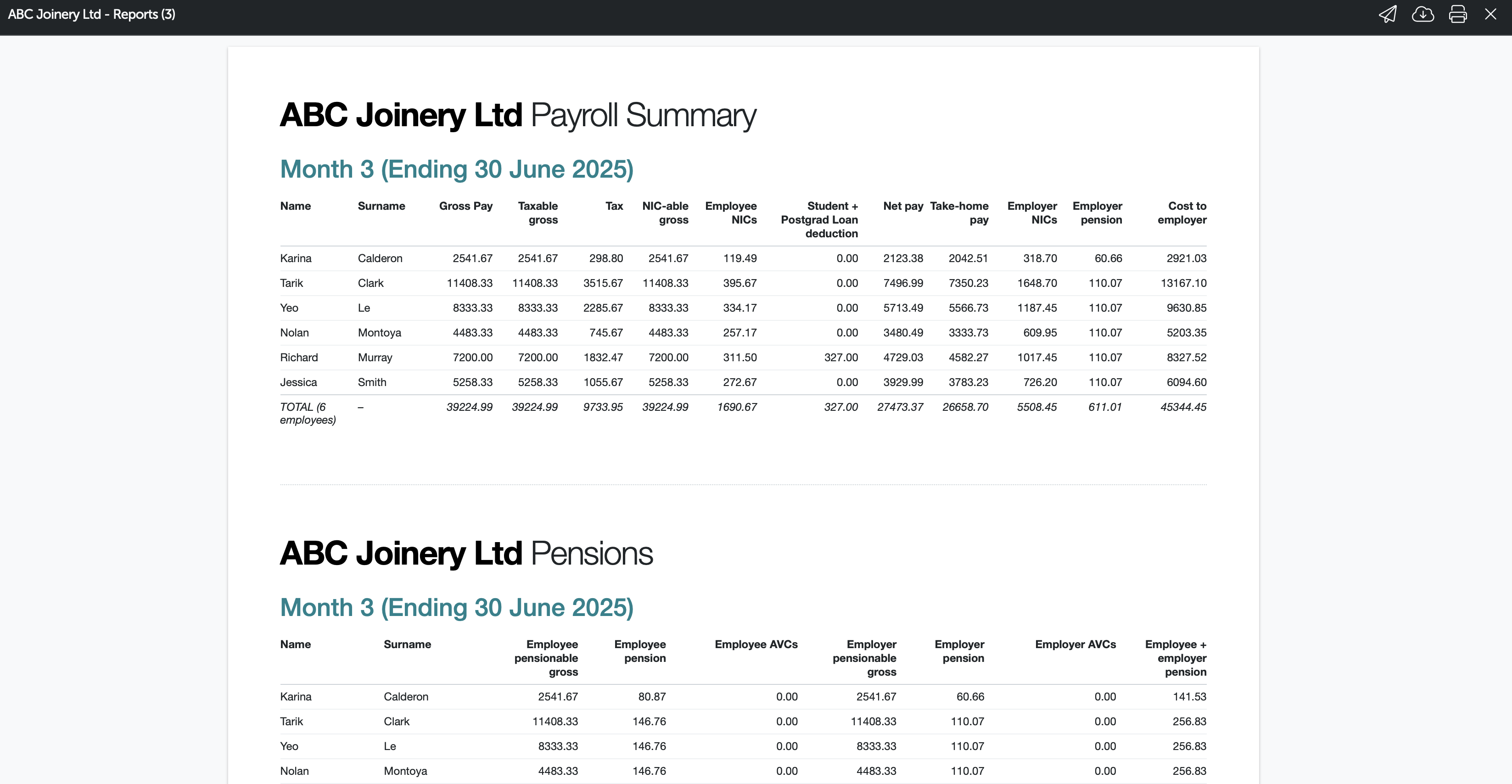
3) A print preview of the reports can be viewed on screen by selecting 'Preview'. Click the 'Email' icon to email the report. Alternatively, press the 'Print' icon to print out the report or the 'Download' icon is available to download the reports to a PDF document.
4) Should you need to change the orientation, paper size or print margins for the report, these can be amended by clicking 'the cog symbol' on the menu toolbar in the top right and selecting ' PDF export preferences'.
If you wish to have the selected password protect option saved and used going forward please tick ' Remember and reuse the most recent PDF password for each document type'.
Need help? Support is available at 0345 9390019 or [email protected].







