Batch Operation of Payroll Approval Requests
A Payroll Approval Request allows a Bureau to send an approval request to an Employer on the Client Portal, so that the client can review and approve the payroll data created by the Bureau in BrightPay. This feature assists in minimising errors made by a Bureau on the payroll, and places the responsibility with the Employer.
You can create Payroll Approval Requests for multiple employers in bulk under the Batch Operation option.
Creating Payroll Approval Requests for Multiple Employers using Batch Operation
- Log into BrightPay, select the 'Browse Employer' section and select the 'Batch' icon.
- Then simply click on the 'Start Payroll Approval Request' option on the dropdown menu:

The Batch Operation - Start Payroll Approval Request window will show a list of all the employers and the next available pay period for a Payroll Approval Request to be created for and the status.
Please note: only one Payroll Approval Request can be created for a pay period in a individual employer.

If no client portal users are set up to access an employer on the Client Portal this warning will show under the 'Action' heading for the employer and so a Payroll Approval Request cannot be created for that employer in the Batch Operation.
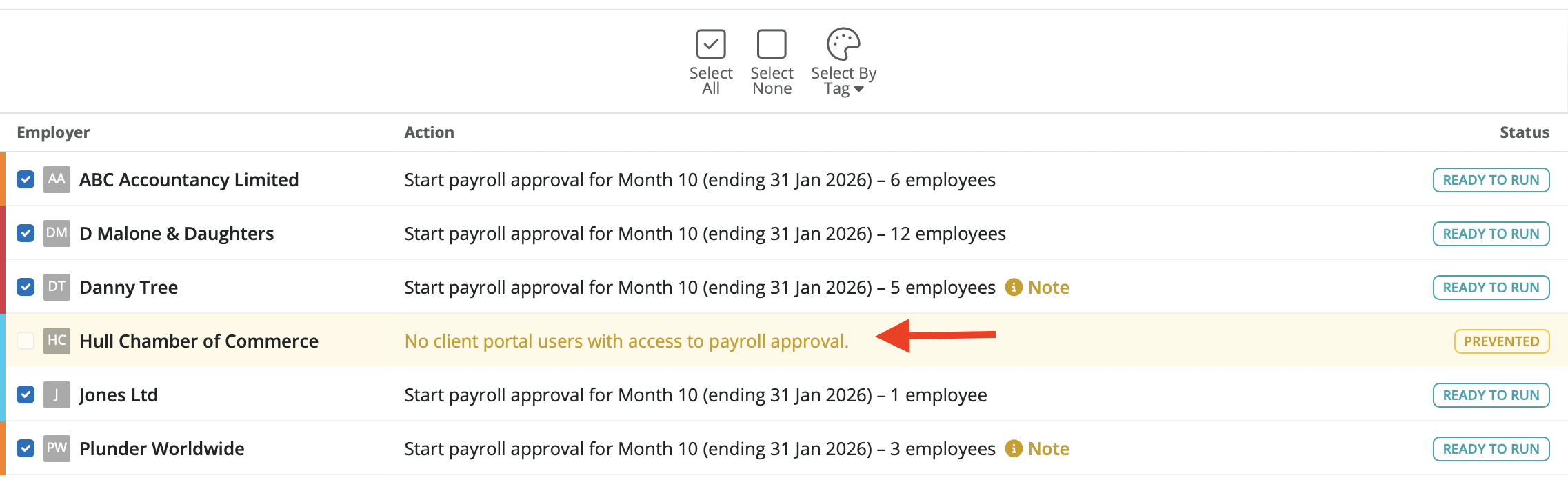
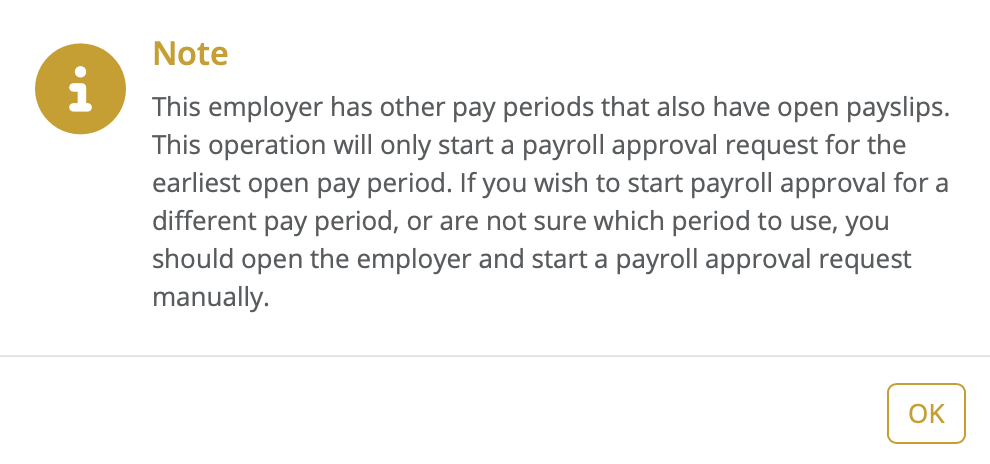
If an employer has more than one pay period you will see the Note icon beside the pay period under the 'Action' heading. If you select the Note icon a warning message will show and advise this employer has other pay periods with open payslips and when you start the batch operation for this employer the Payroll Approval Request will be created for the earliest open pay period.
If you wish to create a Payroll Approval Request for a different pay period please do not select this employer for the Batch Operation and you can open the employer and manually create a Payroll Approval Request for the period required.
Employers can be selected or deselected to be included in the Batch Operation for Payroll Approval Request. All employers can be included by clicking on the 'Select All' icon. The Status will update to 'Ready to Run'.

Employers can be selected by colour code under the 'Select by Tag' icon. Select the tags required to include the employers on the Batch Operation - Payroll Approval Request and select 'Start'.

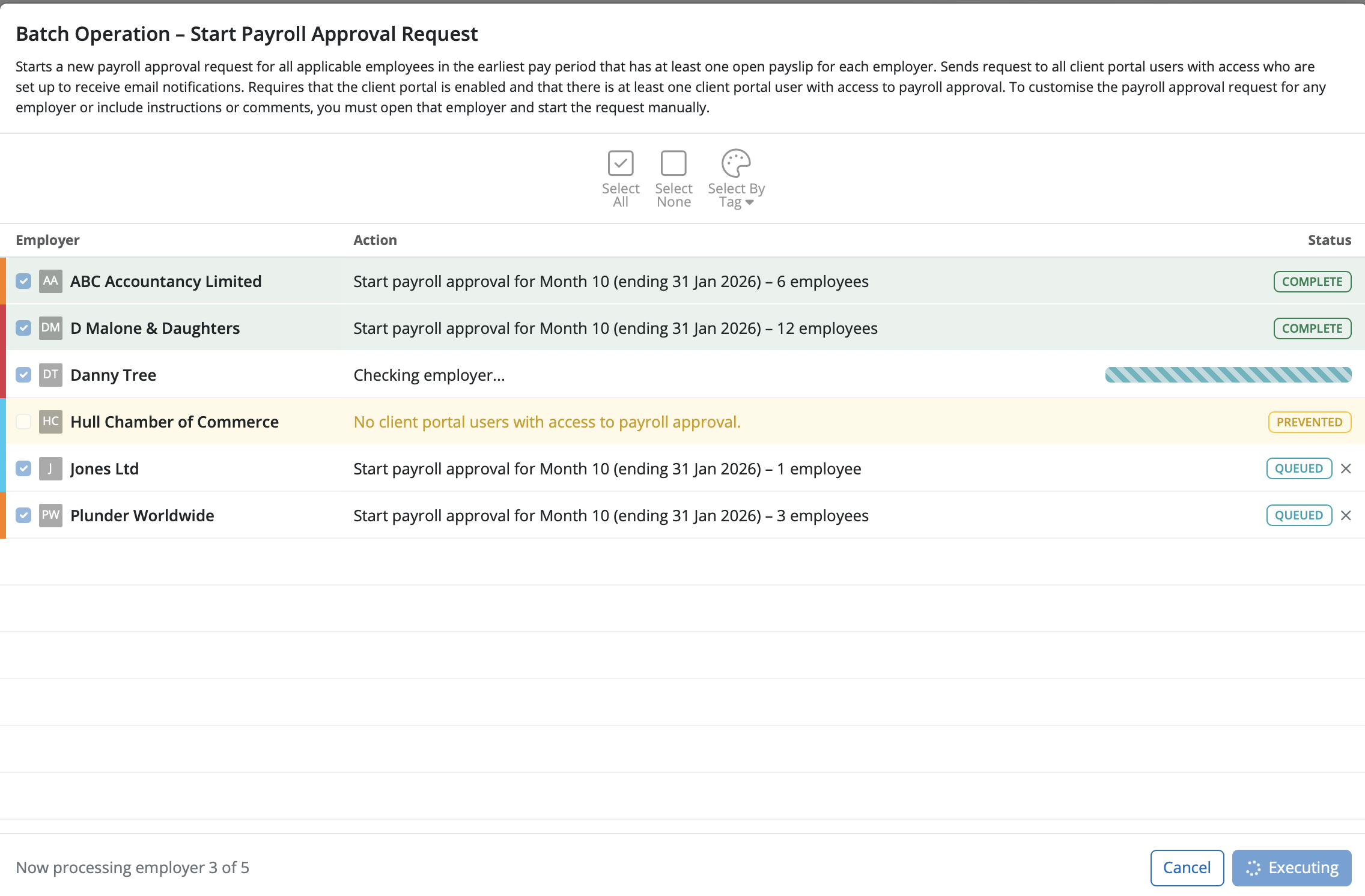
The Payroll Approval Requests will commence to be created and you can see under the 'Status' heading the Payroll Approval Requests as being 'Complete' or the blue bar to show in progress and 'Queued'.
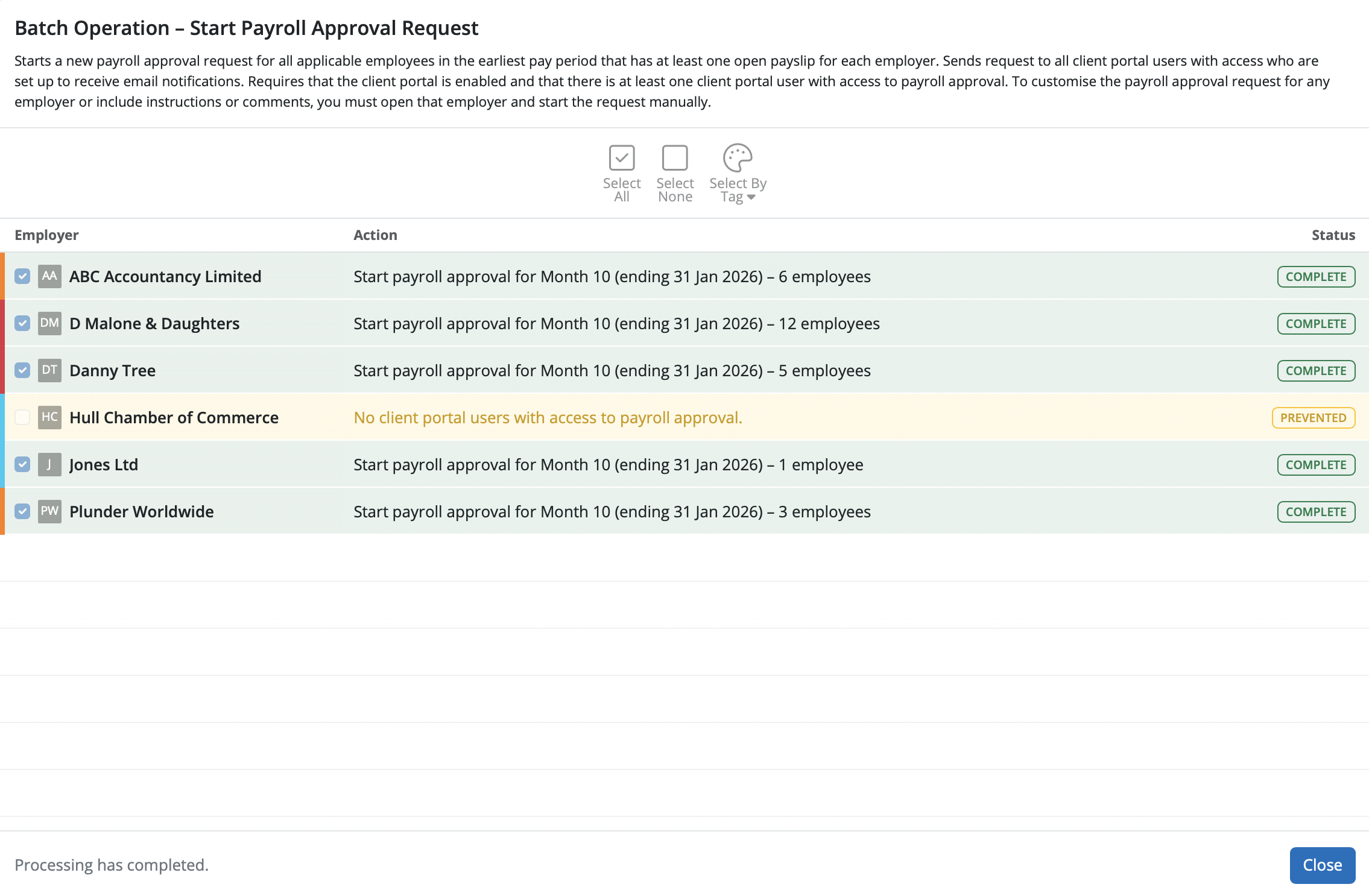
Once the Batch Operation has finished you will see the status of 'Complete' under the 'Status' heading.Email notifications will be sent out to the users on the Client Portal that have been enable to receive the email notifications for Payroll Approval Requests and the Payroll Approval Requests will be available to view on the Client Portal for each employer.
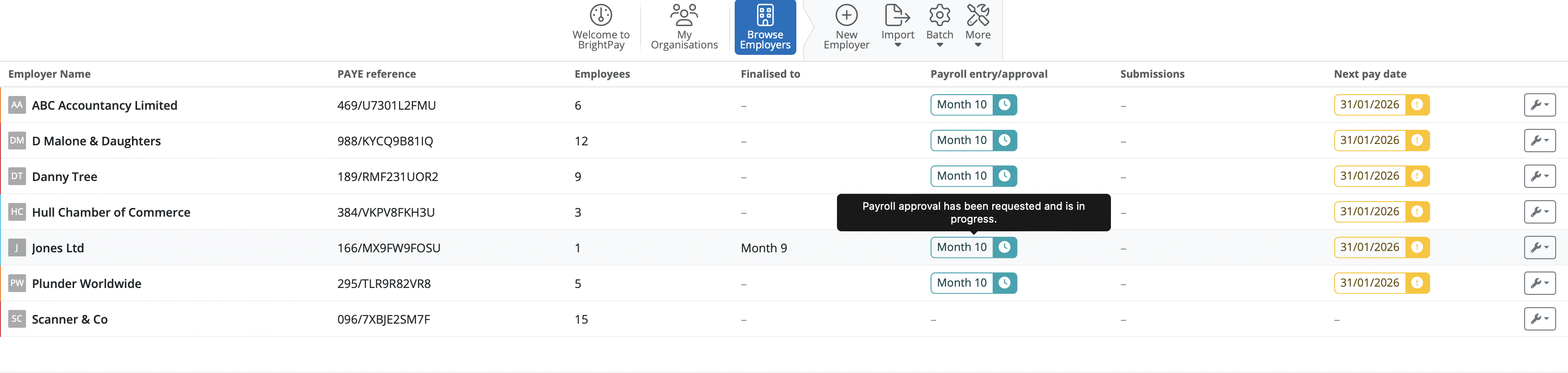
On the employer dashboard if a payroll request has been created in an employer you will see the status of the request and the period the request is for under the column 'Payroll entry/approval'. If you hover your mouse over the you can see more detail. The clock symbol indicates that the request is in progress. The exclamation mark indicates that the request is waiting for the Bureau to review it and the tick symbol is the request is completed.
Need help? Support is available at 0345 9390019 or [email protected].







