Payroll Approval Requests - Employer Guidance
A Payroll Approval Request allows a Bureau to send a request to an Employer, requesting their client to log in to the Client Portal and view and approve the pay details for the pay period. The payroll approved by the Employer can subsequently be sent back to the Bureau in order for them to update the data into BrightPay.
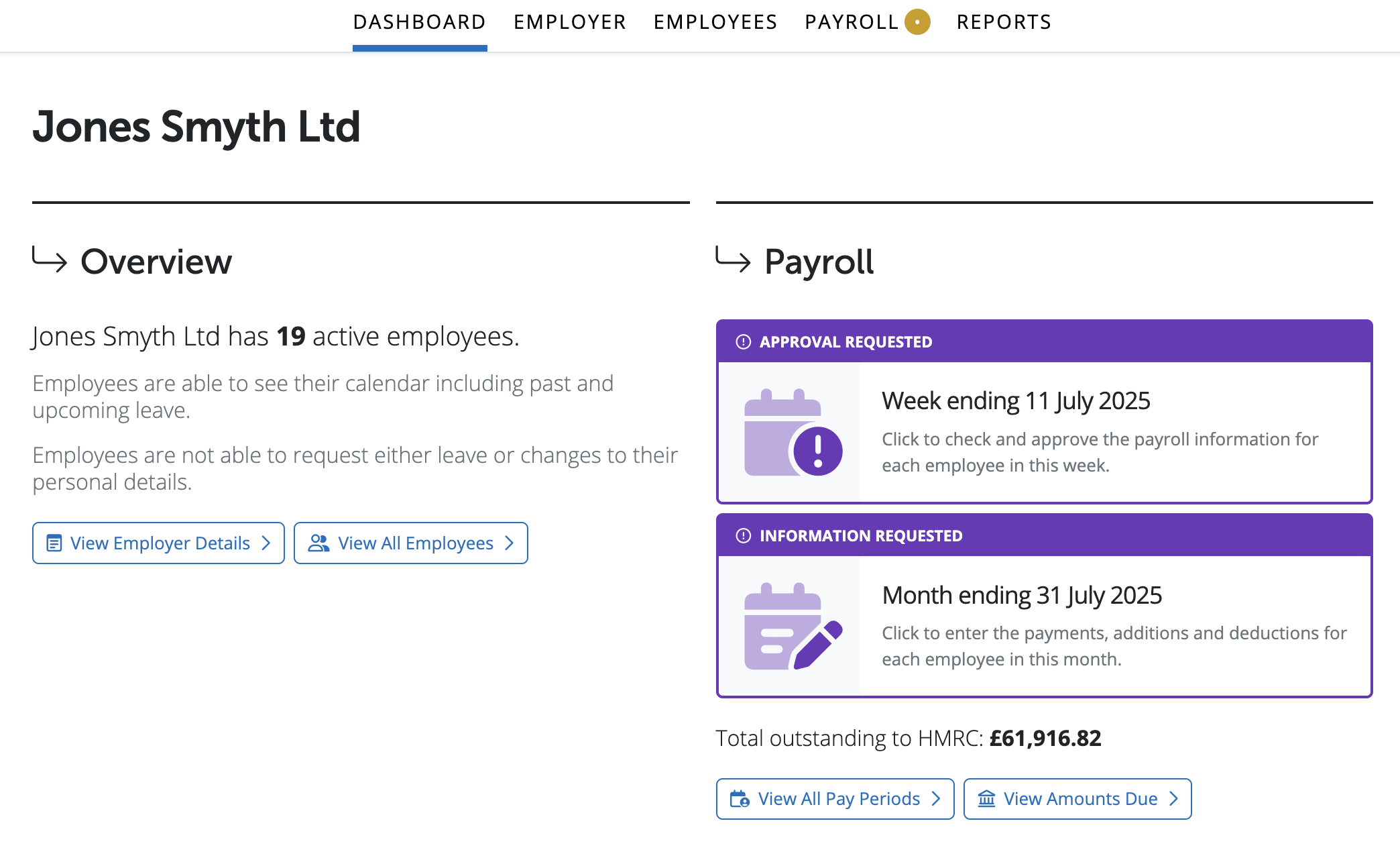
The employer will receive an email to notify them of the request, along with a notification on their Dashboard on the Client portal.
Payroll Approval Requests will have the heading 'Approval Requested'. Multiple requests may be displayed on the Dashboard on the Client Portal including Payroll Entry Requests. Further information on Payroll Entry Requests are available here.
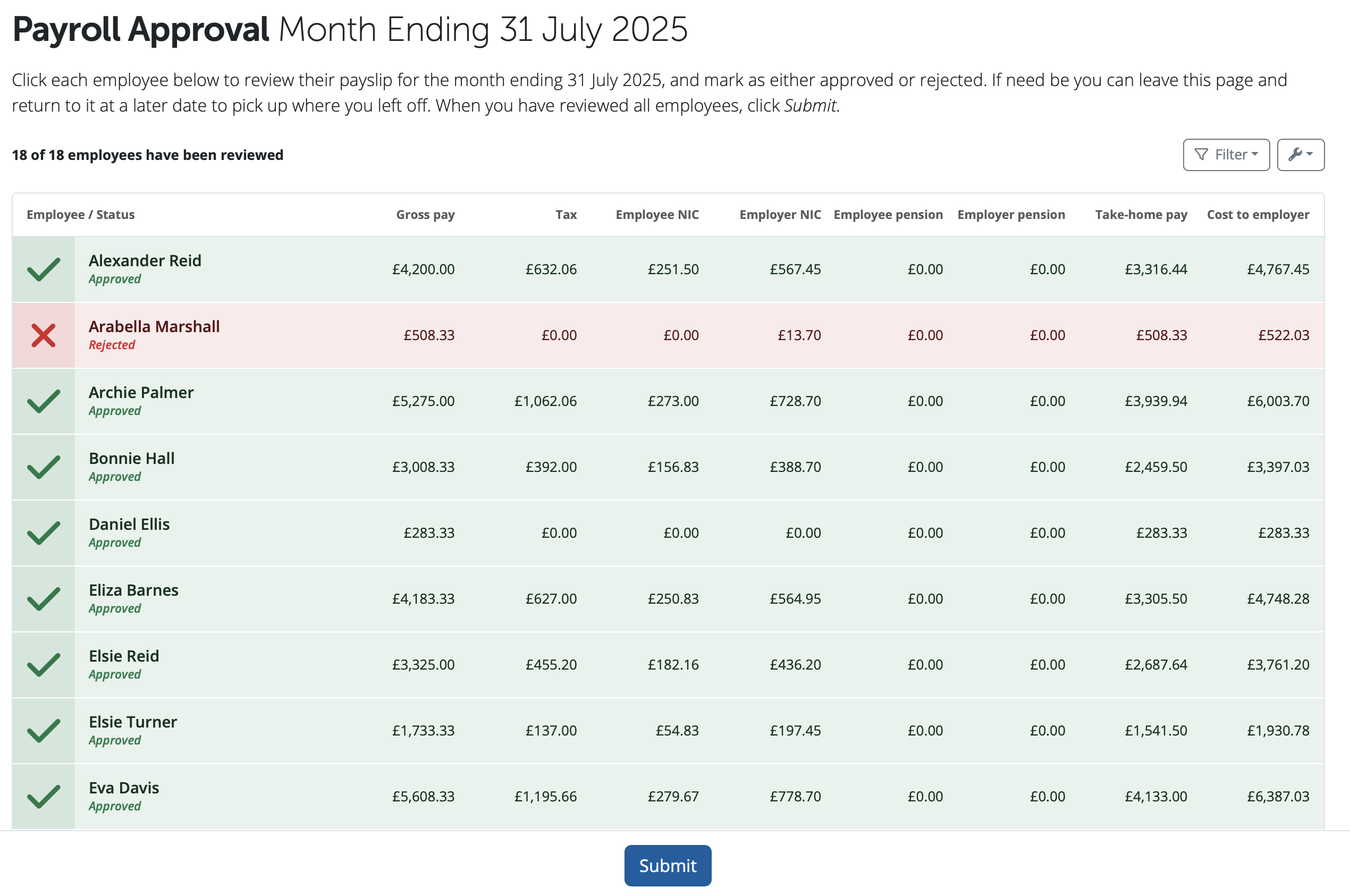
Once the Employer clicks on their 'Review Payroll' button in the email notification or selects the Request on the Dashboard on the Client Portal, they will be brought to a screen where they can view the payroll information for each employee. The data for each employee will be broken down by gross wages, tax deductions, pension deductions, take home pay and cost to the Employer.
The employer can select an individual employee and preview their payslip, displaying all payroll details for that pay period and year to date information. They can also download or print the draft payslip in PDF format.
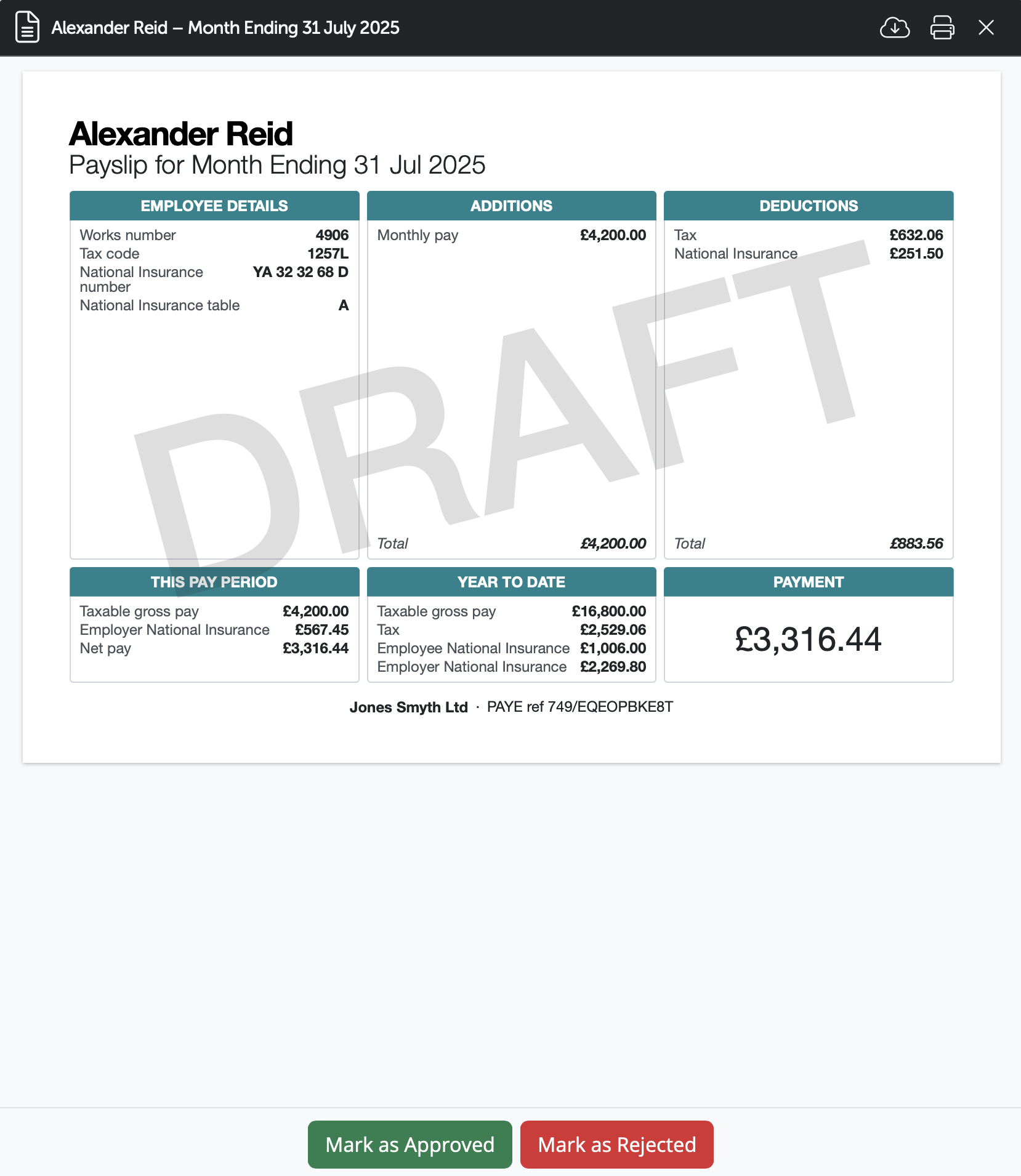
The employer is happy with the payroll information they can select to 'Mark as Approved' for the individual employee. Once the employee is marked as approved they are highlighted in green and have the status as 'Approved'.
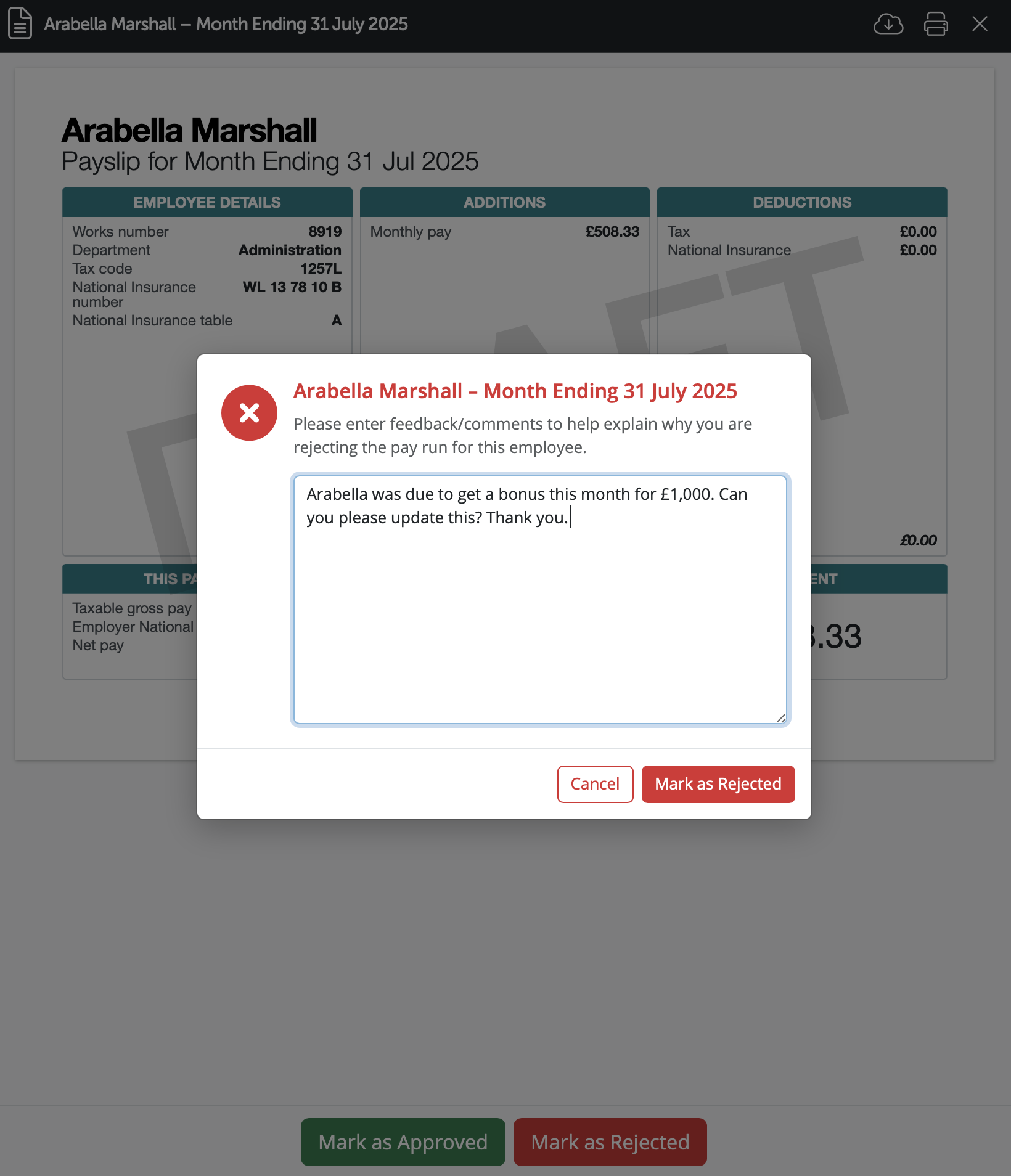
If the information is incorrect the employer can select 'Mark as Rejected' to advise the bureau that some information needs to be changed or updated.
The employer can enter in a comment and select 'Mark as Rejected'. The employee will be highlighted in red with the status 'Rejected'
Message facility
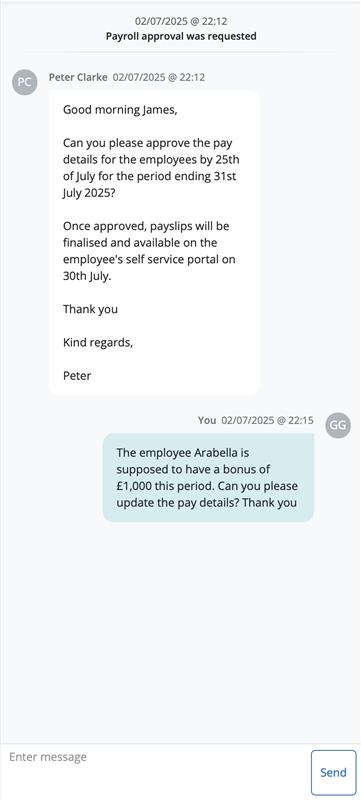
There is a message facility to the right hand side on the Payroll Approval Request for the employer to communicate to the Bureau and vice versa. The employer can add a message and an email notification will go to the bureau and the message will appear on the message facility on the request.
Email Notifications
On the Payroll Approval Request if the employer is marked as watching the request the employer will get email notifications when a message is posted and or when the payroll payroll has been sent for review again.

If the employer does not want to subscribe to getting these email notifications they can select 'Unwatch' and can subscribe again at any time by selecting 'Watch'.

All employees that have been completed will be highlighted in green and are marked 'Approved'. Employees may have the status of 'rejected'. All employees on the request have to be reviewed and marked as 'Approved' or 'Rejected' in order for the employer to be able to submit approval of the request to the bureau.
To mark a batch of employees as 'Approved' or 'Rejected', the Employer can click on the spanner icon at the top right and select 'Mark all as Approved' or 'Mark all as Rejected'.
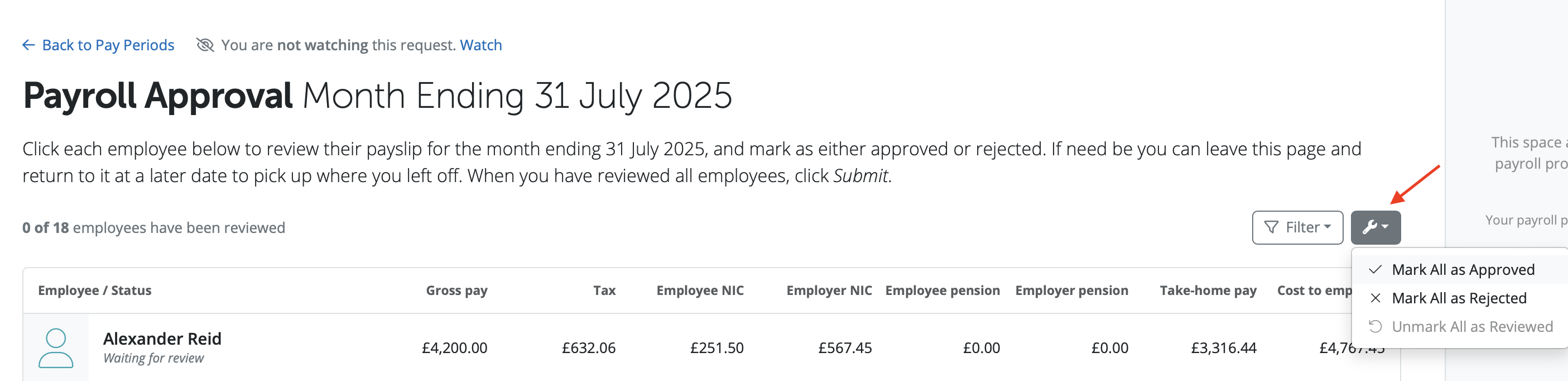
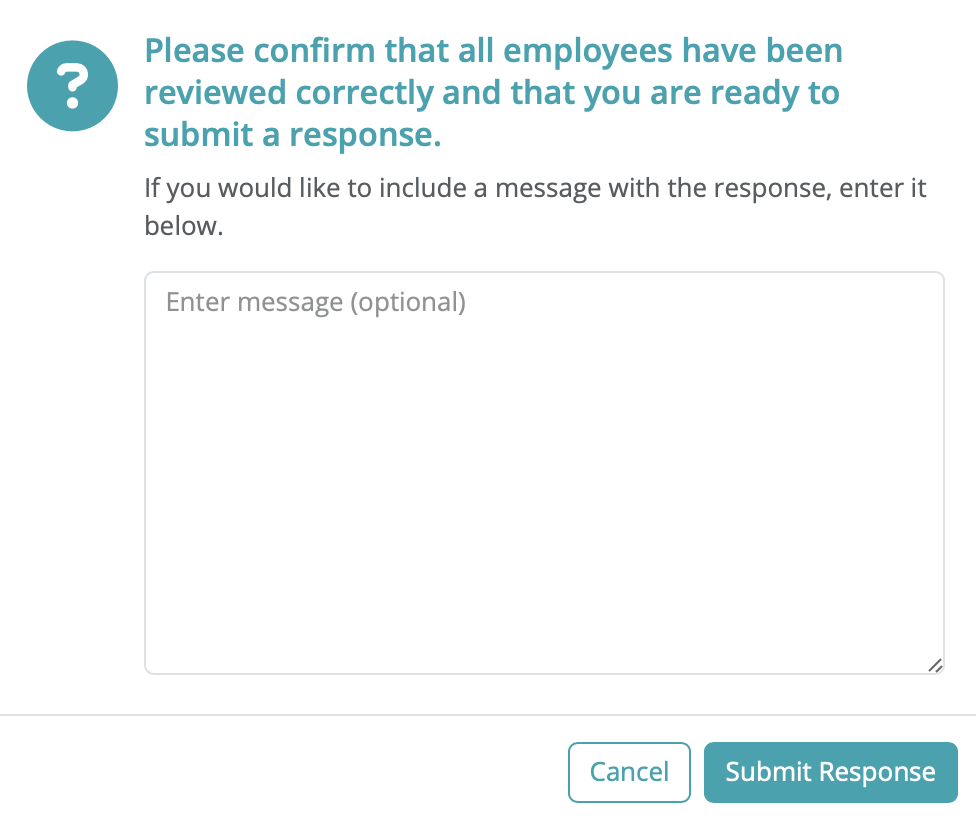
Once all of the payroll information is reviewed and the employer is happy to return the Payroll Approval Request to the Bureau, the Employer can select 'Submit'.
The employer can also include a note or a comment for the Bureau if required. To submit the request to the Bureau select 'Submit Response'.
Once the Employer has submitted the 'Submit Response' to the Bureau, the Payroll Approval Request will now show the status of 'a response to this request has been submitted'.
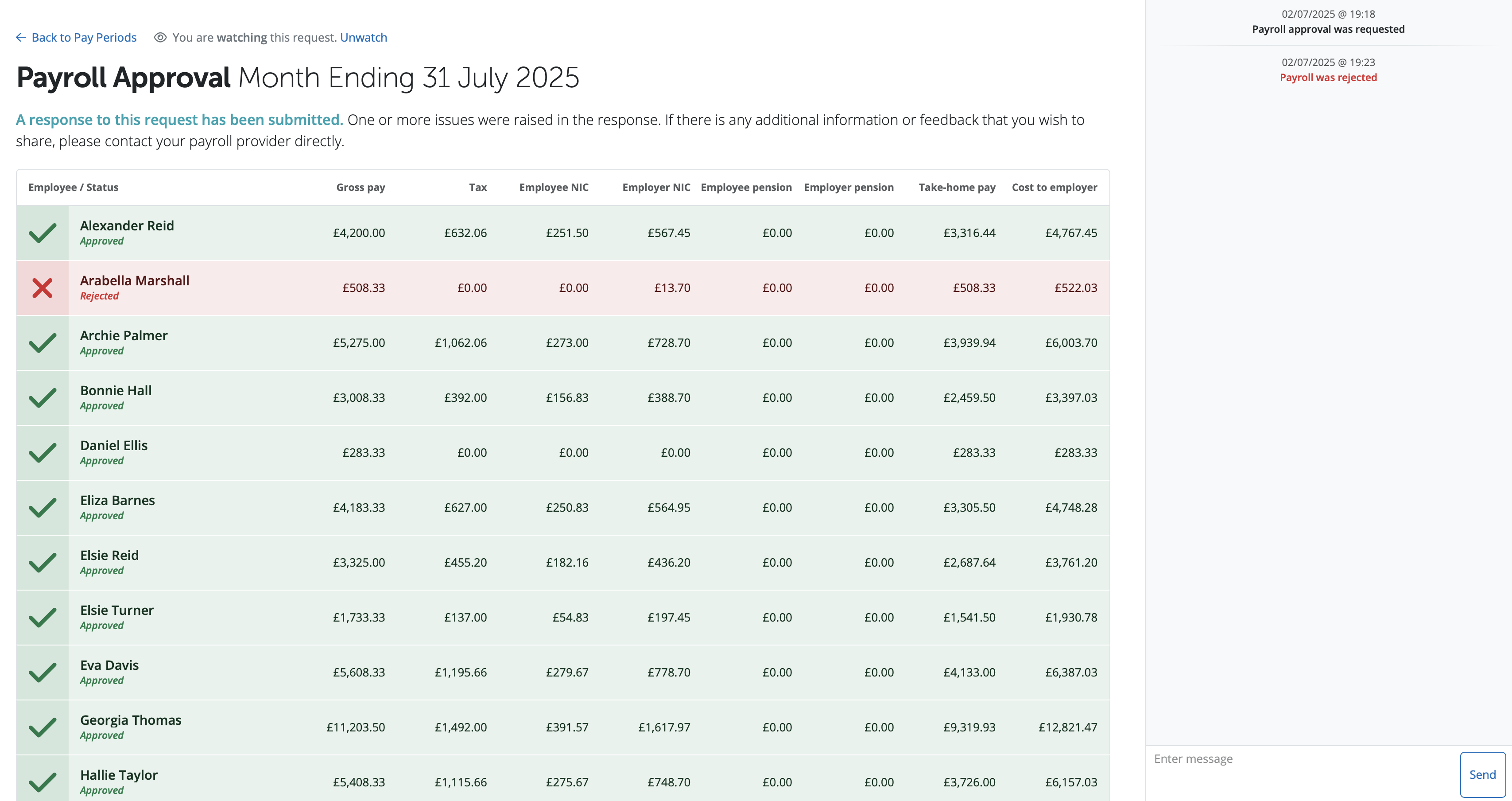
Please note: When the Payroll Approval Request has the status of 'A response to this request has been submitted' the request can no longer be edited by the employer.
The Bureau will then see the status update for the request, along with an email to their registered email address to notify them that the payroll approval they requested has now been submitted by the Employer.
Need help? Support is available at 0345 9390019 or [email protected].







