Statutory Sick Pay
Statutory Sick Pay (SSP) is paid to employees who are unable to work because of illness. SSP is paid at the same time and in the same way as you would pay wages for the same period.
As an employer you're responsible for paying SSP to employees who meet certain qualifying conditions.
You'll need to:
- determine whether an employee meets the qualifying conditions
- calculate how much SSP they're due
- pay the SSP to them
- keep a record of the SSP you pay
Employers may choose to opt out of fully operating the SSP Scheme in favour of their own Occupational Sick Pay scheme.
SSP Entitlements
Period of Incapacity To Work
SSP is only payable if there's a period of incapacity for work (PIW). This is a period of four or more days in a row when the employee can't work because they're sick or incapacitated.
The days that make up a PIW don't need to be working days. If an employee normally works from Monday to Friday and they're sick on Friday, Saturday, Sunday and Monday - then that's a PIW. Similarly if they only work Tuesdays and Fridays but are sick on both of these days and also sick on Wednesday and Thursday then a PIW exists.
Waiting Days
Waiting Days are no longer applicable to Statutory Sick Leave in the tax year 2026-27. Statutory Sick Pay is payable from the first qualifying day of sickness.
Calculating Average Weekly Earnings
The calculation of an employee’s average weekly earnings for SSP purposes has been removed.
An employee will be paid Statutory Sick Pay based on the lower of 80% average weekly earnings or £123.25 flat rate.
The current weekly rate of SSP for tax year 2026-27 is £123.25.
Recovery of Statutory Sick Pay (SSP)
The SSP reimbursement scheme known as the Percentage Threshold Scheme (PTS) was discontinued with effect from 06th April 2014.
From 6th April 2026, the Employment Rights Act 2025 will:
• Remove the Lower Earnings Limit (LEL) as an entitlement criterion to make Statutory Sick Pay (SSP) available to all employees regardless of their weekly earnings. The rate of SSP will be 80% of an employee’s average weekly earnings (AWE) or the flat rate, whichever is lower. (This guidance refers to AWE - which has the same meaning as normal weekly earnings in the SSP legislation.)
• Remove waiting days from the SSP system and amending the Period of Incapacity for Work, so that eligible employees are entitled to SSP from their first full day of sickness absence, rather than the fourth.
Entering Statutory Sick Pay in BrightPay
To access this utility, simply click 'Payroll' and select the employee’s name on the left:
- Under Statutory Pay, click Calendar
- On the Calendar, select the date range the employee is out sick (include any non-working days which fall within the date range)
- Click Sick Leave at the top right of the screen - the number of Qualifying and SSP days will be displayed on the screen.
- Close the Calendar and the program will automatically apply any SSP due to the employee.
Overriding the 'Average Weekly Earnings' Calculation
If existing payment records have not been recorded in BrightPay or there is insufficient historical payroll data to determine the employee's AWE, the automatic calculation performed by the program after completing the above may be inaccurate or not possible. Where the user otherwise determines that the employee does qualify for SSP, they may override the AWE by doing the following:
- On the main Payroll screen, click the Spanner icon in the employee’s Statutory Payments section
- In Sick Leave, select the option ‘View Edit Details' > For Average Weekly Earnings select in the dropdown menu 'Manually enter the average weekly earnings’ > Save.
- The program will now automatically calculate SSP
SSP Daily Tables for 2026-27
The same weekly SSP rate applies to all employees. However, the amount you must actually pay an employee for each day they’re off work due to illness (the daily rate) depends on the number of ‘qualifying days’ (QDs) they work each week.
SSP & Finalised Pay Periods
In the event that a payroll operator is notified of an employee's sick leave status after the pay period in which it falls has been finalised, BrightPay facilitates a retrospective adjustment to be made to the employee's calendar record which will simply pay or refund any SSP difference in the following (or later) pay period.
Examples of scenarios:
- An employer may only inform their payroll bureau in November that an employee was sick in October, but the October payroll has already been run and the employee paid.
- A company pays their employees on the 25th of every month for month ending the 31st of the month. An employee is out on sick leave at the pay date but continues to be sick up until the 31st of the month. These subsequent sick days may not have been accounted for in this pay period if there was uncertainty on whether the employee would be able to return to work after the 25th.
Making an SSP adjustment in BrightPay to already finalised pay periods:
- Click 'Payroll' and select the employee’s name on the left
- Select the employee's current open pay period
- Under Statutory Pay, click Calendar
- On the employee's Calendar, highlight or un-highlight the employee's sick days depending on the adjustment needed.
- Click Sick Leave at the right of the screen
- Go back to Payroll to return to the employee's open payslip
BrightPay will then compare the total SSP that should have been paid in previous pay periods against the total SSP that was actually paid in previous pay periods, and will calculate the difference. This difference will then be added to the employee's current open payslip as an SSP carry-over or refund amount.
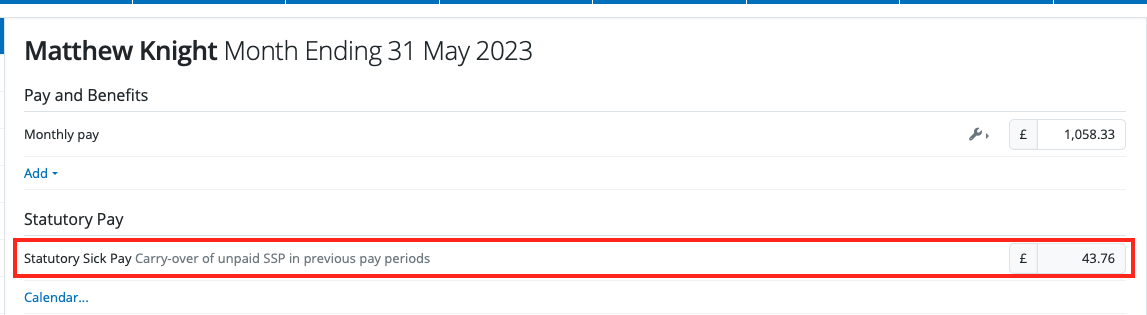
In addition, any previous payslips which has had some or all of its SSP carried forward to a future pay period will show a green alert explaining what has happened and will reference the amount carried forward.
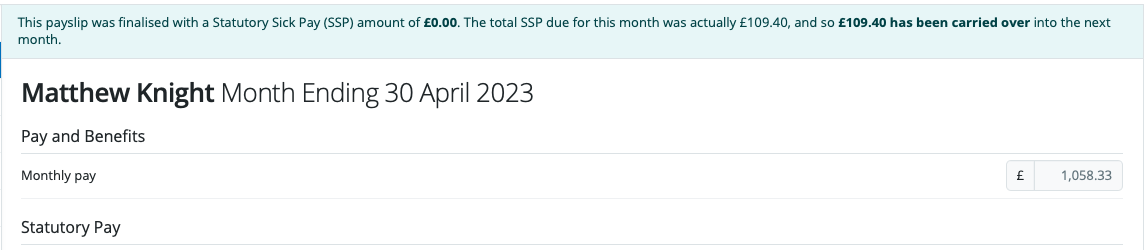
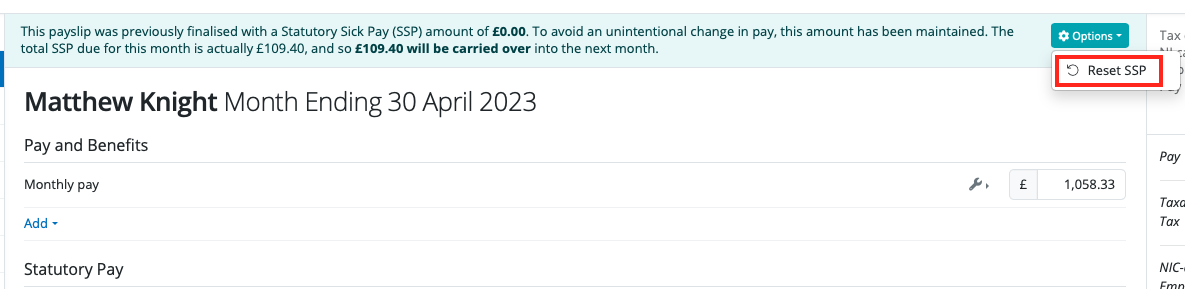
In the event you don't wish the SSP amount to carry forward, but instead wish to re-open the previous payslip and apply the SSP to this:
- In Payroll, select the finalised payslip and click 'Reopen Payslips' on the menu toolbar
- If you wish to apply the SSP amount to this payslip, click > Options > 'Reset SSP'
Managing Sick Leave
Managing sick leave can be a challenge for every employer. It is essential that businesses find the balance between supporting those employees who are genuinely sick and minimising unnecessary absences in order to reduce costs.
Guidance for employers on how to manage sickness absences can be found here.
Need help? Support is available at 0345 9390019 or [email protected].







