Payroll Entry Requests - Bureau Guidance
A Payroll Entry Request allows a Bureau to send a request to an Employer, requesting their client to log in to the Client Portal and enter payroll information for some or all of their employees. The payroll data entered by the Employer can subsequently be updated into the pay period in the employer of the Bureau's BrightPay.
Please note: Batch Functionality for Payroll Requests is not currently available but will be coming soon.
Sending a Payroll Entry Request through BrightPay
- Log in to your employer in BrightPay, select the 'Payroll' section and select the pay period you wish to create the request for.
- Then simply click on the 'Client Requests' icon and choose Start a Payroll Entry Request:
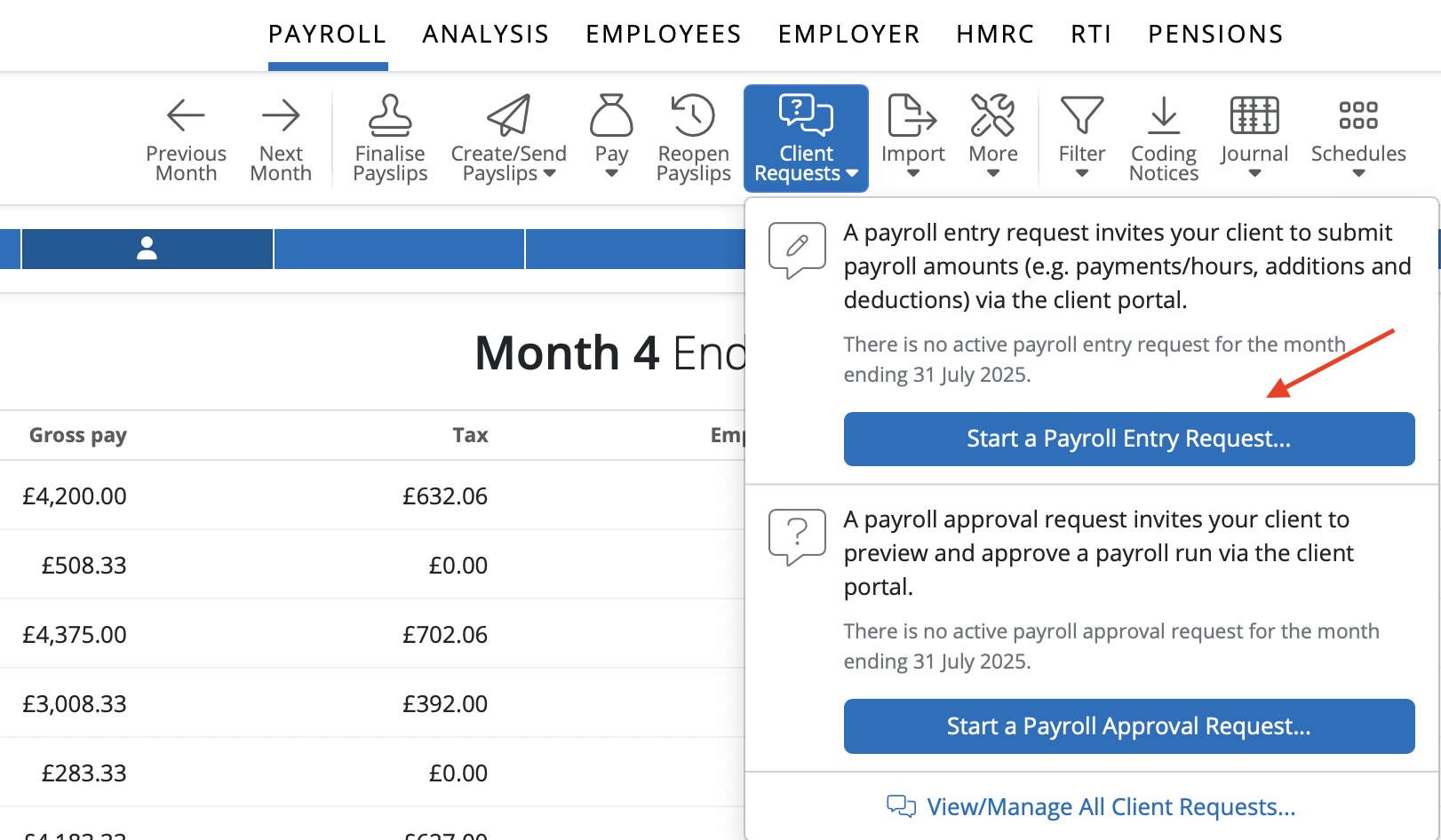
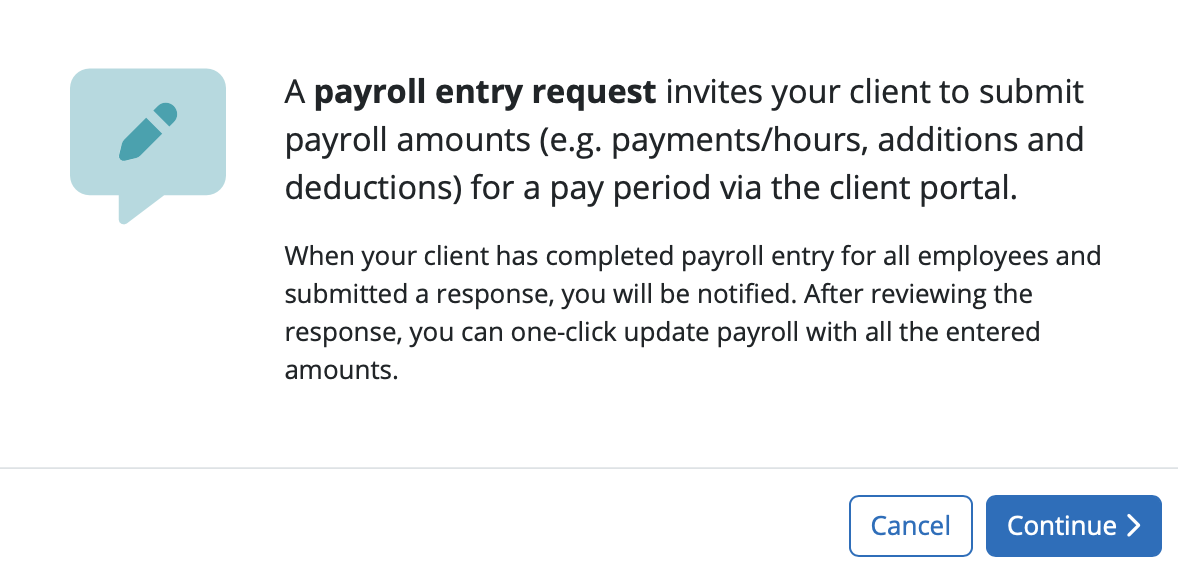
A Payroll Entry Request is an option to invite your client to submit payroll details such as hours/days worked, periodic amount such as weekly/monthly pay, additions and deductions for a pay period in the Client Portal. If you wish to create the Payroll Entry Request select 'Continue'.
Please note: only one Payroll Entry Request can be created for a pay period.
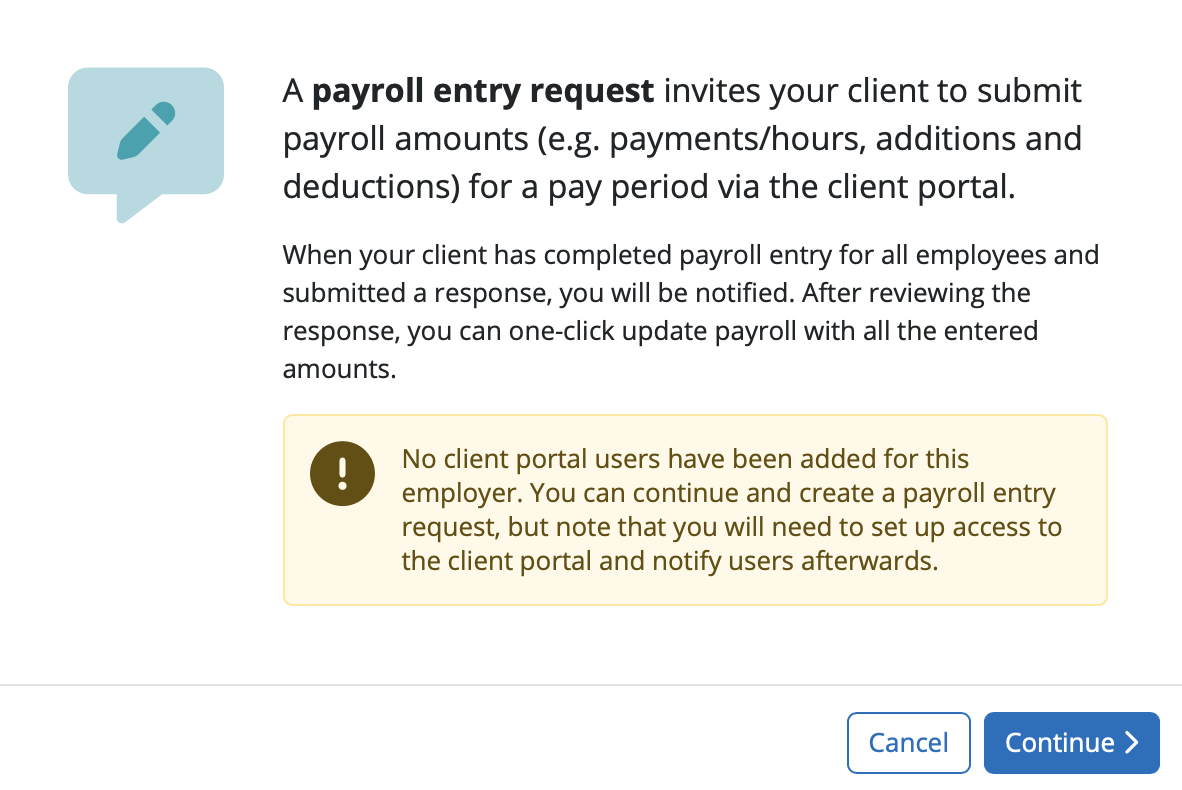
If there is no Super or Standard user set up for the employer on the Client Portal to receive the Payroll Entry Request, when you are trying to create the request a message will show there are no client portal users for this employer. You can still create the request but you will have to create the user after and advise them separately the request is available to process on the Client Portal.
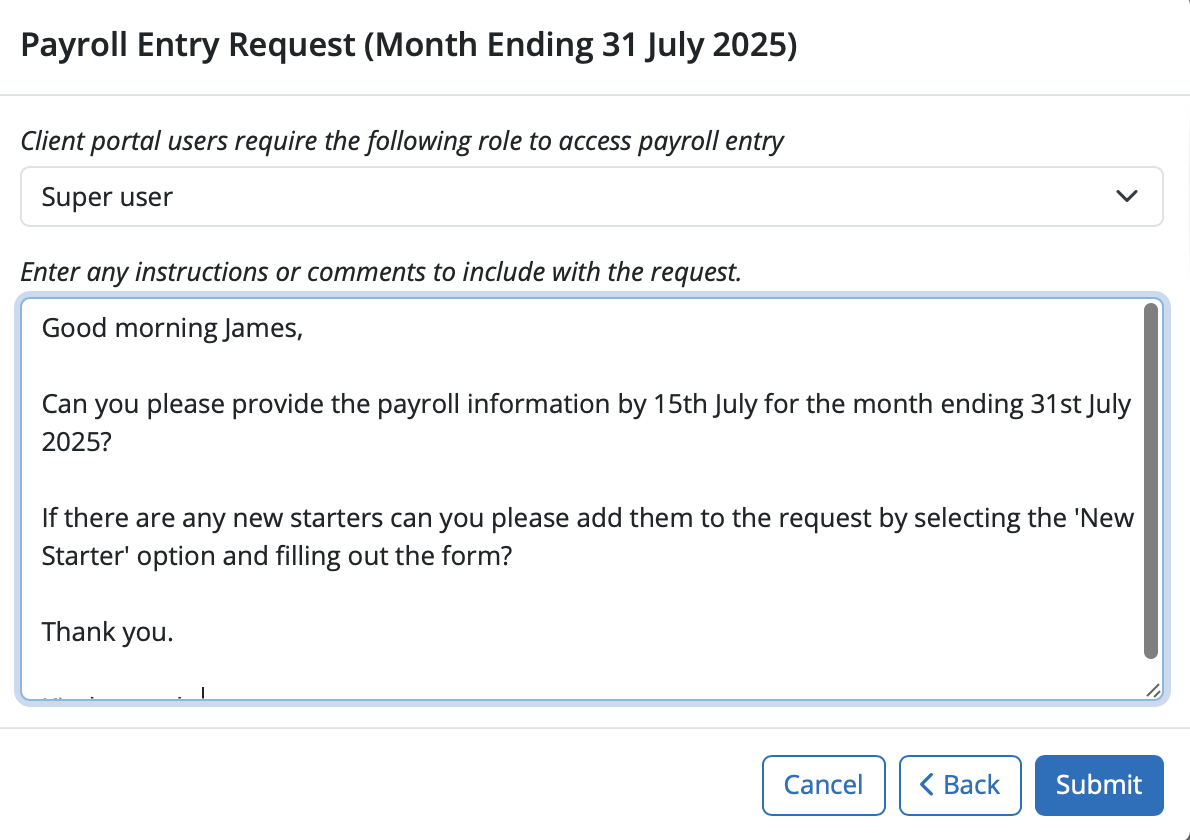
The Bureau will have to select what type of users on the Client Portal they wish to view the Payroll Entry Request - all Super users or all Standard users.
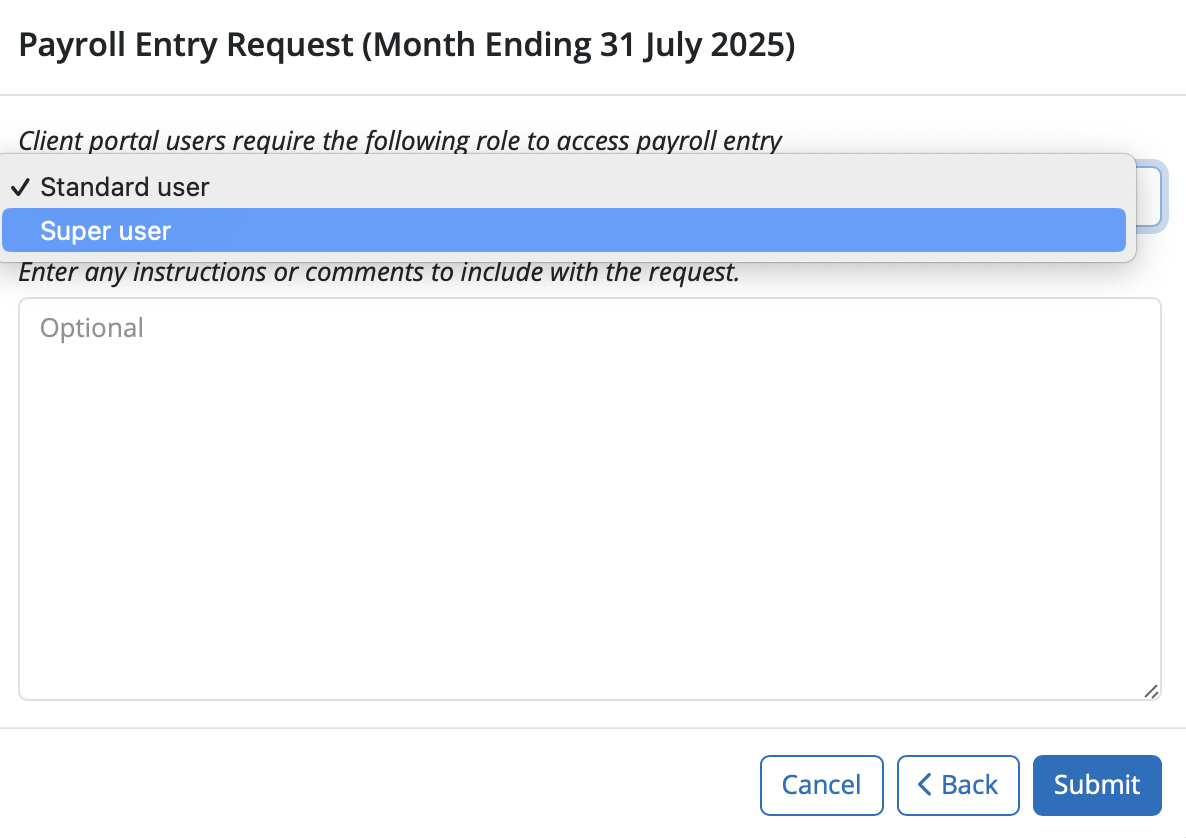
Any instructions or comments can be added in the text field provided to include in the request. Click 'Submit' when ready.
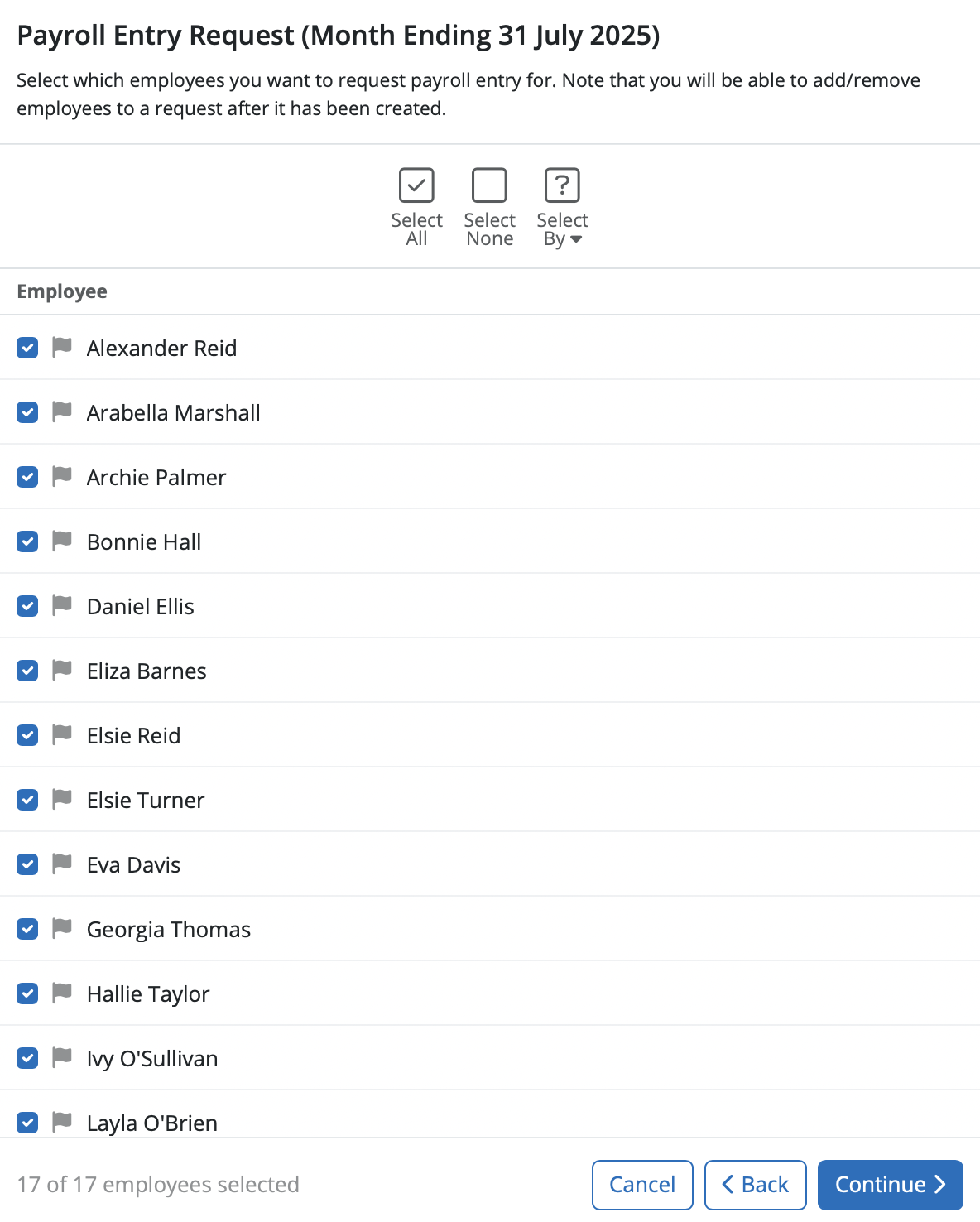
Employees can be selected or deselected to be included in the Payroll Entry Request. A filter option is available under the 'Select by' icon. Select the employees to be included on the Payroll Entry Request and select 'Continue'.
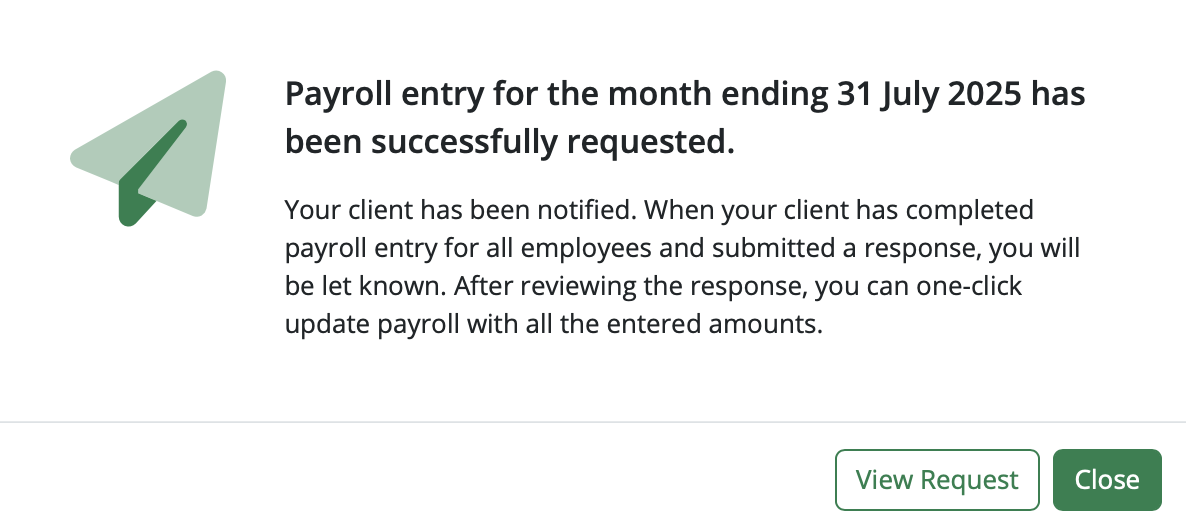
The Payroll Entry Request will now be sent to the Employer. The bureau can view the request if they wish to by selecting 'View Request'.
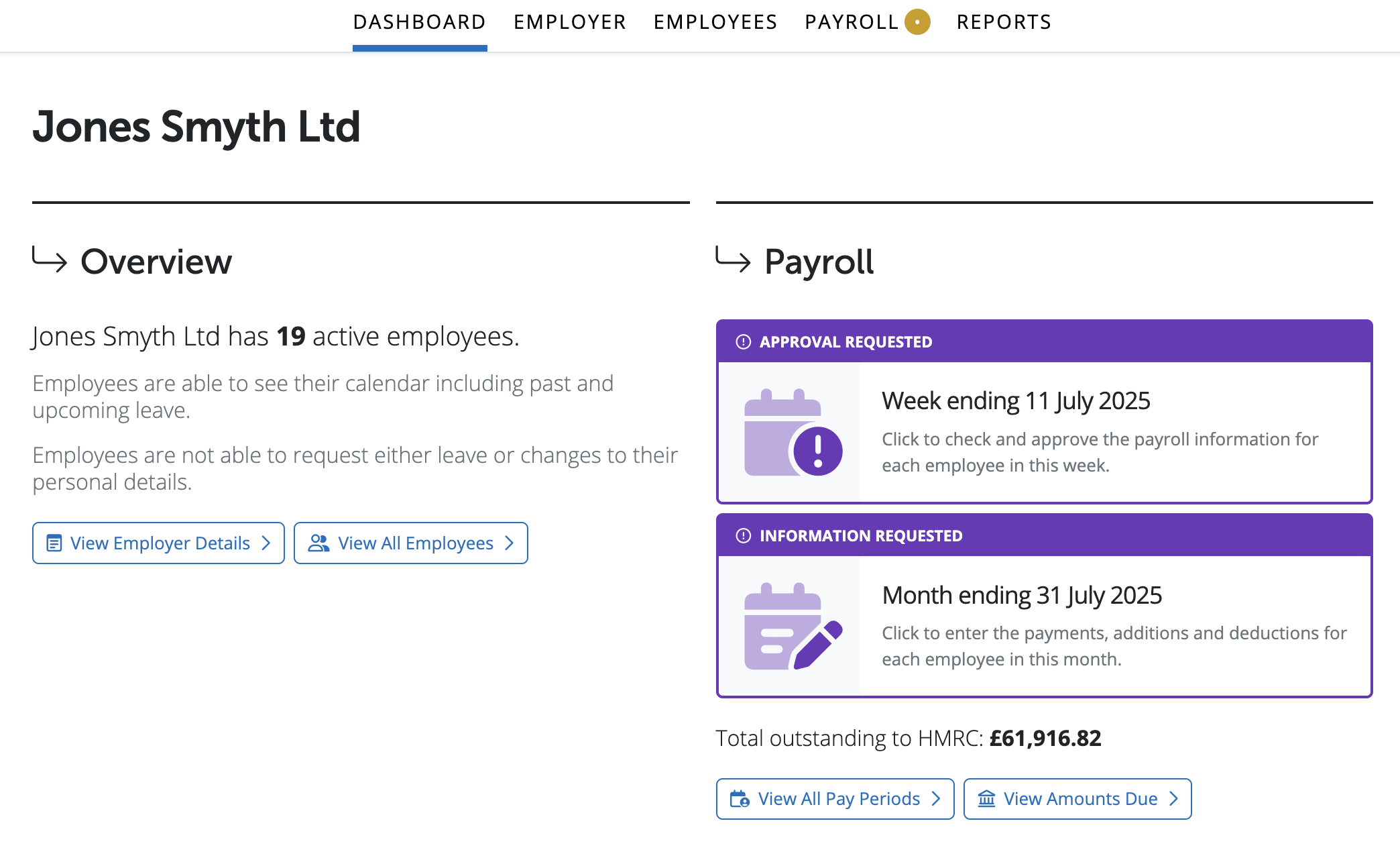
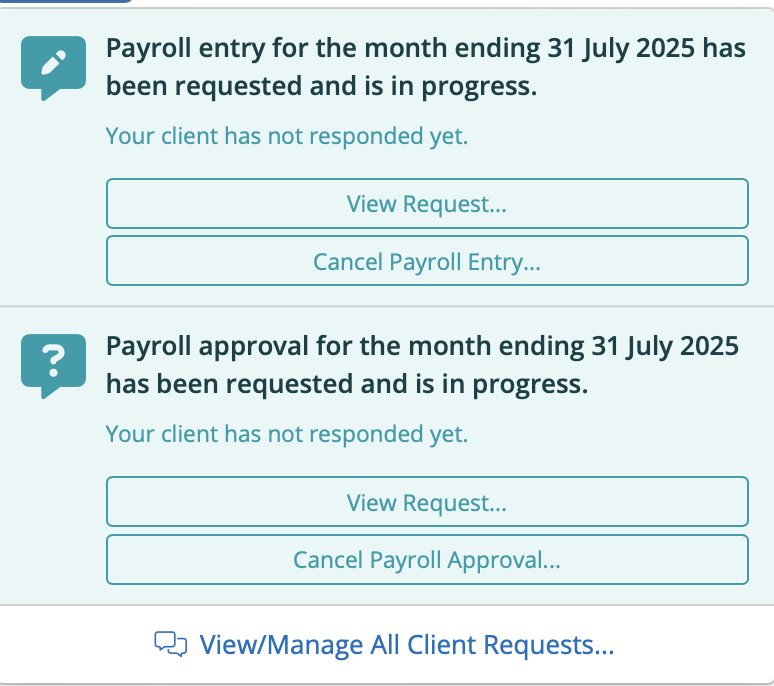
The employer will receive an email to notify them of the request, along with a notification on their Dashboard on the Client portal:
Once the Payroll Entry Request has been sent to the Employer, the outstanding request status will then appear in the pay period for the employer in BrightPay with the status of 'Has been requested and is in progress'.

The status of of both Payroll Entry Requests can be viewed for a pay period by selecting the pay period in the Payroll section for an employer and 'Client Requests'.
The Employer's Process
A Payroll Entry Request allows a Bureau to send a request to an Employer, requesting their client to log in to the Client Portal and enter payroll information for some or all of their employees. The payroll data entered by the Employer can subsequently be sent back to the Bureau in order for them to update the data into BrightPay.
The employer will receive an email to notify them of the request, along with a notification on their Dashboard on the Client portal.
Payroll Entry Requests will have the heading 'Information Requested'. Multiple requests may be displayed on the Dashboard on the Client Portal including Payroll Approval Requests. Further information on Payroll Approval Requests are available here.
Once the Employer clicks on their 'Access Payroll Entry' button in the email notification or selects the Request on the Dashboard on the Client Portal, they will be brought to a screen where they can input the data for each employee. The default amounts will be copied from the previous period’s payroll, so they will only need to input data if there are changes.
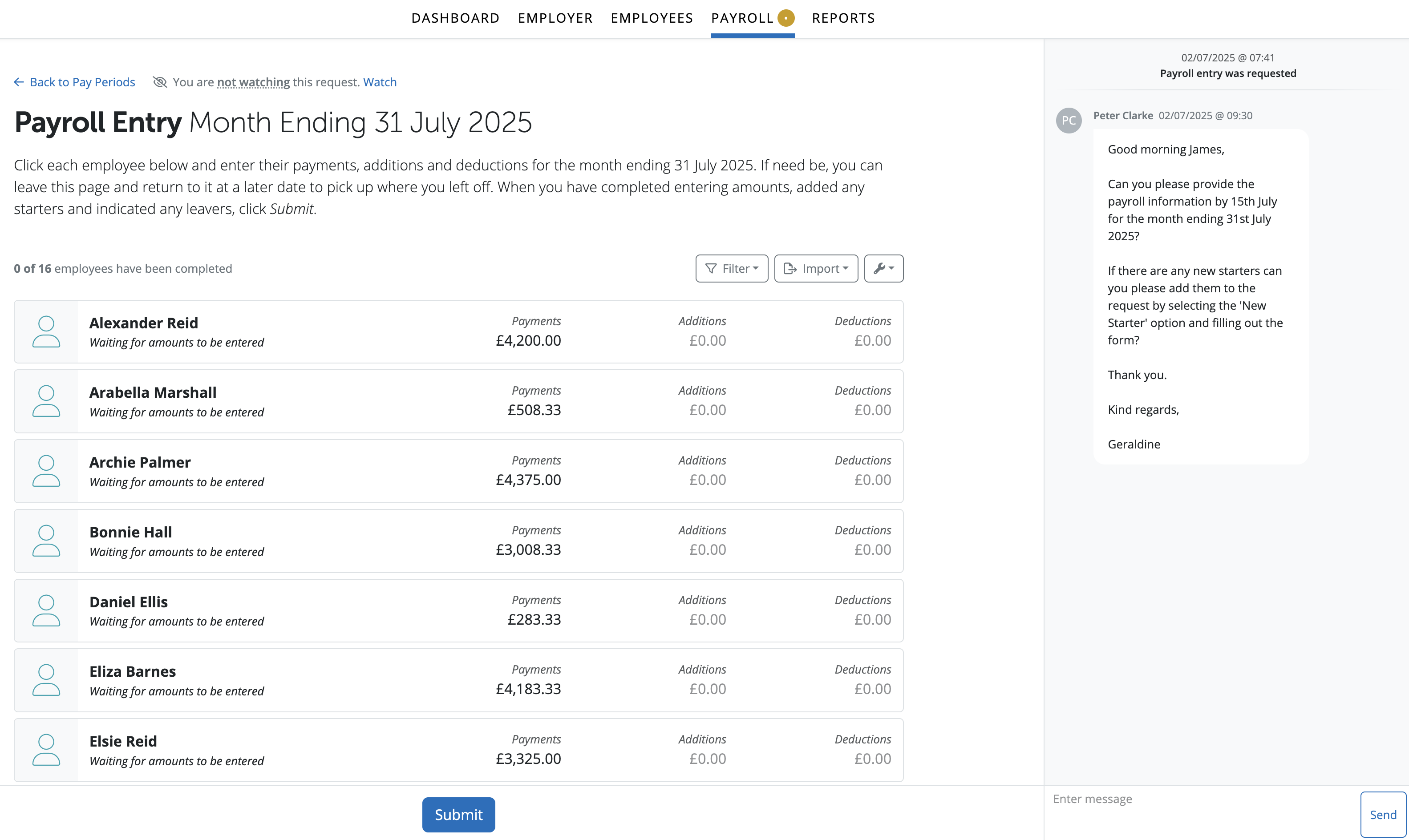
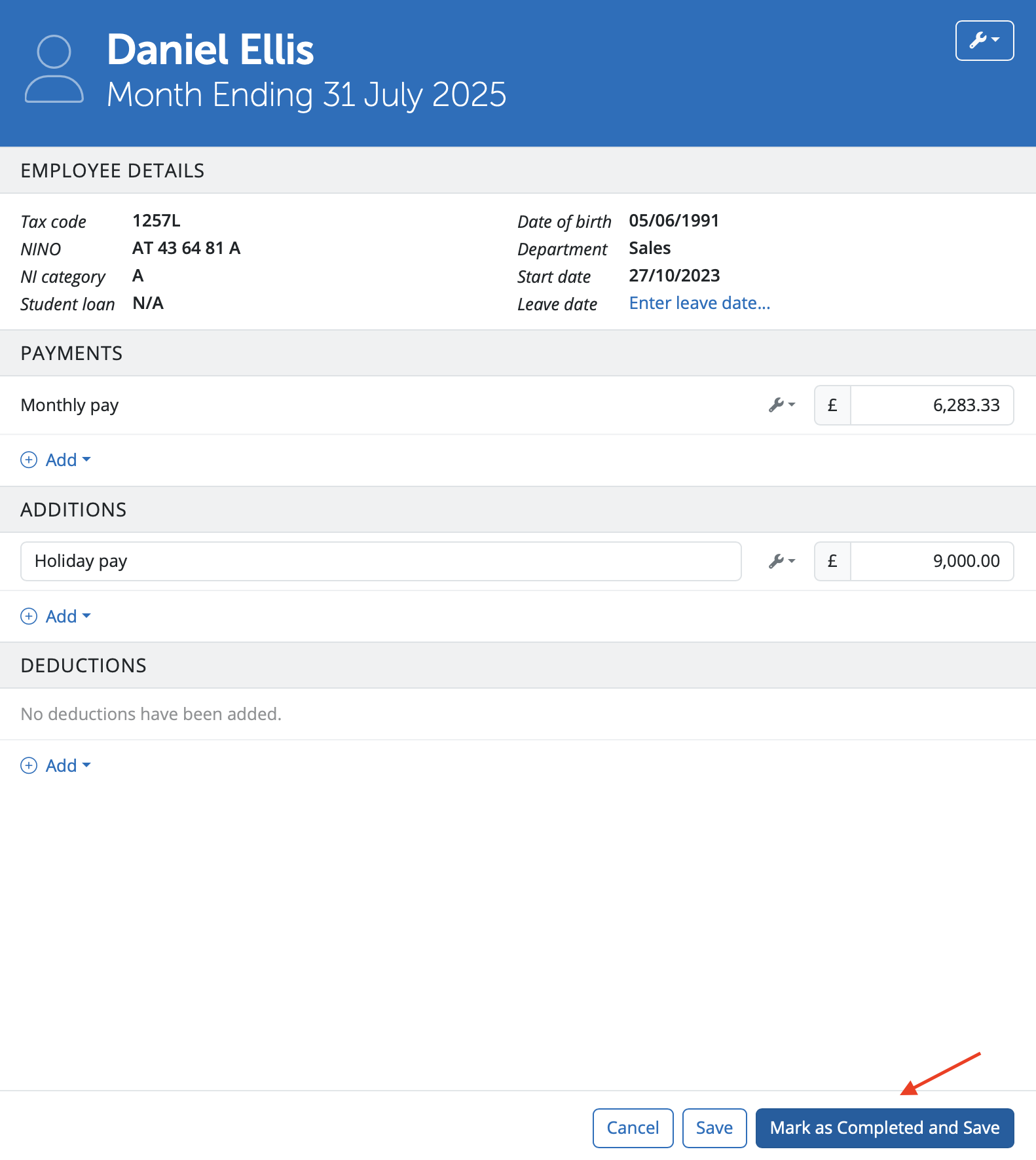
The Employer has the option to click into each individual employee and enter their payments, additions and deductions etc. Each section has multiple options and amounts such as hourly rates, daily rates, basic pay can be added, changed or deleted.
Once all of the payroll data for an employee has been entered, they can be marked as complete. To do this, the Employer can scroll to the bottom of the page and click on the 'Mark as Completed and Save' button.
Message facility
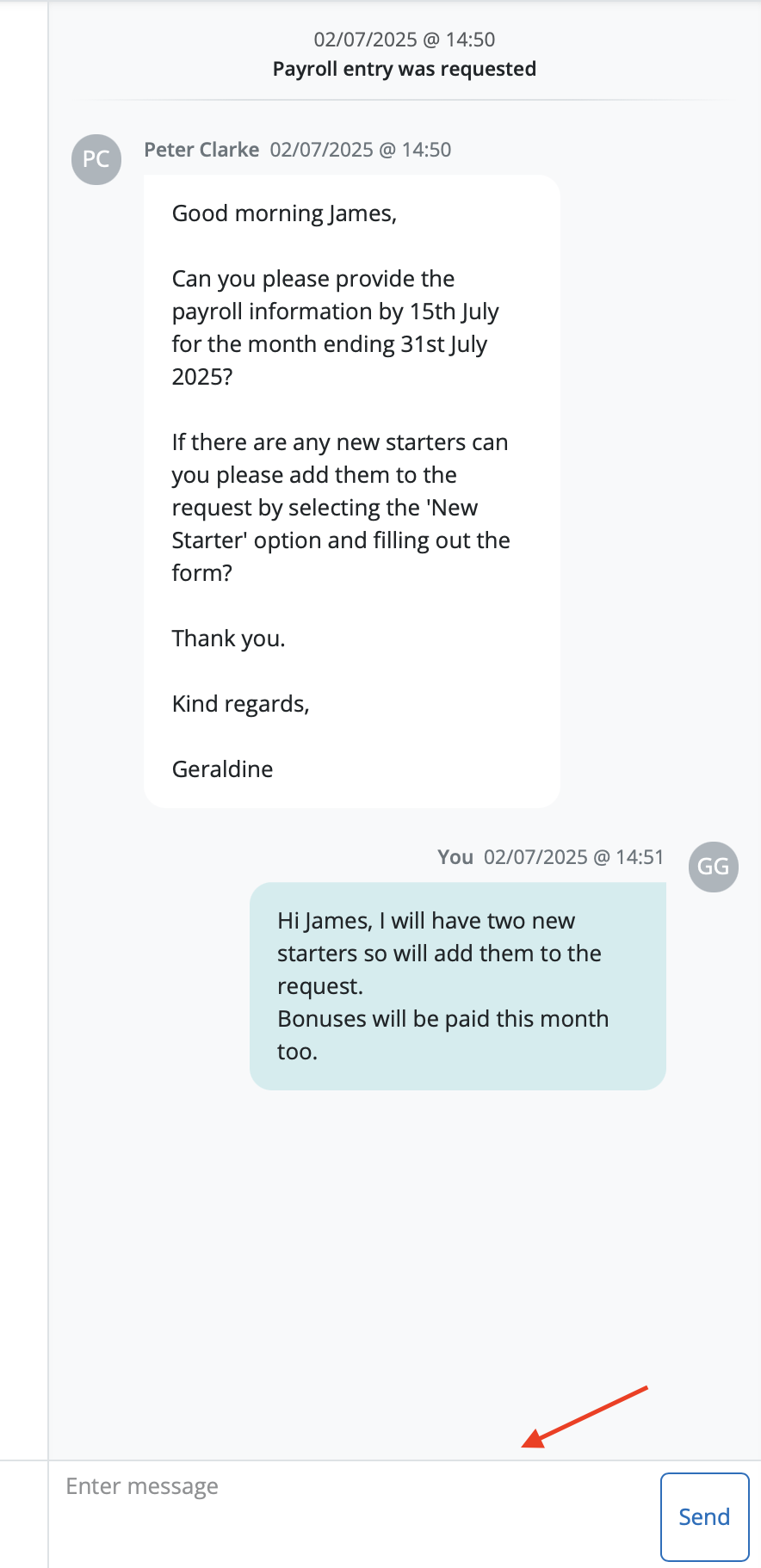
There is a message facility to the right hand side on the Payroll Entry Request for the employer to communicate to the Bureau and vice versa. The employer can add a message and an email notification will go to the bureau and the message will appear on the message facility on the request.
Email Notifications
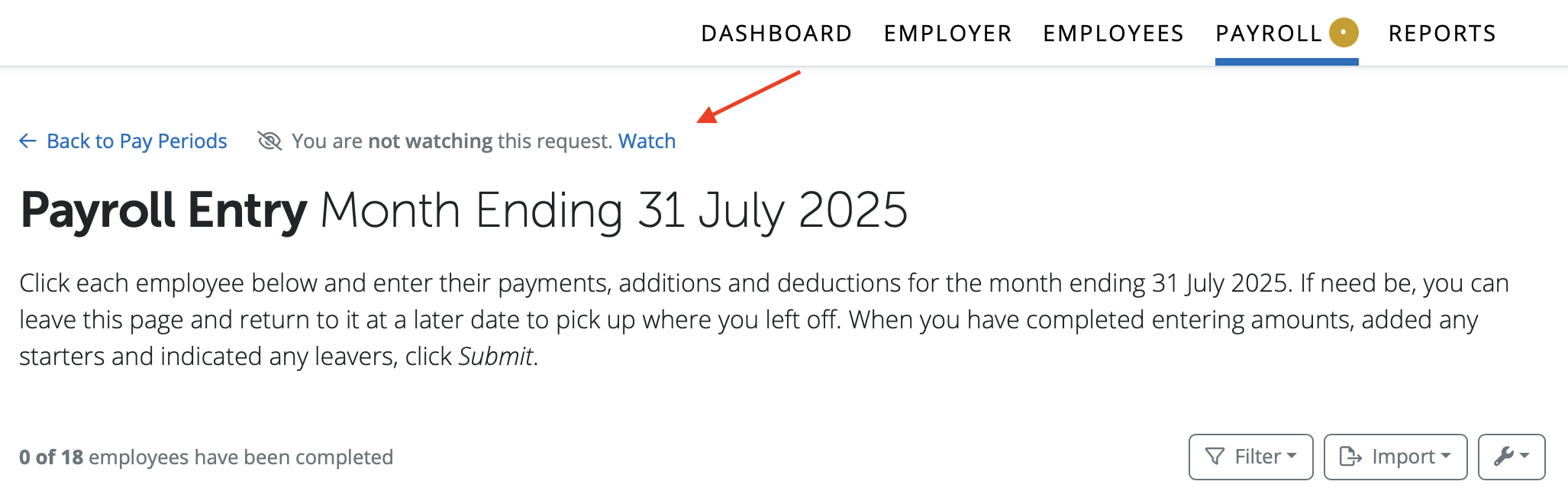
On the Payroll Entry Request if the employer is marked as watching the request the employer will get email notifications when a message is posted and or when the payroll entry has been re-opened.
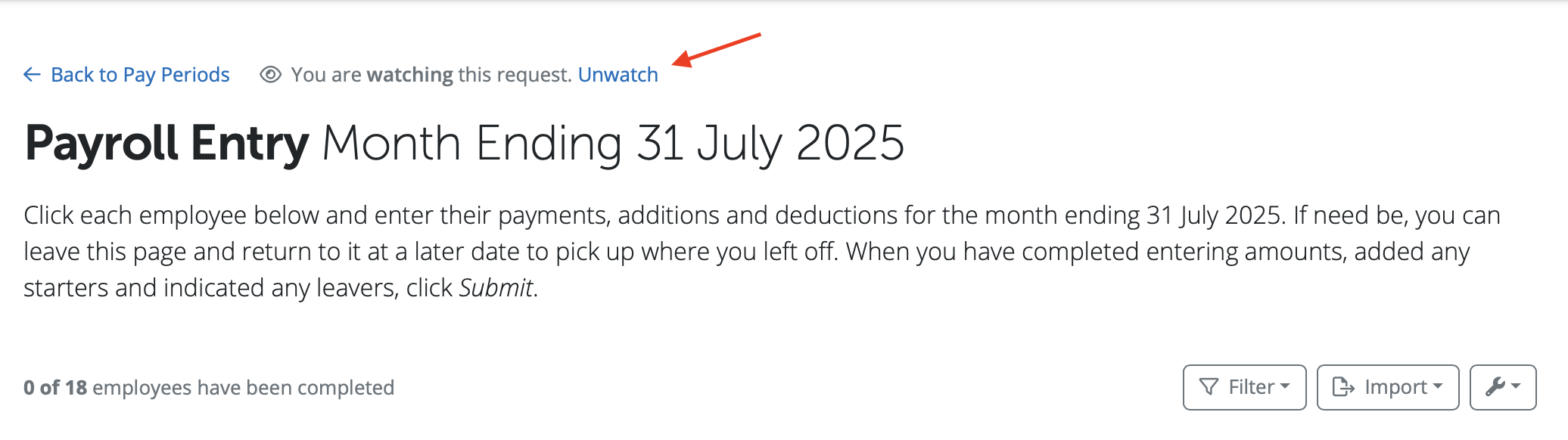
If the employer does not want to subscribe to getting these email notifications they can select 'Unwatch' and can subscribe again at any time by selecting 'Watch'.
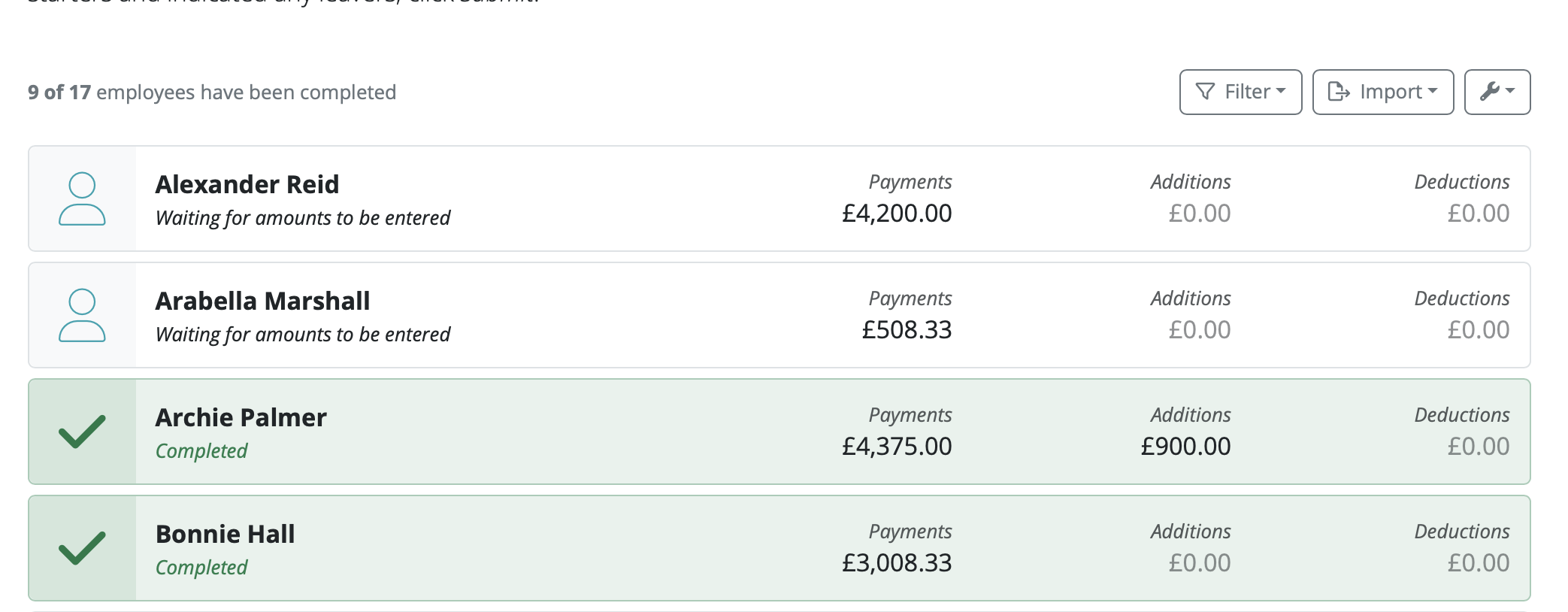
All employees that have been completed will be highlighted in green and are marked 'Completed'. Employees yet to be completed will be marked 'Waiting for amounts to be entered'. The request can be returned to the bureau once at least one employee is marked as 'Completed' on the request.
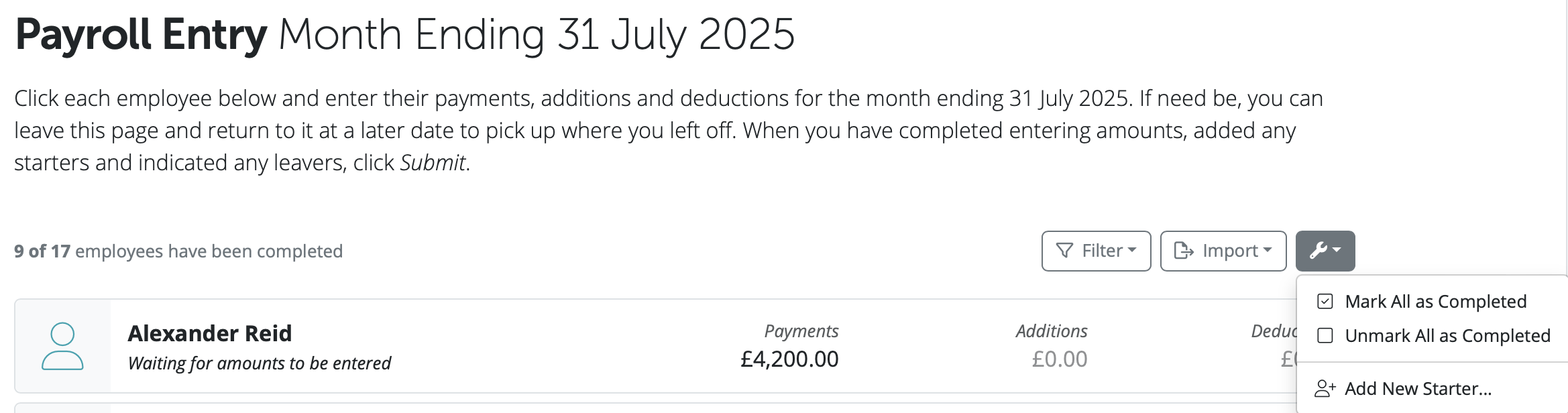
To mark a batch of employees as complete, the Employer can click on the gear icon at the top right and select 'Mark all as Completed'. To reverse this they can 'Unmark all as Completed'.
New Starter
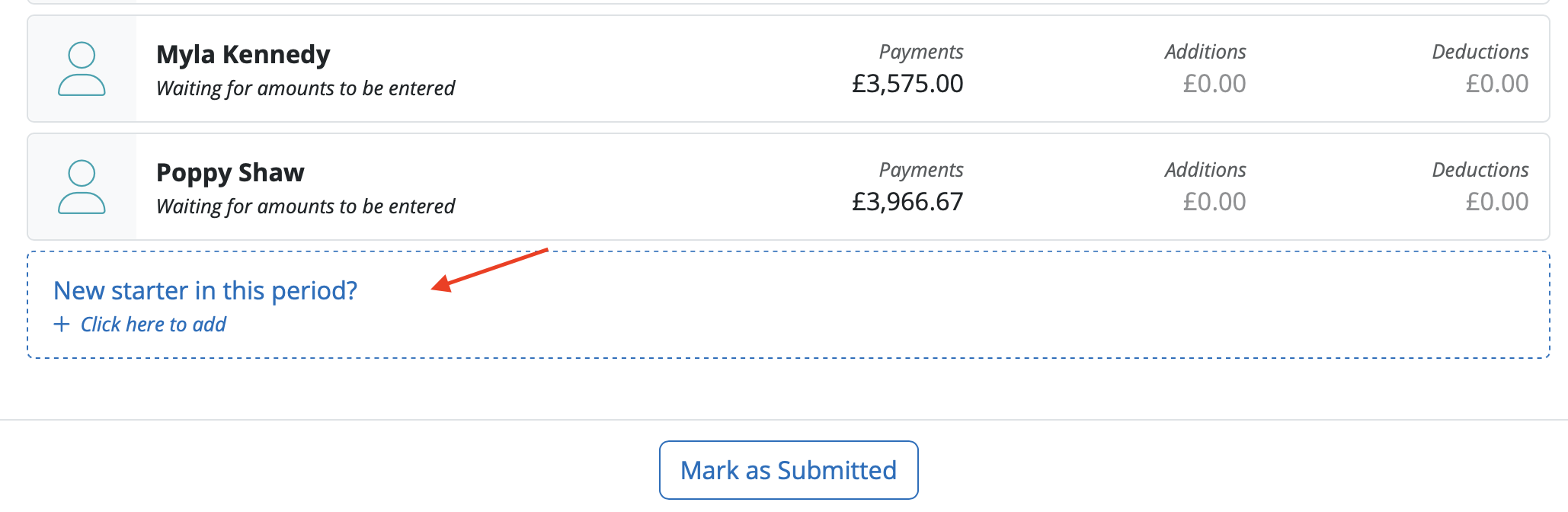
The Employer also has the option to add a new employee to the payroll on the Payroll Entry Request. To do so, the Employer simply clicks on the 'New starter in this period?' option or the spanner icon and 'Add New Starter':
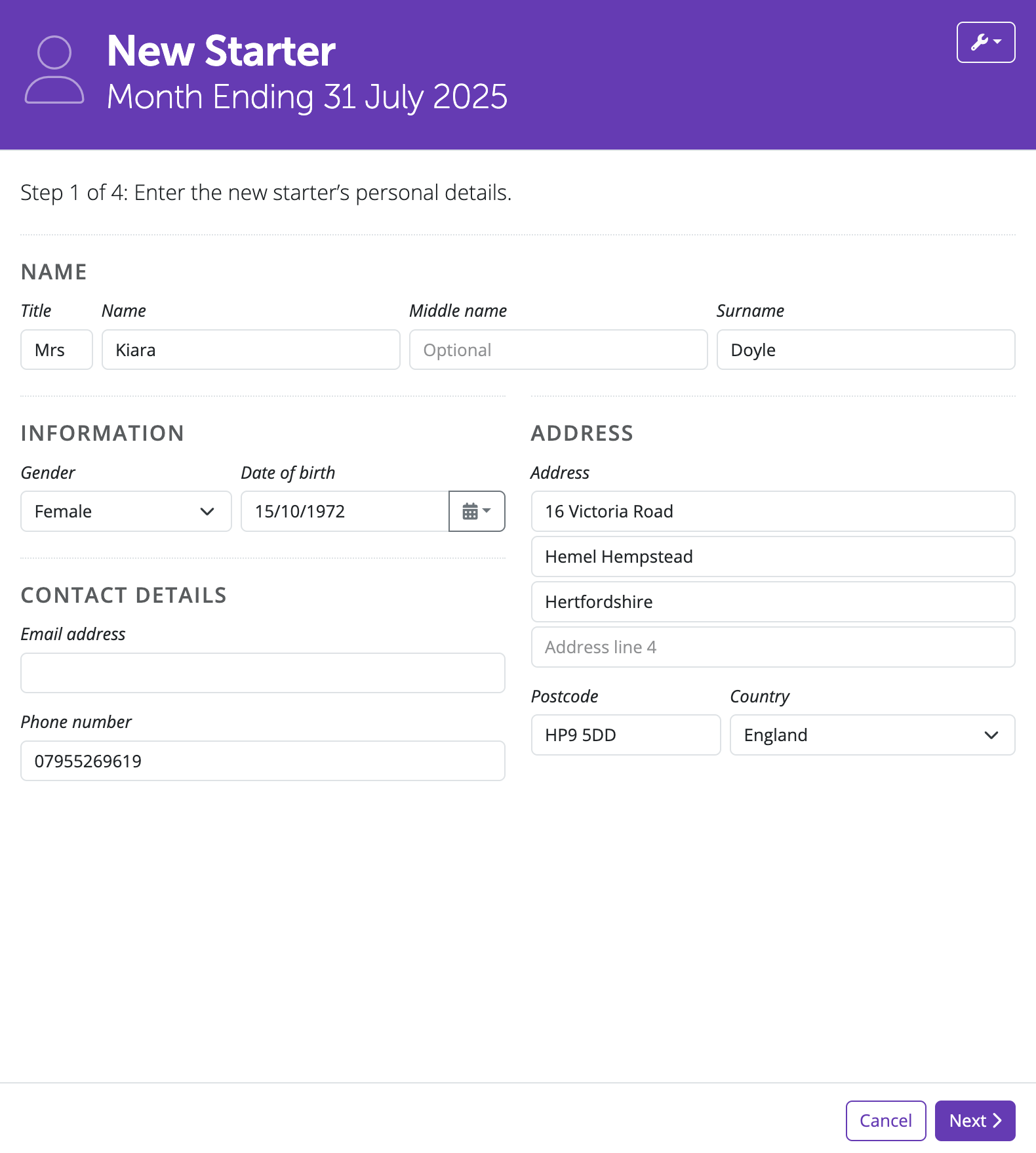
The Employer can input all of the new employee’s information directly on the Payroll Entry Request on the Client Portal, and once the payroll request is completed this information will automatically update in the employer in the Bureau’s BrightPay software.
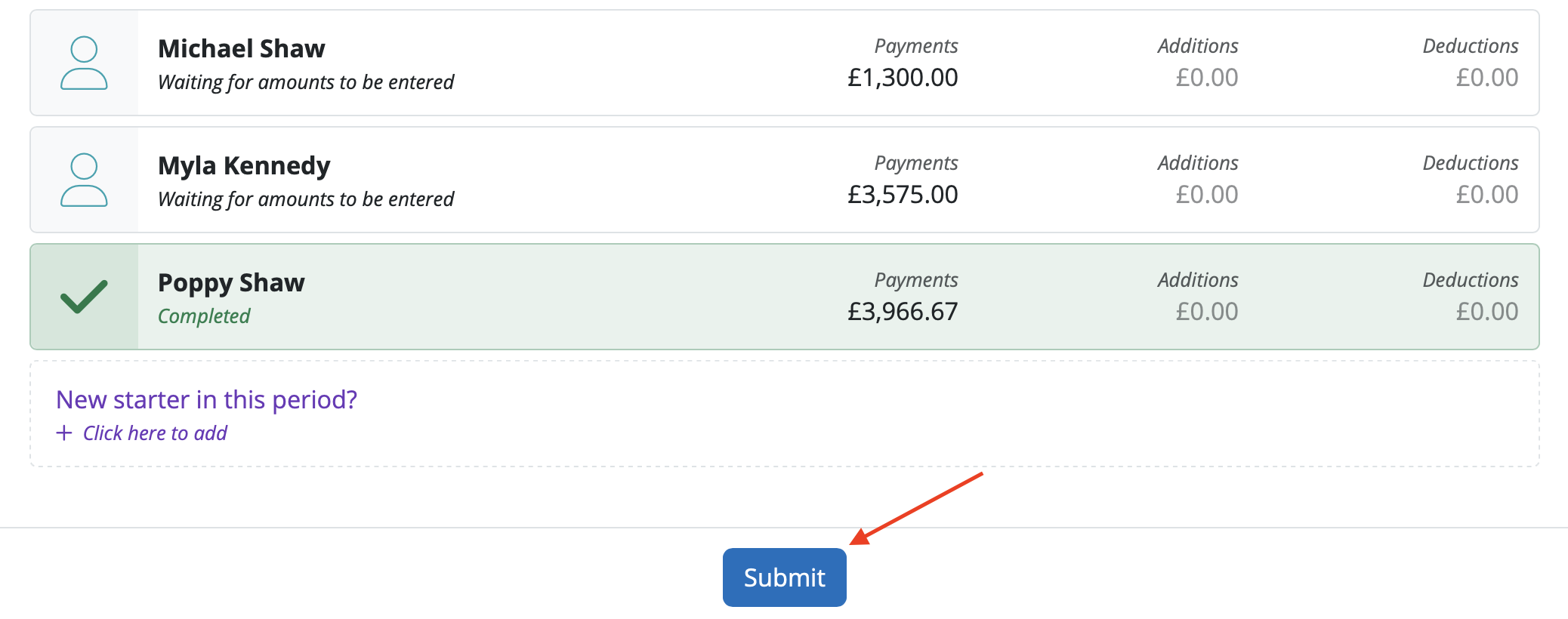
Once all of the payroll information is entered and the employer is happy to return the Payroll Entry Request to the Bureau, the Employer can select 'Submit'.
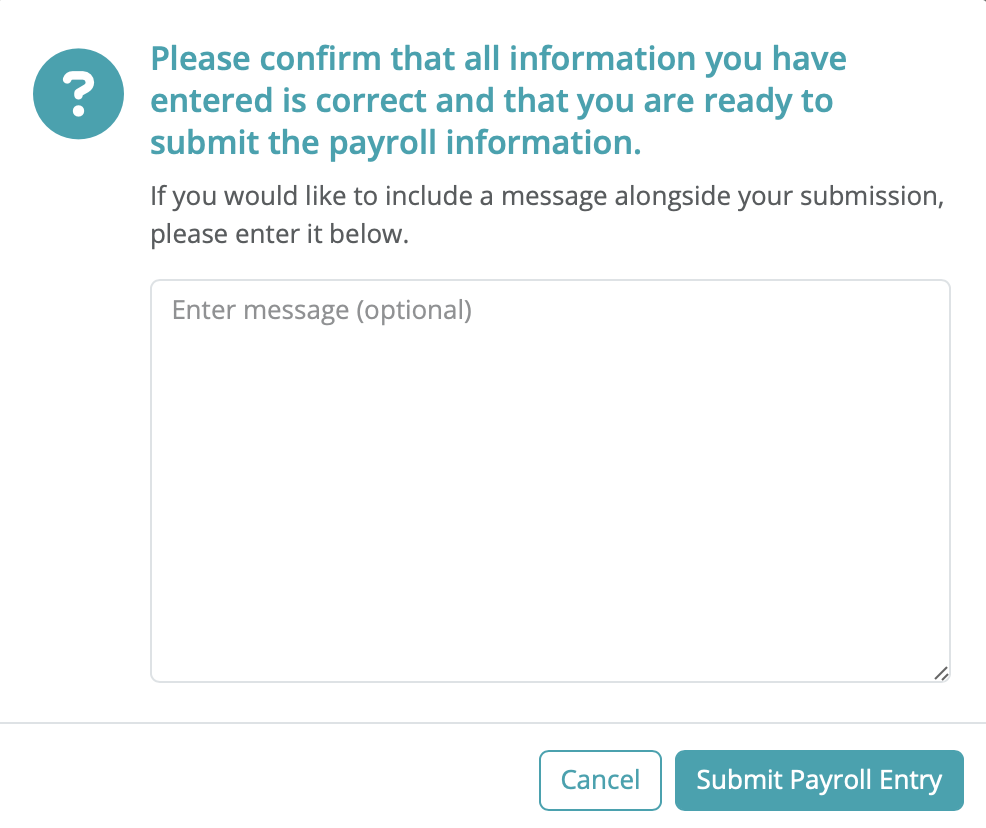
The employer can also include a note or a comment for the Bureau if required. To submit the request to the Bureau select 'Submit Payroll Entry'.
Once the Employer has submitted the 'Submit Payroll Entry' to the Bureau, the Payroll Entry Request will now show the status of 'the request has been submitted'.
Please note: When the Payroll Entry Request has the status of 'the request has been submitted' the request can no longer be edited by the employer.
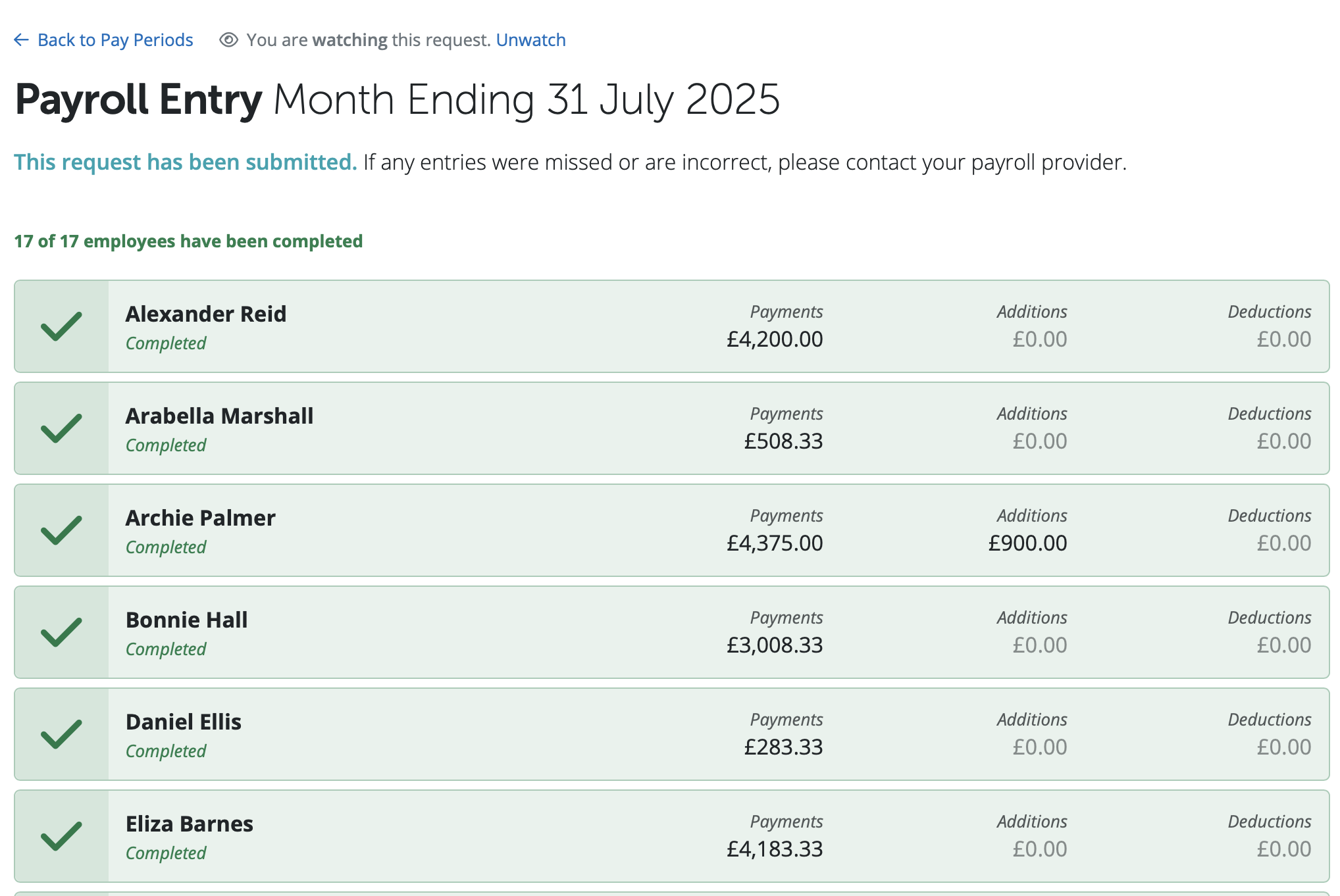
The Bureau will then see the status update for the request, along with an email to their registered email address to notify them that the payroll entry they requested has now been submitted by the Employer.
Once a Payroll Entry Request is submitted
When the payroll information is submitted by the Employer, the Bureau will then view a status update in the employer in BrightPay, along with an email to their registered email address to notify them. 
The Bureau can then click on the new response or select 'View/Accept' to view the payroll data submitted by the Employer.
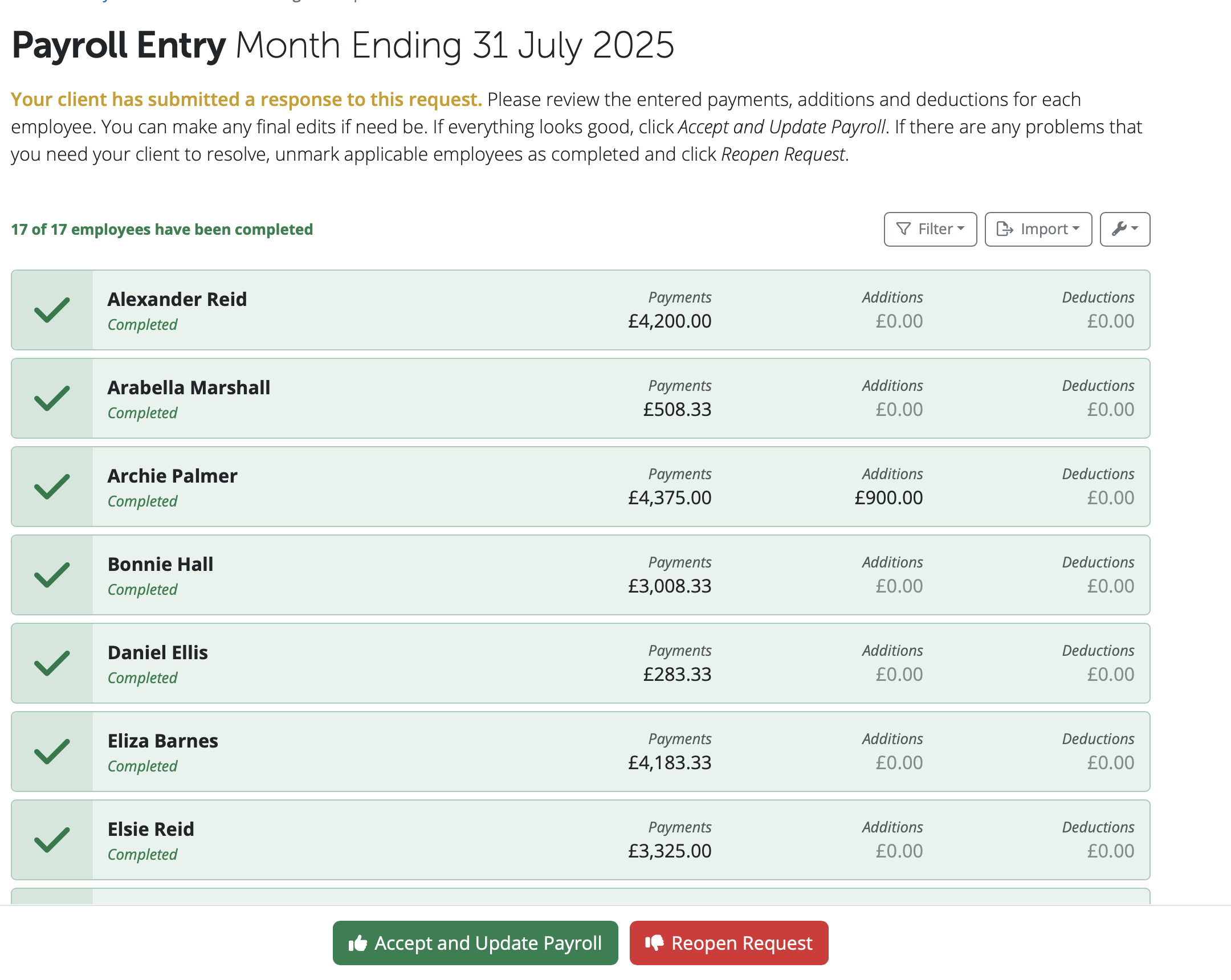
Once the Bureau have reviewed the information, they can either confirm it if they are happy that all is correct or decline it if something doesn’t look right. If the Bureau needs to re-submit the Payroll Entry Request again to the employer, they can select 'Re-open Request', this will re-send the request back to the Employer (with comments if needed) and they can review and re-submit the payroll data again.
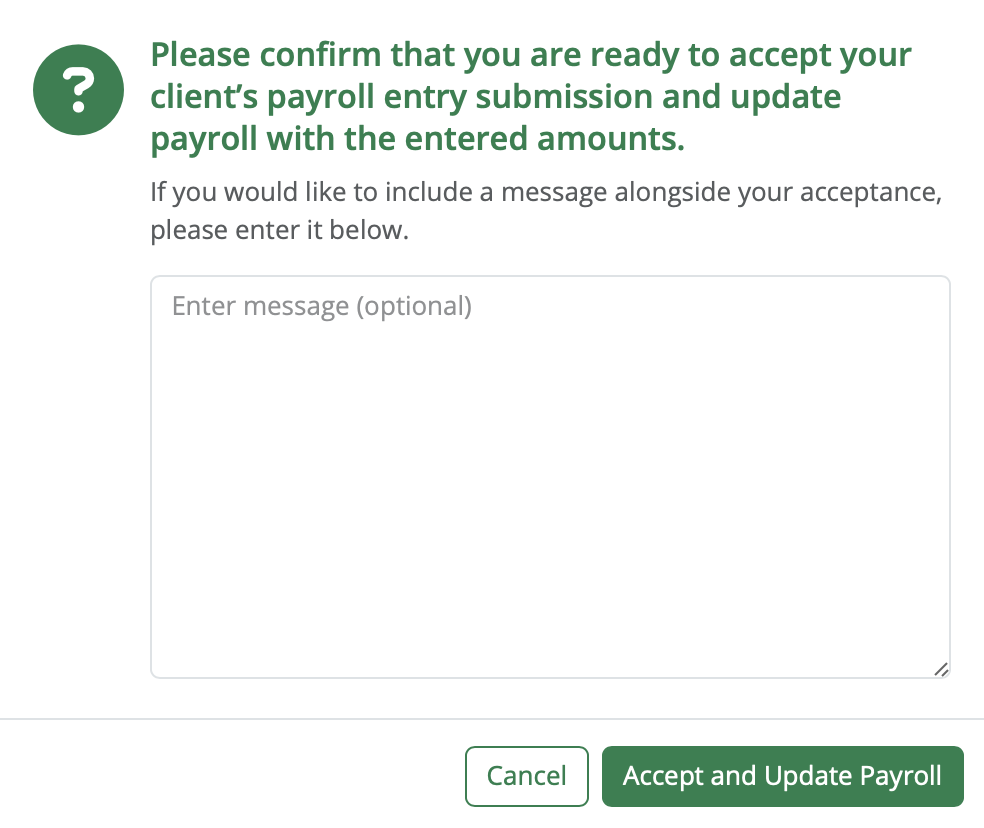
If the Bureau is happy the information is correct, the Bureau can click on the green 'Accept and Update Payroll' button as shown above. A confirmation message will then appear asking if the Bureau is sure they wish to update the data into BrightPay. Click 'Accept and Update Payroll' if happy to proceed.
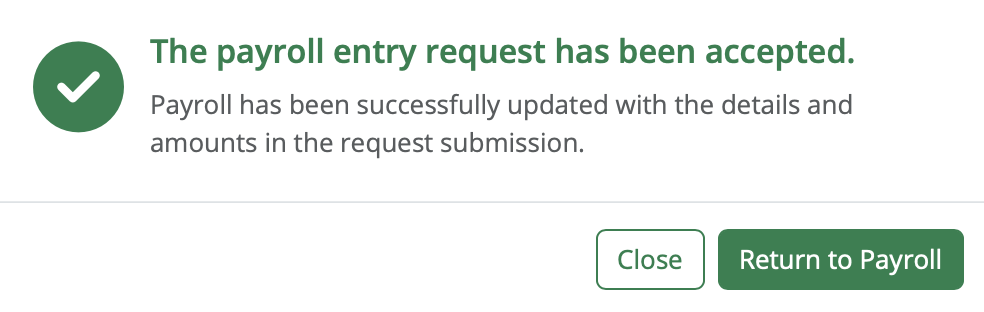
The Bureau will then see a message confirming that the information has been updated in the Payroll in BrightPay.
The status of the request will be updated in the pay period in BrightPay.
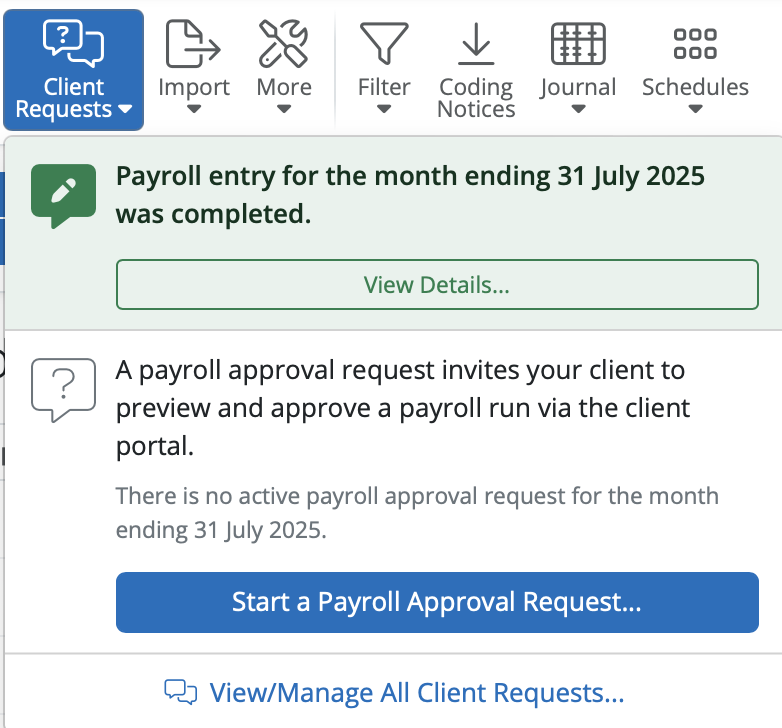
At any point in each stage of the Payroll Entry Request the Bureau can view the request or they can Cancel the request by selecting the spanner on the request status and select 'View Request' or 'Cancel Payroll Entry'.

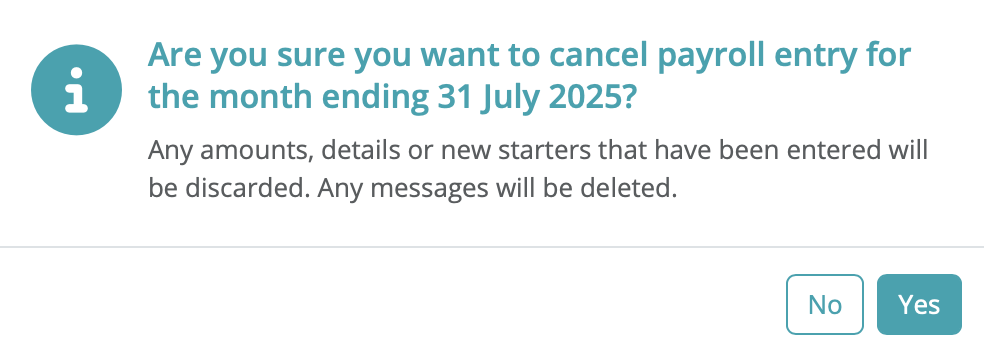
If the Bureau selects 'Cancel Payroll Entry' the Bureau will be asked to select Yes or No to confirm if they want to delete it.
All that needs to be done by the Bureau now is to review the data one last time and if everything is correct, click 'Finalise Payslips' in BrightPay. Once finalised, this will automatically synchronise with Client Portal and the payslips will be made available to the Employer and Employees.
The Employee will receive an email that their new payslip is available to view on the Employee Self Service Portal based on the availability settings set up in BrightPay.
Please note: If a new Payroll Request is created when another Payroll Entry Request exists the new Payroll Entry Request will replace the existing request. All details on the previous request including pay records, new starters, notes and audit trail will no longer be accessible.
Manage Client Requests
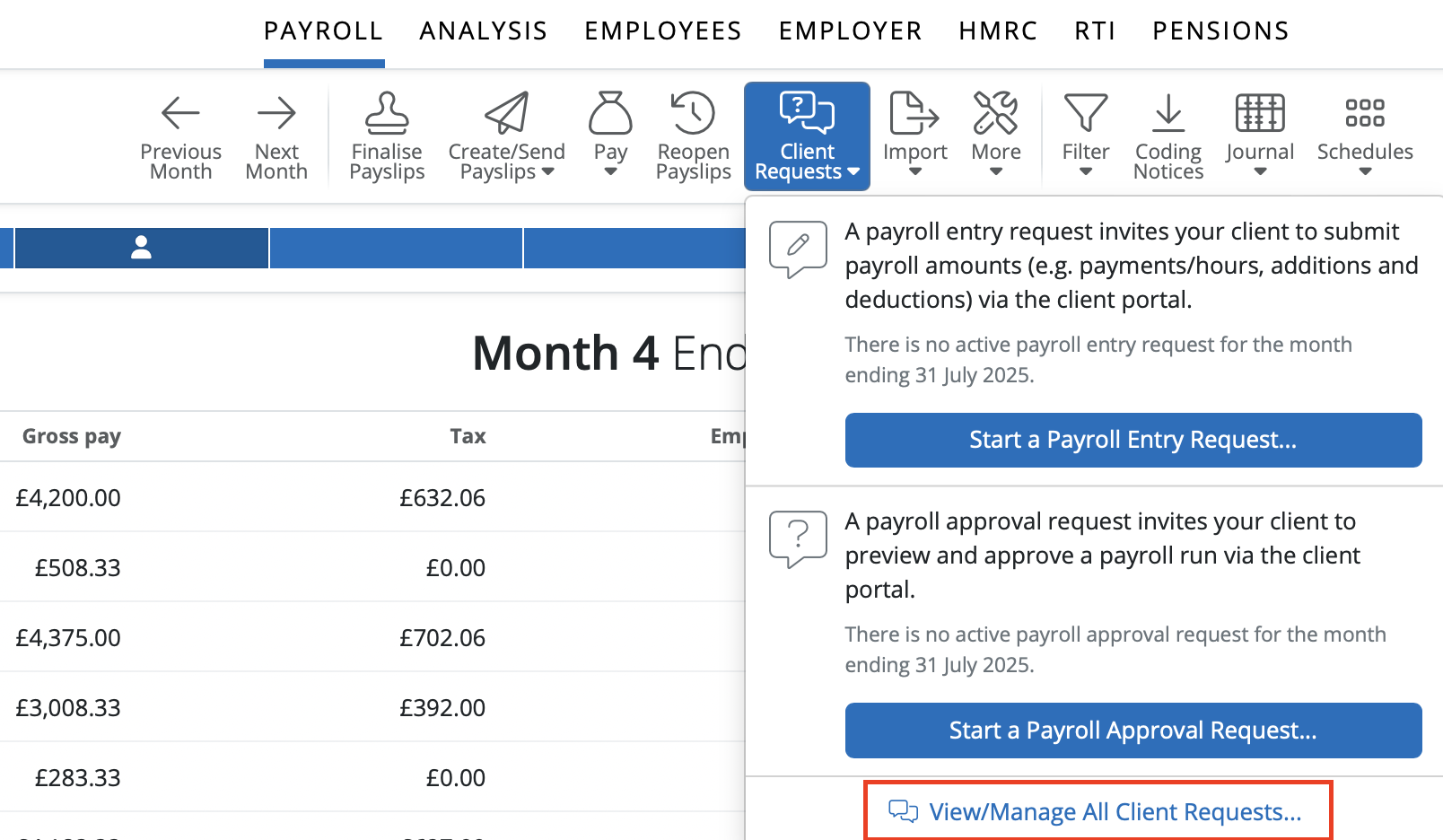
For Bureaus to view all Requests and their status for an employer in BrightPay by selecting > Payroll > Client Requests > View/Manage All Client Requests.
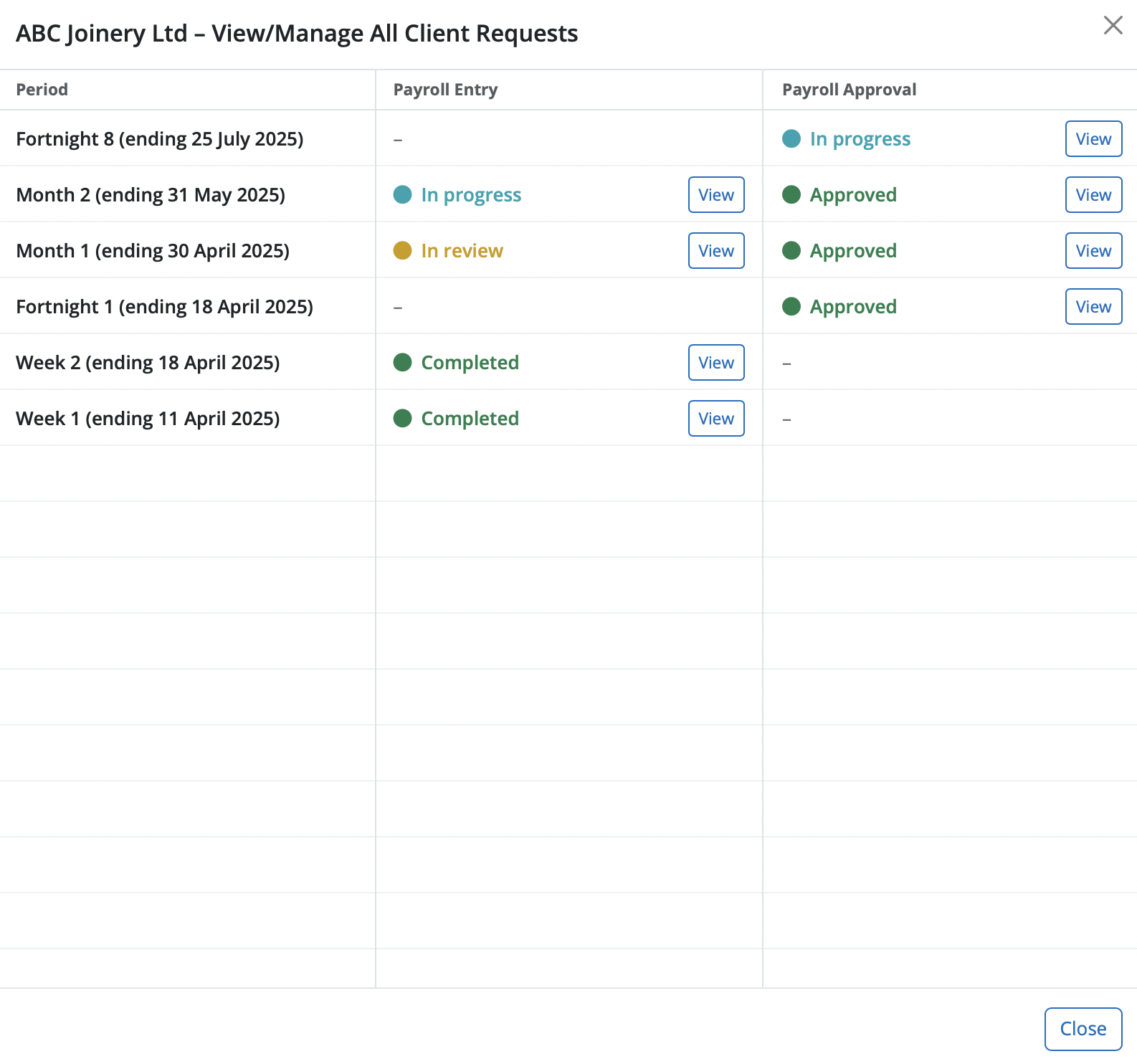
The bureau can view at a quick glance the pay periods that requests have been created and the type of requests and the status of each request. The bureau can access and view each request individually by selecting the 'View' option.
Audit trail
A useful feature for Bureaus in for the Client Requests is the Audit Trail. This can be found by selection the spanner to the top right of the payroll request. It’s automatically updated with each step of the payroll process, and cannot be changed or manipulated in any way, in turn eradicating any breakdown of communication between a Bureau and their client. 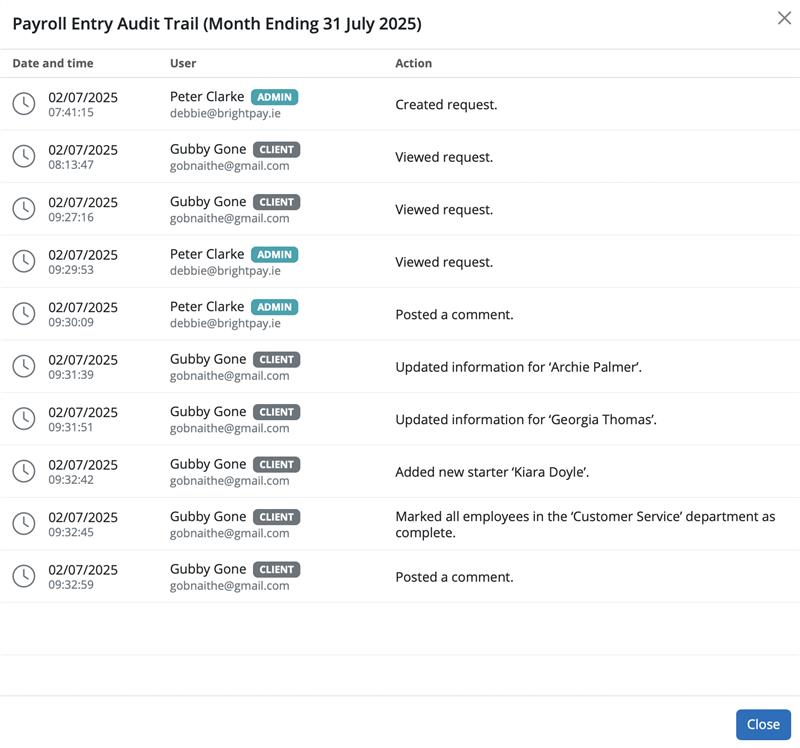
BrightPay employer homescreen
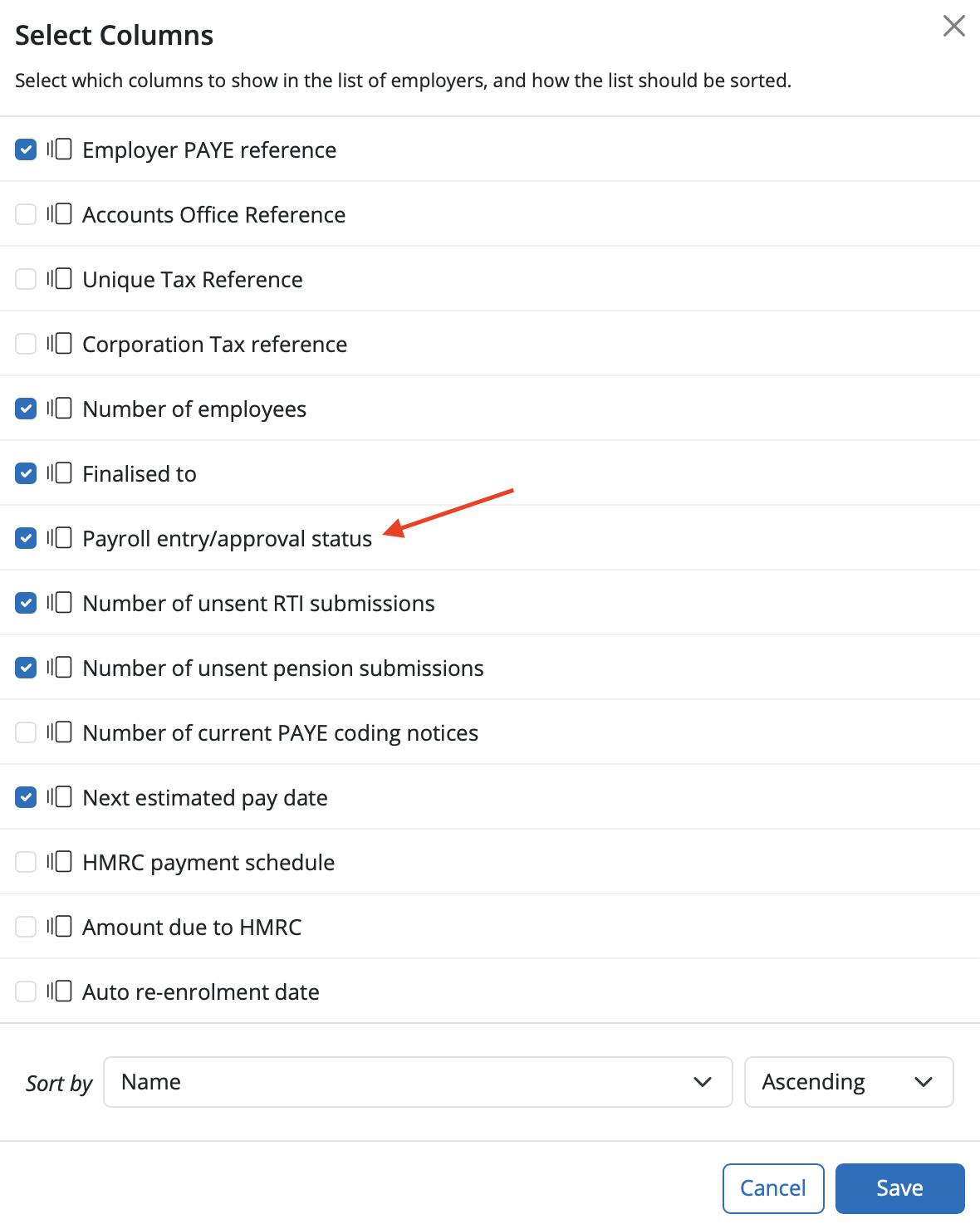
On the employer homescreen you can add a column to show the Payroll Entry/Approval Status for all employers that are listed on the employer homescreen. In order to show this on the employer homescreen select > More > 'Choose Columns'.

Select the option of 'Payroll entry/approval status' as a column to show on the list of employers and 'Save'.
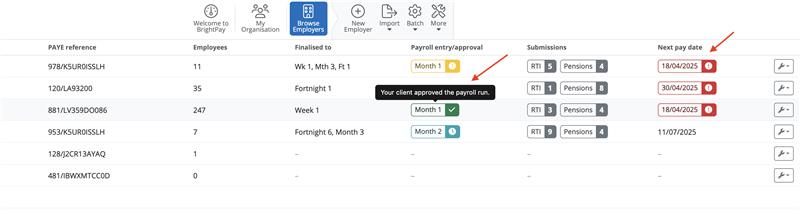
On the employer dashboard if a payroll request has been created in an employer you will see the status of the request and the period the request is for under the column 'Payroll entry/approval'. If you hover your mouse over the you can see more detail. The clock symbol indicates that the request is in progress. The exclamation mark indicates that the request is waiting for the Bureau to review it and the tick symbol is the request is completed.
If the next estimated pay date column is selected for the employer dashboard and the next estimated pay has passed, the date for the employer will be highlighted in red.
Need help? Support is available at 0345 9390019 or [email protected].







