Custom Bank Payment File Templates
For employees paid by credit transfer, a Bank Payment File can be created to upload through your banking software:
Please note: to be able to use this option, employer bank details must first be entered within your Employer utility and you must have approval from your bank to submit bank payment files to them. Information on adding employer bank details can be found here
There are 55 bank payment template formats available to select when creating the employer bank payment file in BrightPay. To check if your bank payment file format already exists in BrightPay please check here.
If your bank file template does not exist on the list of bank payment file options, BrightPay facilitates the option for customers to upload a custom bank file template in an employer.
Please note: The custom bank template after uploaded is stored per employer. If you require the same custom template for multiple employers you will need to perform the following steps in each employer in BrightPay.
If you require assistance from the BrightPay Support Team to create a custom bank template file please note this will take 5 working days.
Adding and Creating a Custom Bank Payment File
Information on creating an employer bank payment file can be found here or follow the steps below:
1) Select the Credit Transfers/Create Bank File option under the Pay icon.
2) Select the employees you wish to include in the bank payment file on the left hand side.
3) To create the Bank Payments File, click Create Bank File on the bottom right of the window.
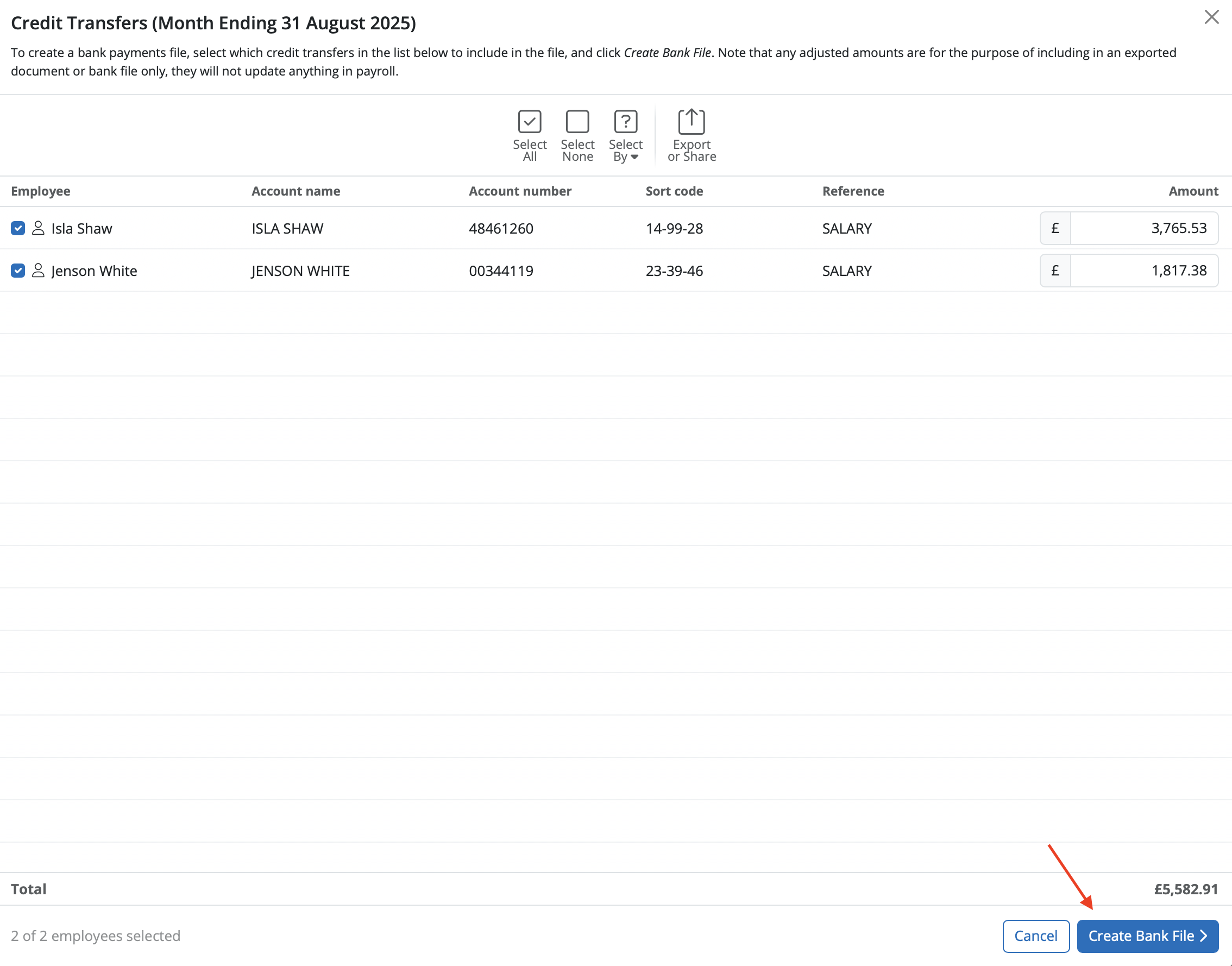
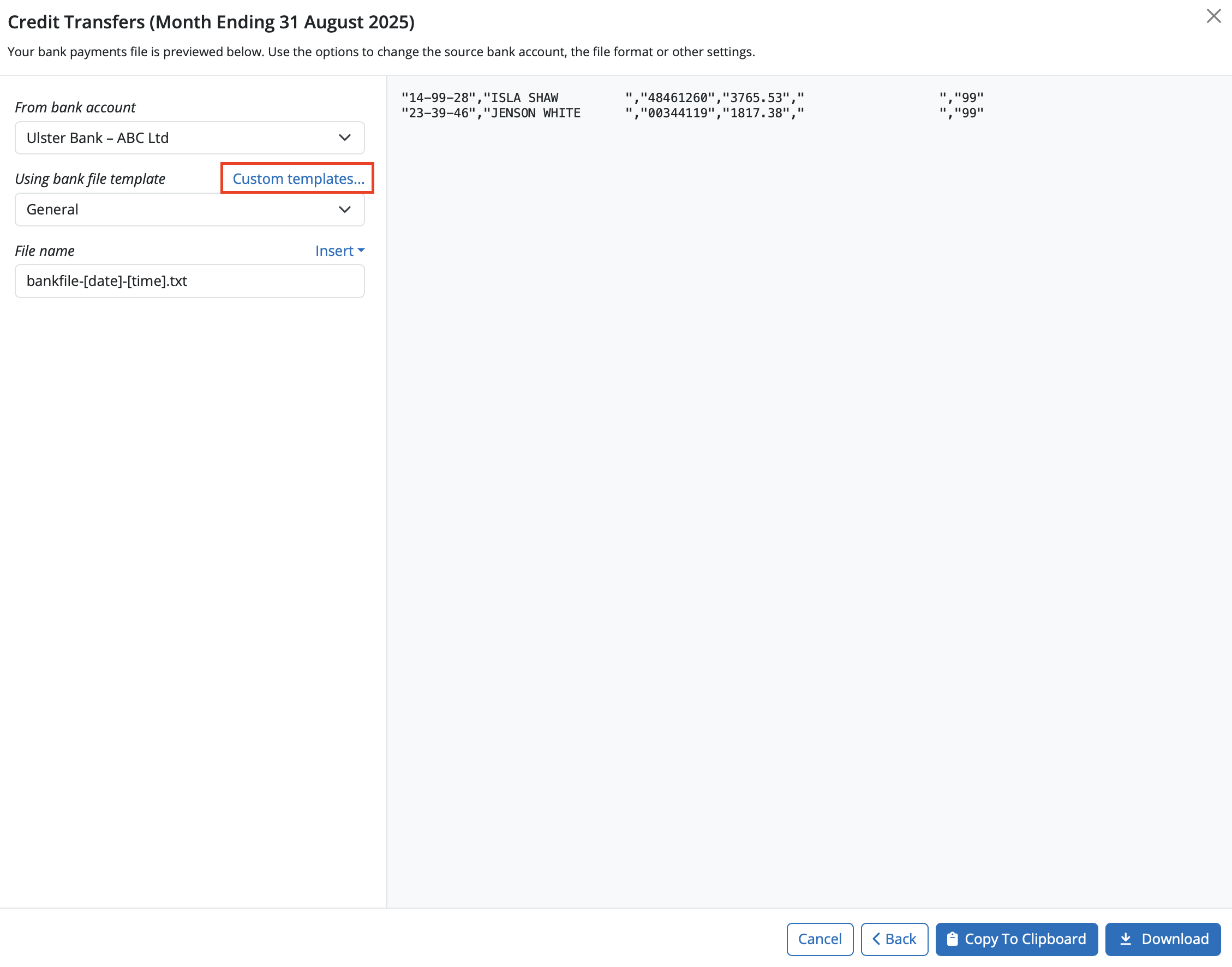
4) Select the Bank Account you wish to pay from and select the appropriate bank File Format. If the bank File Format you require does not show on the list available you can add your own custom bank file template to BrightPay.
In order to upload your own custom bank file template to the employer in BrightPay please select 'Custom templates'
Please note: The bank payment file template will be provided by your bank.
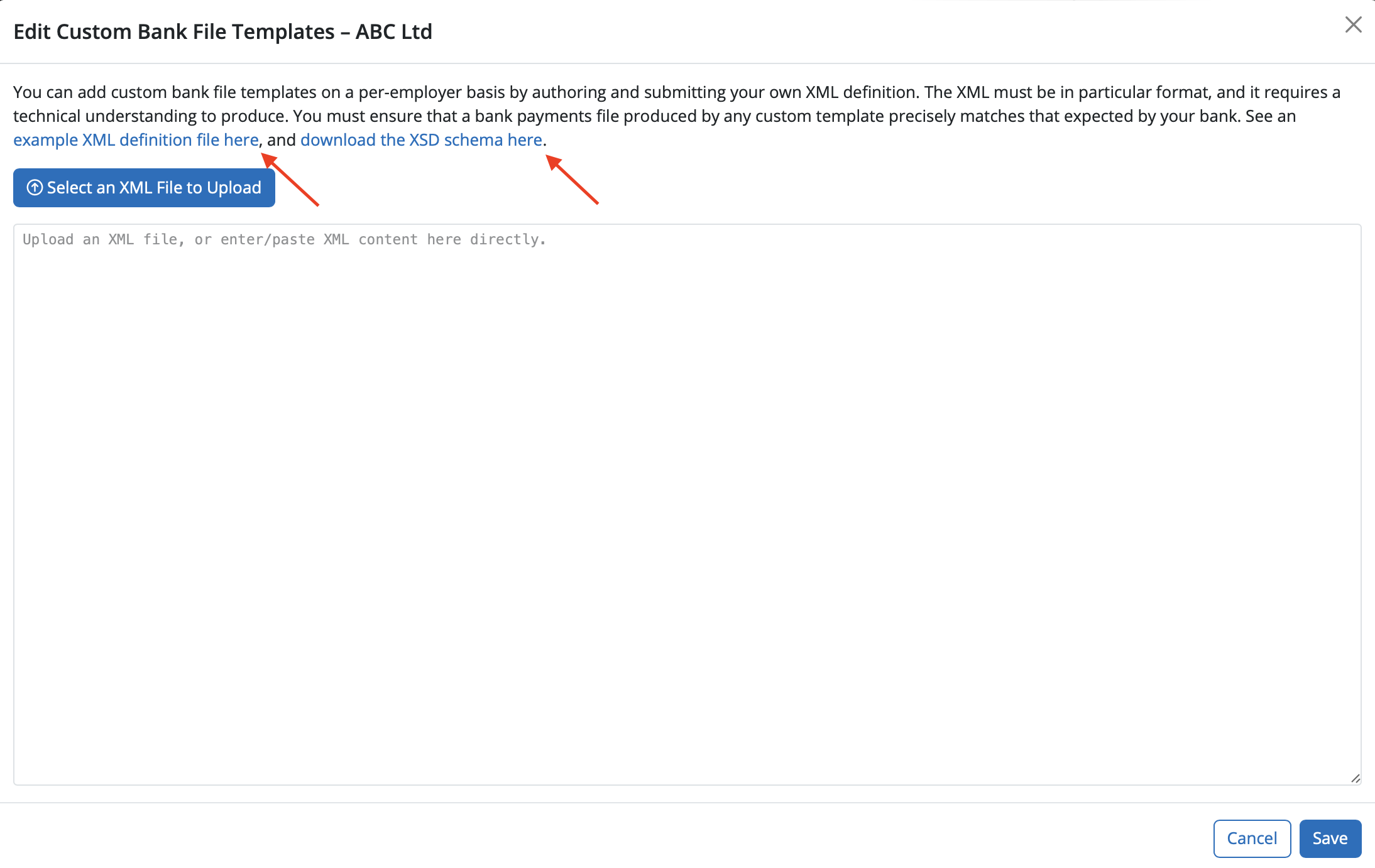
Examples of the XML definition file and XSD schema are available on the next window.
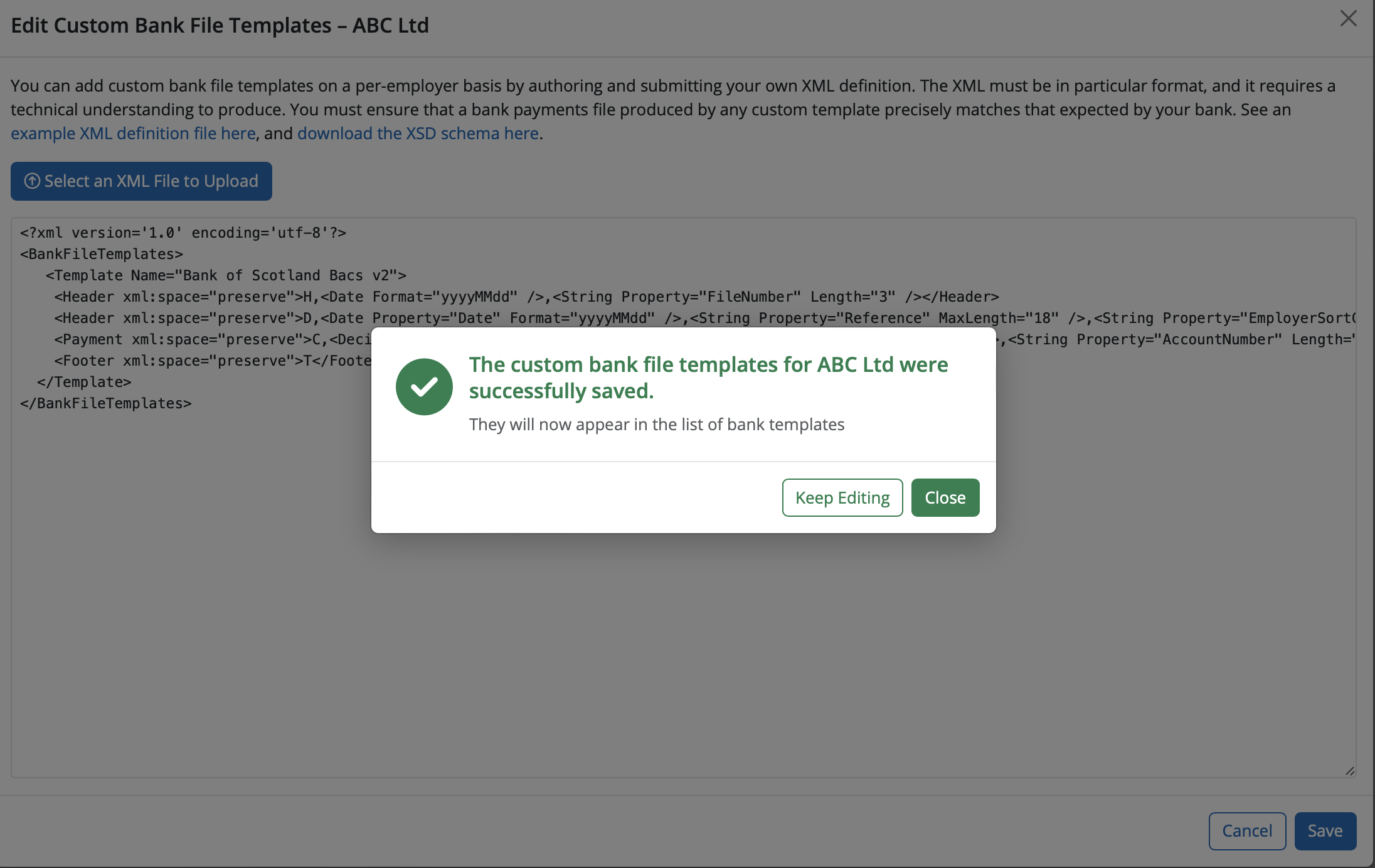
5) In order to upload the custom bank payment file to BrightPay please select 'Select an XML File to Upload'. Browse to the location of where the file is saved to and select the file and select 'Open'. (the file extension will be in the format .xml)
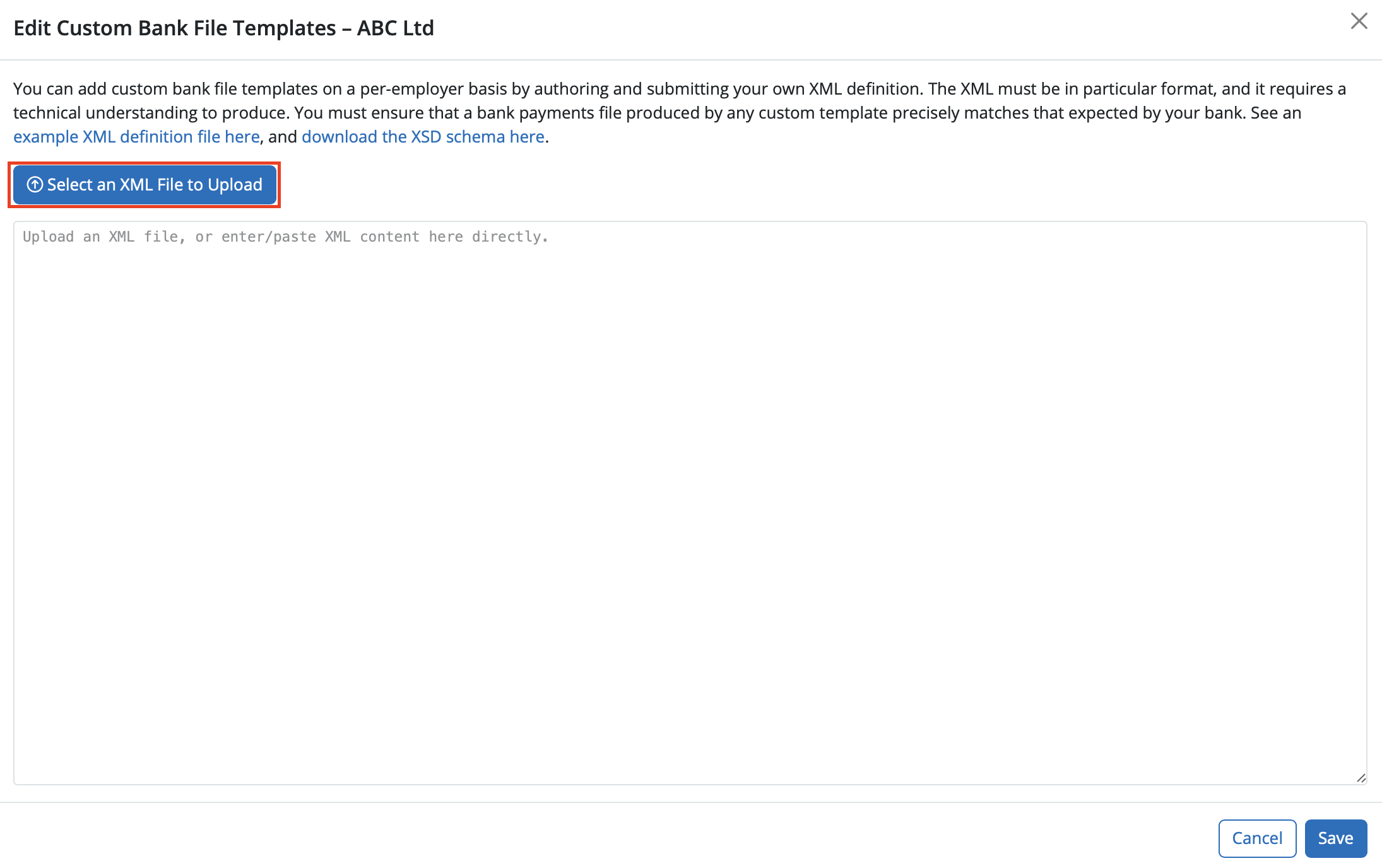
Once the file is upload select 'Save' to add the custom bank file template to the employer. A message will display to say the custom file template for the employer was saved successfully.
The bank payment file option will be available to select from the bank account list under the heading of 'Custom Bank File Templates'.
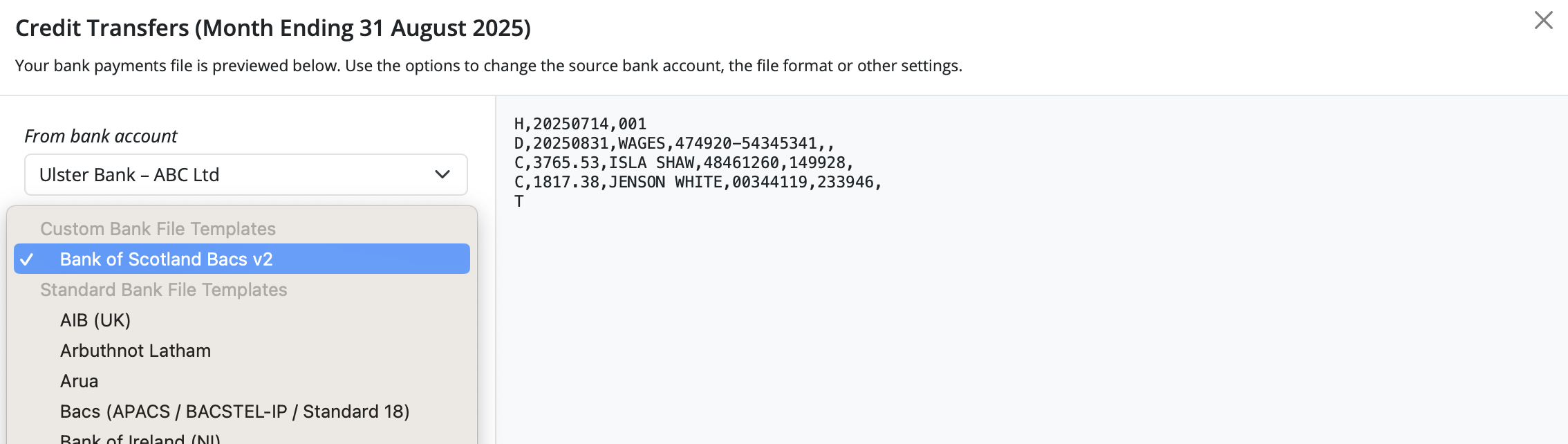
6) Click Download to save the bank file to your Downloads folder on your computer. The bank payment file is now created and can be uploaded through your bank facility when ready.
Need help? Support is available at 0345 9390019 or [email protected].







