Configuring Employee Self Service Options
BrightPay provides a web-based portal where employees can browse and download their history of payslips and other payroll documents, view their payroll calendar, including annual leave, sick leave and parenting leave, and view their personal details.
If your employees will be availing of the employee self-service facility, you can select when you would like finalised payslips, P60s and P11Ds to be made available to them:
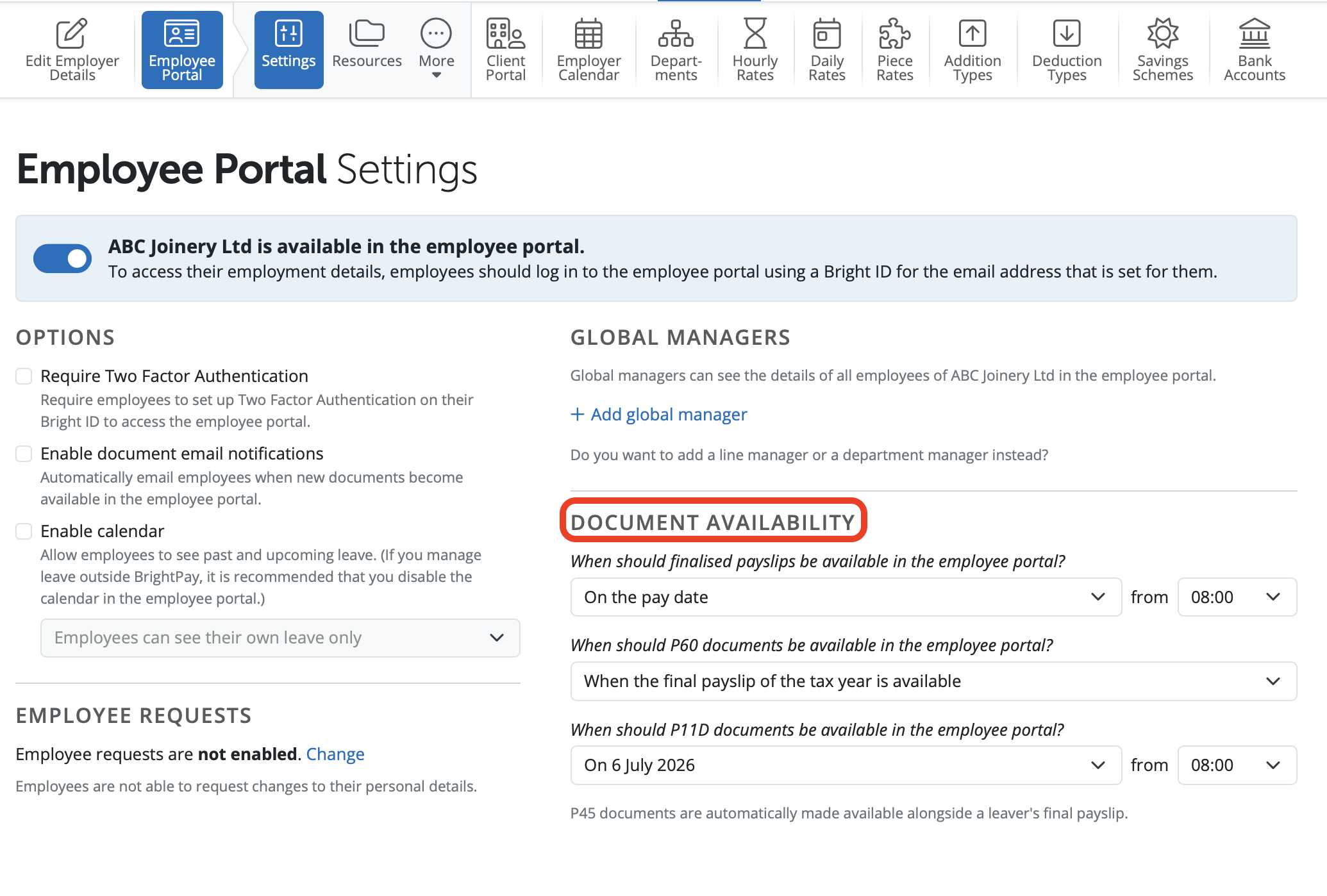
Payslip and Document Availability
1) Within your BrightPay organisation, open the employer you require and go to > Employer > Employee Portal > Settings
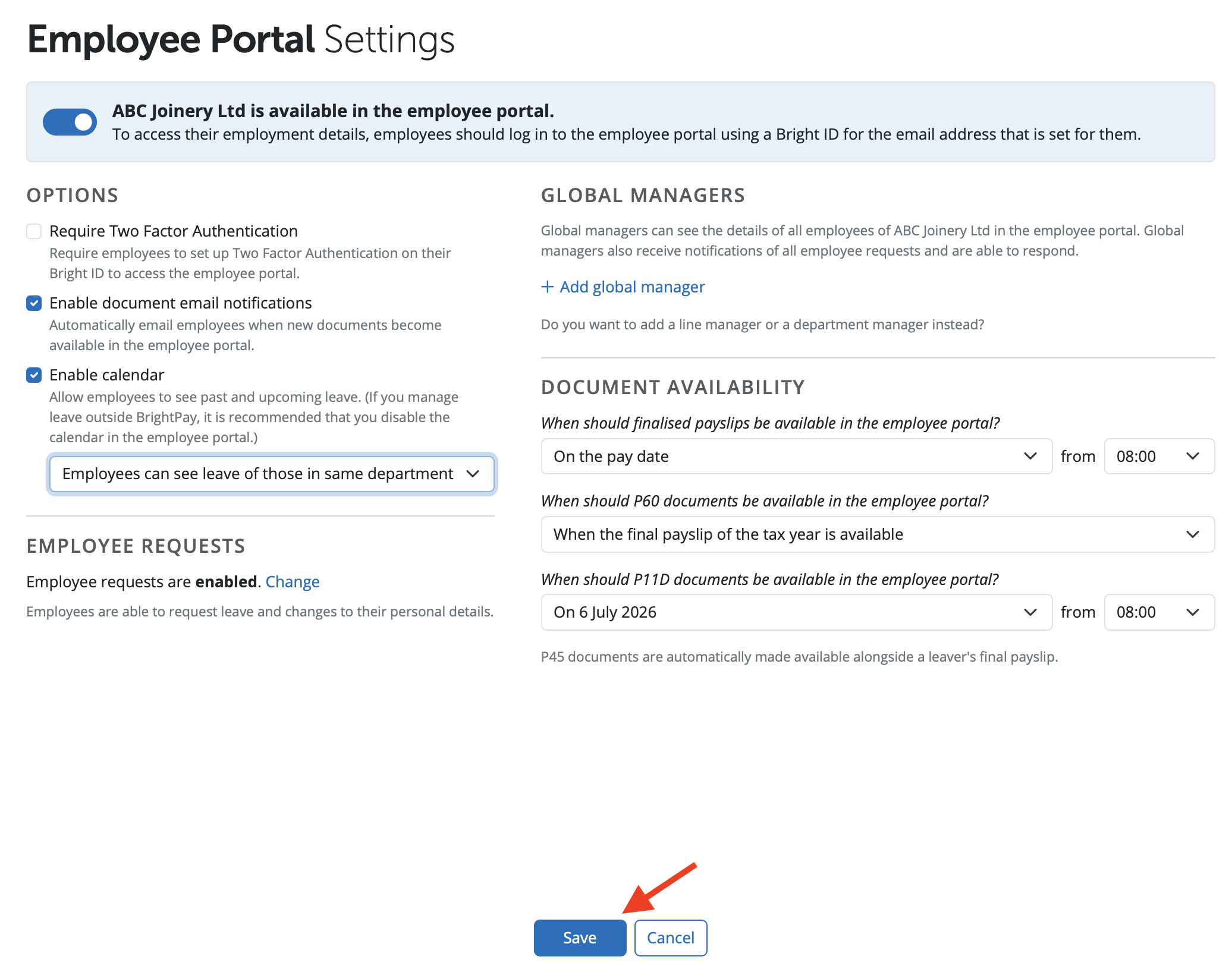
2) Under 'Document Availability', select when you would like finalised payslips, P60s and P11Ds to be made available to the employees and click ‘Save’ on completion.
Calendar
The employer can enable the calendar and annual leave details for employees to view in the Employee Self Service Portal.
1) Within your BrightPay organisation, open the employer you require and go to > Employer > Employee Portal > Settings.
2) Under 'Options', select or deselect if you wish to have the calendar and annual leave details visible or hidden from employees on the Employee Self Service Portal and click ‘Save’ on completion.
Please note: If you manage leave outside of BrightPay it is recommended that you disable the calendar function in self-service.
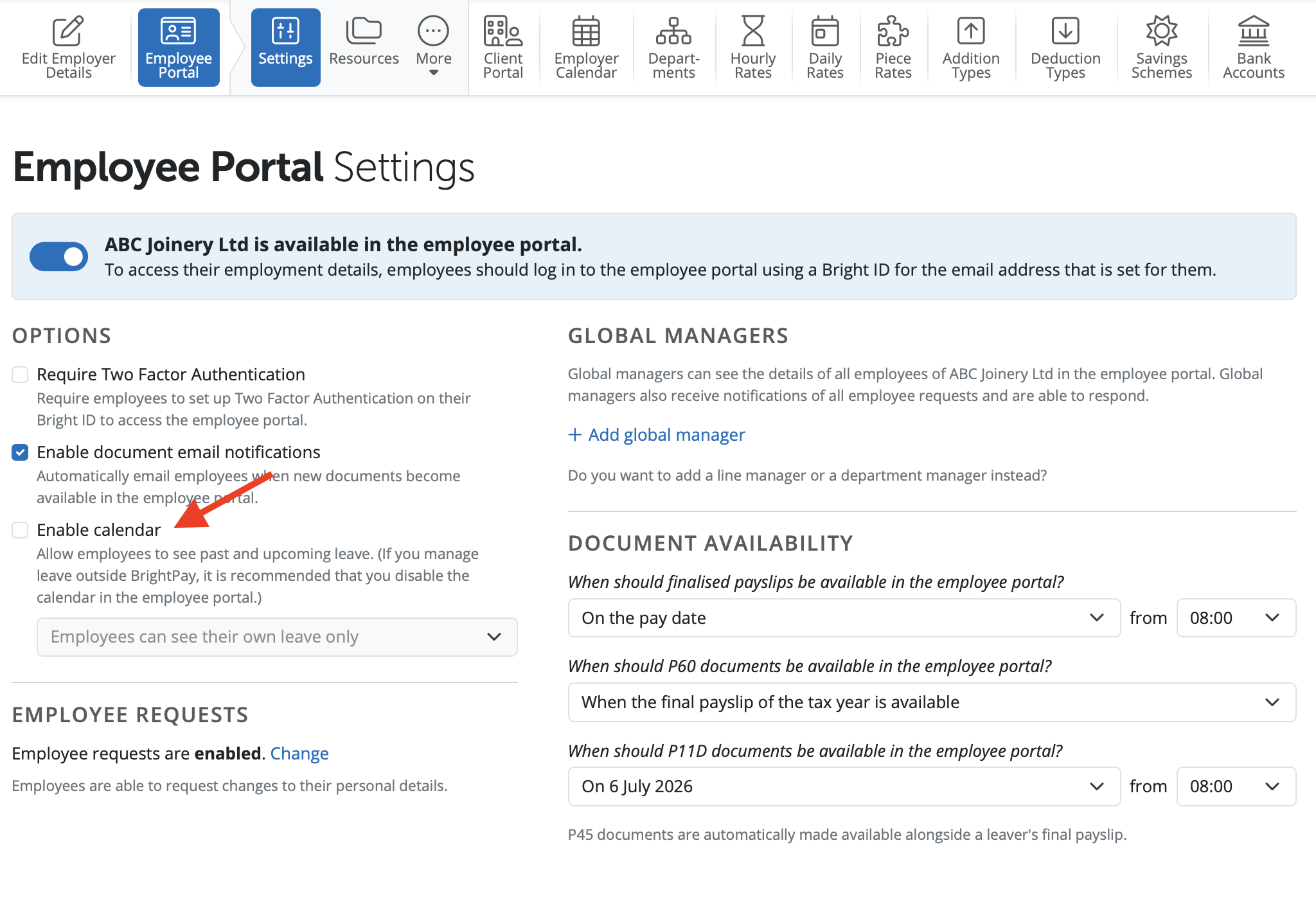
If the calendar is enabled for the Employee Self Service Portal, an employer can allow an employee to view other employees on leave.
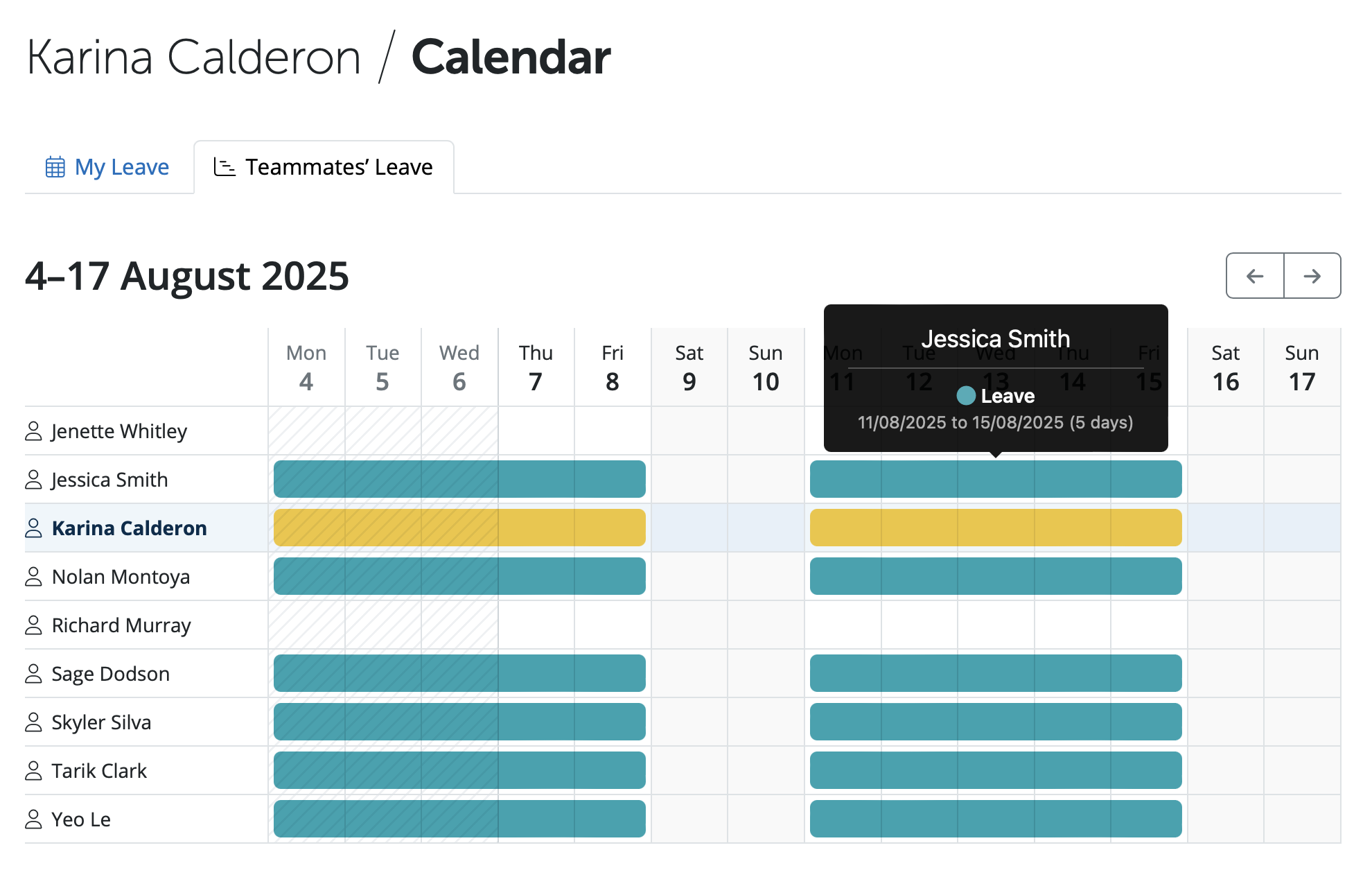
Employees will not see the type of leave the other employees are on but just that they are on leave.
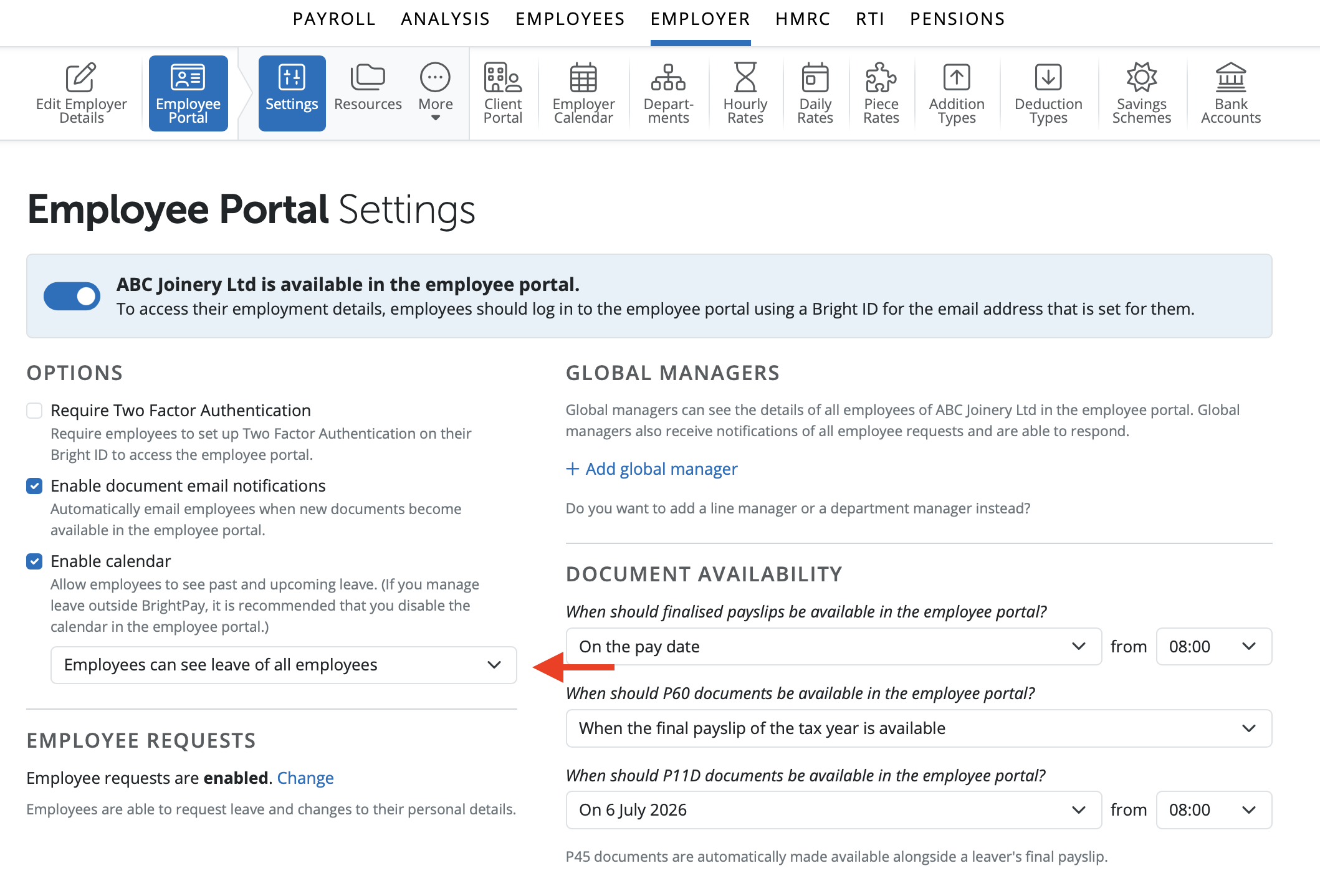
In the drop-down menu you can select for employees to view only their own leave, leave of employees in the same department, leave of employees with the same manager or leave of all other employees.
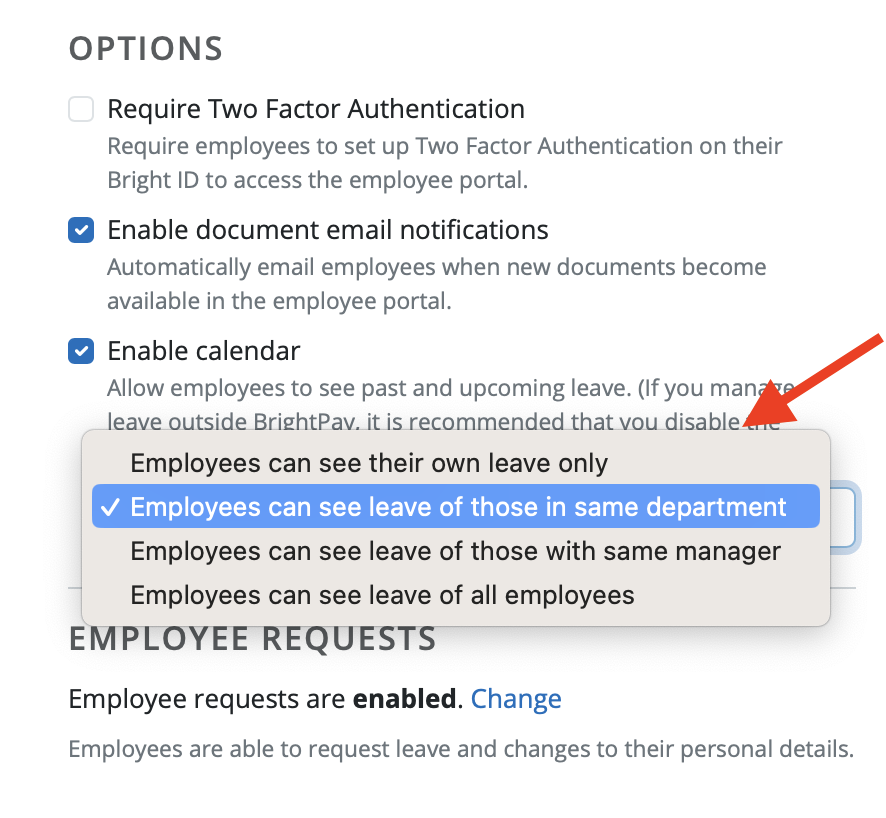
Select the option you wish for the employees to view on the Employee Self Service and select 'Save'.
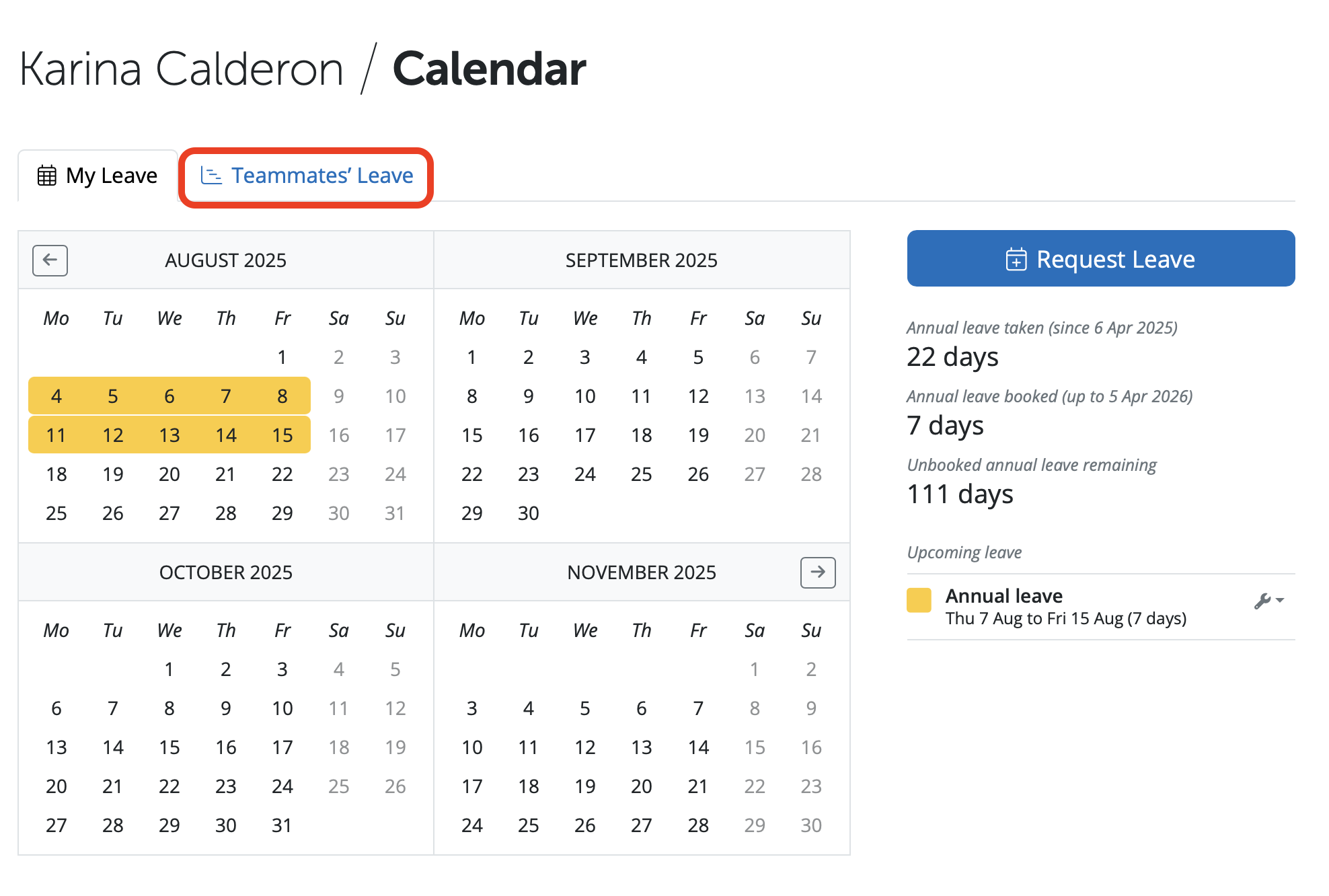
If the option is selected for employees to view any other employees on leave, on the Employee Self Service Portal when the employee goes into the 'Calendar' section, they will see a new tab called 'Teammates' Leave'.
If an employee selects the 'Teammates' Leave' tab the employee can view other employees and if they are on leave. If an employee hovers over a date another employee is on leave it shows only that the employee is on leave and for the length of time. If the employee wishes to view other dates they can use the arrow icons to go back and forth on the calendar.
Need help? Support is available at 0345 9390019 or [email protected].







